


التفاصيل
يوصى
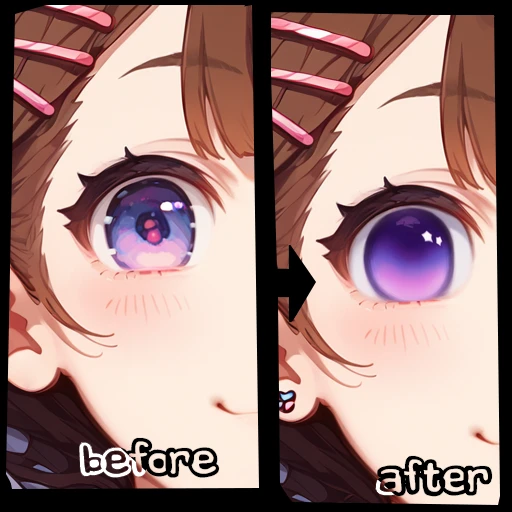
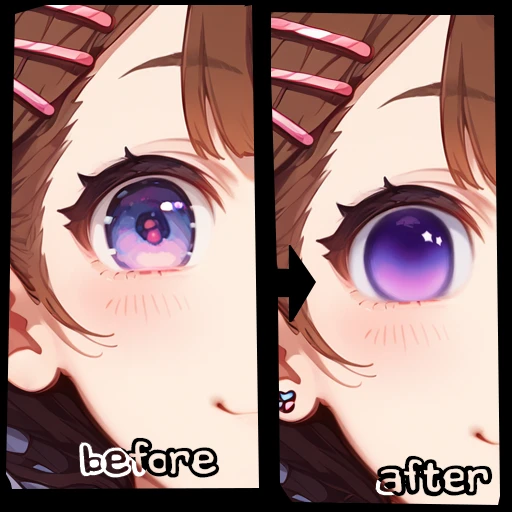
Doll Eyes XL | Eye Contacts

Doll Eyes XL | Eye Contacts

7.8K
48
3
#أنمي
#مفهوم
#inpainting
#eyes
#فتيات
#التفاصيل
#اكتشاف
#detailer
#تفاصيل

What iris style should I release next? Let me know!

img2img: (manually select eyes)

  1. Generate an image with txt2img (ideally with the desired eye color already)

  2. Place the image you just generated into the img2img tab

  3. Click the inpaint tab, select everything between the eyelids, sclera included

  4. Scroll down and set your denoising strength to 0.6 or higher

  5. Make sure inpaint area is set to "only masked"

  6. Copy and paste this into your prompt: <lora:Cat_Eyes_XL__Custom_Iris_Inpaint-000003:1> eyetexture, blue eyes, blueiris

  7. Change the eye color in the prompt if needed! Any of these will work:
    GREEN EYES, GREENIRIS

    BLUE EYES, BLUEIRIS

    GREENISH BLUE EYES, TEALIRIS

    DARK EYES, BLACKIRIS

    BROWN EYES, BROWNIRIS

    PINK EYES, PINKIRIS

    ORANGE EYES, ORANGEIRIS

    RED EYES, REDIRIS

    GRAY EYES, SILVERIRIS

    YELLOW EYES, YELLOWIRIS

    PURPLE EYES, PURPLEIRIS

  8. Hit generate. All done!

txt2img: (automatically detect eyes)

  1. Navigate to the following tabs Extensions > Available

  2. Press "Load from:"

  3. Scroll until you find ADetailer. Install this and then close Stable Diffusion

  4. On your computer, go to the folder Stable Diffusion is installed in

  5. Click inside the navigation bar at the top of the folder (It may look something like C: > Desktop > Stable-diffusion-webui but will be different depending on where you installed Stable Diffusion)

  6. Type "cmd" into this bar and then hit enter on your keyboard.

  7. A command prompt window will open up. Don't delete any text here. Type .\venv\Scripts\activate

  8. Hit enter on your keyboard to run the command

  9. Type pip install dill

  10. Hit enter on your keyboard to run the command

  11. When it is done, close the command prompt

  12. Now, download a file named Anzch Eyes-seg-hd.pt from here https://civitai.com/models/342514 ( alternative link if that one isn't working: https://huggingface.co/Anzhc/Anzhcs_YOLOs )

  13. Place this file in your Stable Diffusion Models folder in a folder titled "ADetailer" (it should already be there if you installed ADetailer)

  14. Open Stable Diffusion

  15. In txt2img, scroll down and enable ADetailer (which will appear as a collapsible box)

  16. In the ADetailer's box, select "Anzch Eyes-seg-hd.pt" as your ADetailer model. Type into the prompt box for ADetailer (not your normal prompt, but the prompt just for ADetailer): <lora:Cat_Eyes_XL__Custom_Iris_Inpaint-000003:1> blue eye, eyetexture, blueiris

  17. Change the eye color in the prompt if needed! Any of these will work:
    GREEN EYES, GREENIRIS

    BLUE EYES, BLUEIRIS

    GREENISH BLUE EYES, TEALIRIS

    DARK EYES, BLACKIRIS

    BROWN EYES, BROWNIRIS

    PINK EYES, PINKIRIS

    ORANGE EYES, ORANGEIRIS

    RED EYES, REDIRIS

    GRAY EYES, SILVERIRIS

    YELLOW EYES, YELLOWIRIS

    PURPLE EYES, PURPLEIRIS

  18. Set ADetailer's denoising strength (not your normal denoising strength, but the denoising strength just for ADetailer) to 0.6 or higher

  19. Hit generate. Anything you generate will now have these irises automatically with no inpainting necessary! Eyes will also now be of higher quality as well. Enjoy!

  20. To disable, just disable ADetailer or remove the prompt from its prompt box.

Please note these instructions are for Automatic1111! If anyone can translate these instructions for comfyui or other types of local install, please let me know.

مشاهدة الترجمة

التقييمات والتعليقات

-- /5
0 من التقييمات

لم يتم استلام تقييمات أو تعليقات كافية بعد

avatar
دردشة مع النموذج
إعلان
2024-06-05
نشر النماذج
2024-06-06
تحديث معلومات النموذج
تفاصيل النموذج
النوع
LORA
وقت النشر
2024-06-05
النموذج الأساسي
Pony
كلمة التشغيل
GREEN EYES, GREENIRIS
BLUE EYES, BLUEIRIS
GREENISH BLUE EYES, TEALIRIS
DARK EYES, BLACKIRIS
BROWN EYES, BROWNIRIS
PINK EYES, PINKIRIS
نسخ
رؤية المزيد
نطاق الترخيص
مصدر: civitai

1- النموذج المعاد النشر هو فقط لأغراض التعلم والتبادل والمشاركة، حقوق النشر والتفسير النهائي تعود للمبدع الأصلي.

2- إذا رغب المبدع الأصلي للنموذج في استلام نموذجه، يرجى التواصل مع موظفي SeaArt AI عبر القنوات الرسمية للتوثيق والاعتماد. نحن نلتزم بحماية حقوق كل مبدع. انقر للاستلام

نطاق الترخيص الإبداعي
توليد الصورة عبر الإنترنت
دمج
السماح بالتنزيل
نطاق الترخيص التجاري
بيع أو الاستخدام التجاري للصور المولدة
إعادة بيع النماذج أو بيعها بعد الدمج
QR Code
تنزيل تطبيق SeaArt
واصل رحلة إبداعك بالـAI على الهاتف المحمول