

日本語: https://www.seaart.ai/articleDetail/cu8e4cde878c73bvi1u0
中文: https://www.seaart.ai/articleDetail/cu8e4ete878c73babeh0
The SeaArt video models, with their powerful image recognition and command response capabilities, open up infinite creative possibilities for creators. They seamlessly blend light, shadow, and tone to deliver a realistic creative experience. Without relying on special effects templates, they effortlessly achieve cinematic effects and scene transitions. The characters' expressions are delicate and vivid, conveying emotional shifts in a short time, making each frame impactful and deep, significantly enhancing the video’s expressiveness and emotional resonance.
Page Entry
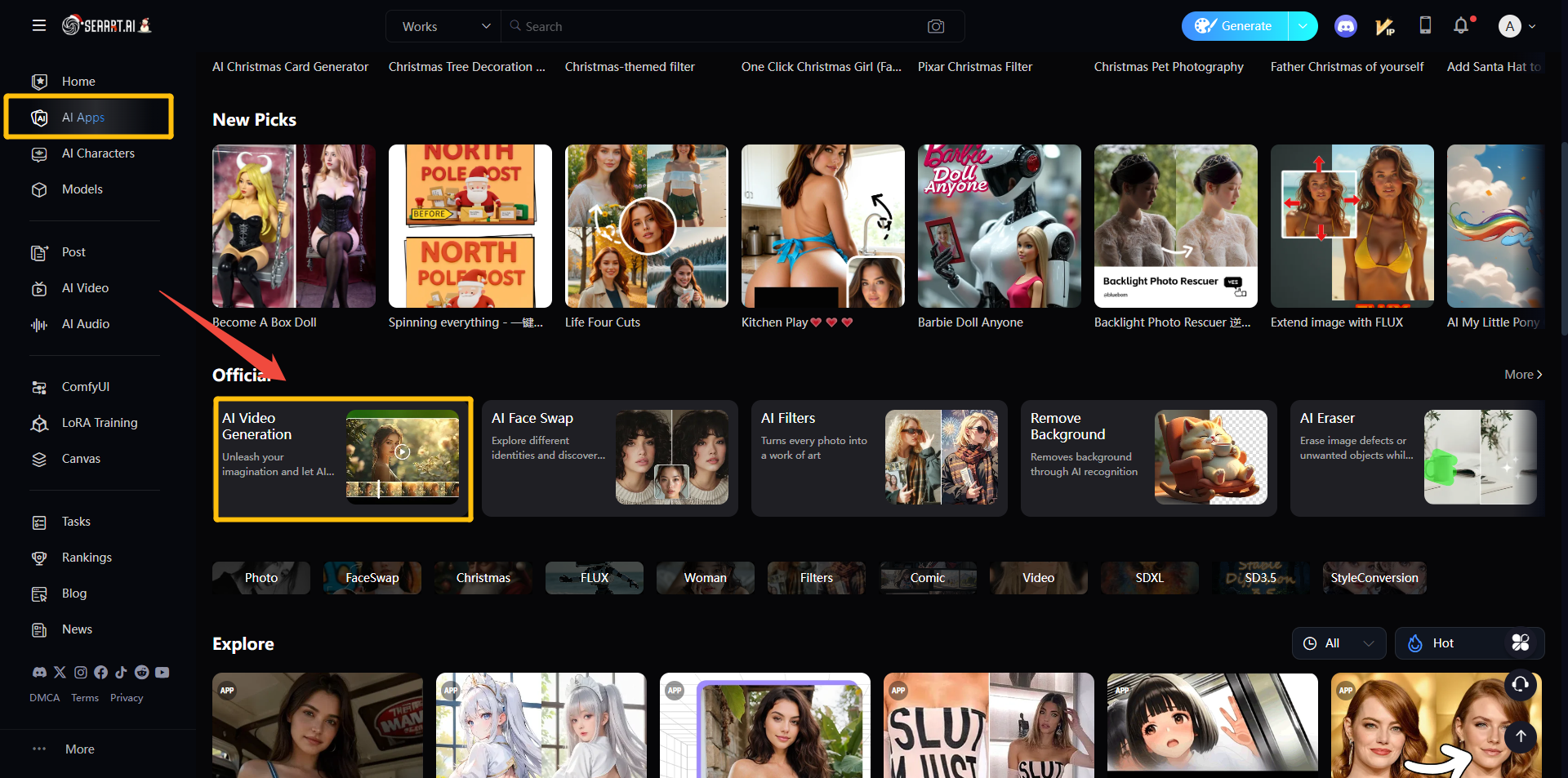
Click the top left corner AI Apps and go to AI Video Generation.
Related Parameters
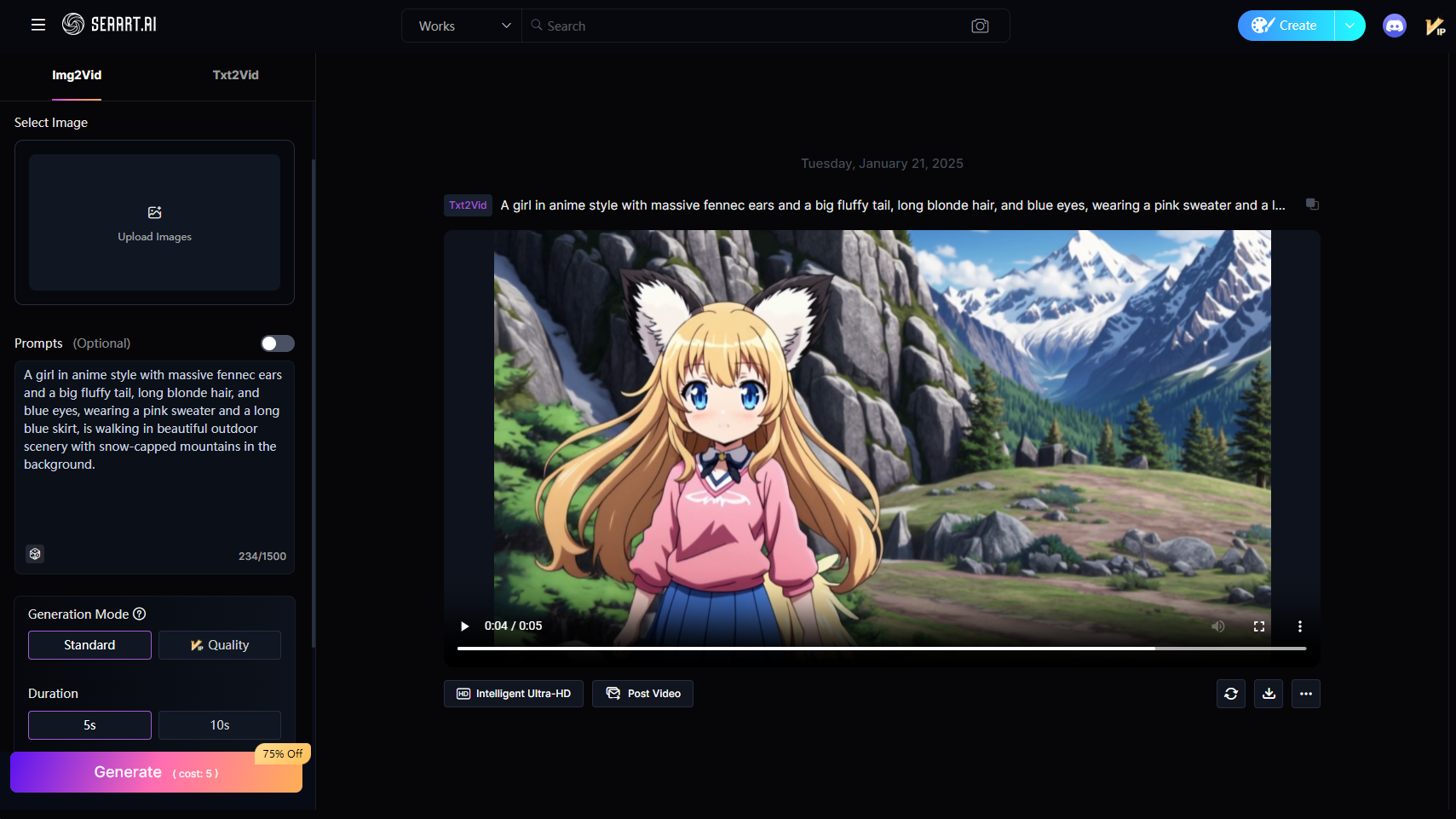
Prompts: Optional. If no prompt is provided, SeaArt will randomly generate dynamic effects based on the image content. Filling in prompts allows for more precise control over video generation.
Generation Mode:
- Standard: Faster generation speed and lower cost.
- Quality: More detailed generation with a higher sense of texture.
Relevance: The relevance to the prompts. The higher the relevance, the more the output aligns with the prompts. A value around 0.5 is generally recommended.
Negative Prompts: Similar to image generation, list the content you do not want to appear in the video, such as: low quality, blurriness, distortion, disfigurement, etc.
Features of the SeaArt Video Models
SeaArt Lite:
Easy and efficient to use, with fast generation speed and low cost. Ideal for creating simple, soft frames, and excels in depicting scenes with people and animals, featuring natural color grading. Best suited for videos with minimal movement, making it a perfect choice for basic creations.
SeaArt Depth:
Significantly enhanced detail expression, supporting direct output of 1080p HD video. Delivers natural and smooth motion, capable of responding to complex text descriptions. Generates detailed dynamic videos with simple prompts, making it widely applicable across various scenarios.
SeaArt Ultra:
Enhanced stability and vividness in frames, with more natural, smoother character expressions and movements. Precise understanding of motion and camera prompts, along with advanced light and shadow effects. Generates more realistic details, capable of producing videos with greater visual impact.
SeaArt Sparkle:
Focused on generating high-detail frames, capable of handling complex lighting and camera angles. Delivers realistic frame quality and strong scene expressiveness, ideal for creating dynamic, lifelike scenes. The perfect choice for achieving ultimate visual effects.
Txt2Vid
Simply input a piece of text, and SeaArt can accurately generate corresponding video scenes based on your description. Whether it's a complex scene setting or a simple creative idea, it efficiently transforms your words into vivid, lifelike dynamic visuals.
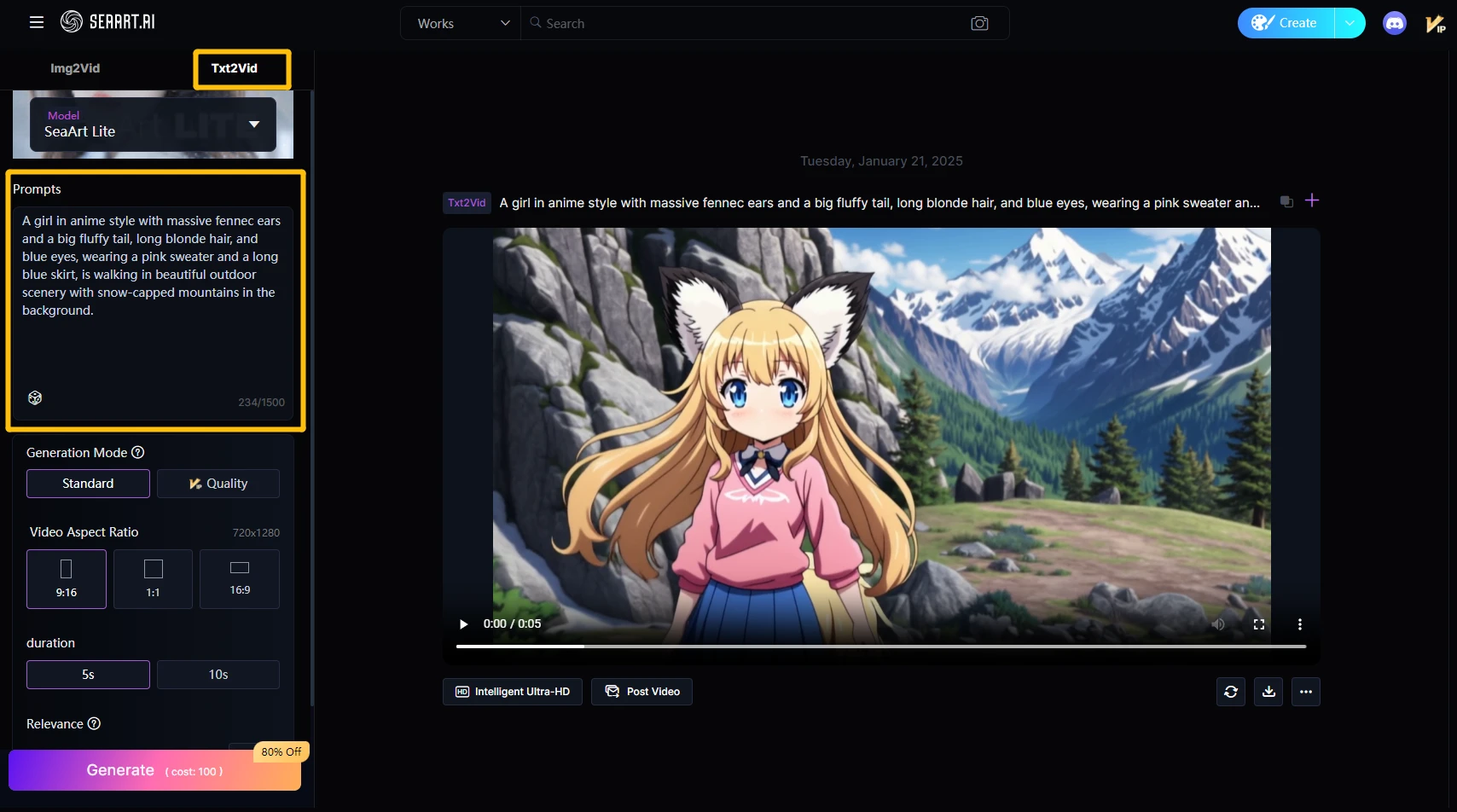
Prompt Framework
Main Subject + Movement + Environment + Camera + Lighting & Atmosphere
Main Subject Movement: The main subject is the core content of the video, which can be a person, animal, object, etc. Then describe the movement of the subject.
Environment: The environment sets the scene and atmosphere for the video, helping to emphasize the subject and convey emotion. Environmental prompts can describe specific locations, weather, time, and details in the scene.
Camera: Camera movement can create more visually impactful scenes, including camera actions and perspectives, such as close-ups, blurred backgrounds, low-angle shots, etc.
Lighting & Atmosphere: Lighting and atmosphere determine the overall visual presentation and aesthetics of the video, which can greatly enhance the visual expression, such as sunset, cinematic atmosphere, fog, etc.
Tips:
- Accurately describe the subject, and it is recommended to use smooth and concise sentences.
- Ensure the completeness of the prompts, and consider using Prompt Refinement to expand the prompts.
- Use short sentences for descriptions, keeping the scene content simple, aiming to complete the display within 5-10 seconds.
- For split-screen scenes, use prompts like "4 camera angles, cat, dog, bird, mouse."
- When describing quantities, it can be challenging to maintain consistency, such as "5 apples on the table."
Prompt Analysis
Text-to-Video mainly includes: subject + action + scene. To add more detail and atmosphere to the video, you can appropriately expand the prompts. Try to maintain the completeness of each element during the description.
For example:
A ginger cat sleeping on the windowsill.

A ginger cat curls up on the windowsill, with sunlight streaming through the window and casting a warm glow on its soft fur. The cat peacefully closes its eyes, while the green trees outside sway gently in the breeze. The air is filled with the calmness of the afternoon.

The ginger cat's silhouette is bathed in warm sunlight, with the background blurred, turning the images of trees and window frames into soft color blocks. The indoor lighting is gentle, evoking a sense of peaceful tranquility. The scene is captured with a soft-focus effect, emphasizing the cat's serenity and relaxation.

When generating text-to-video, you can not only input the corresponding prompts for the shots but also use Camera Control for more precise control over the camera.

After the video is generated, click "Intelligent Ultra-HD" to get a clearer version of the video.

Img2Vid
By simply uploading an image, you can convert it into a video. During this process, accurate and detailed prompts are crucial. If no prompts are provided, the AI will randomly generate video content based on the image. However, with prompts, the AI will create a video based on the combination of the image and the prompts.
Since the image already provides the basic subject and atmosphere, compared to text-to-video, image-to-video can reduce the number of prompts accordingly.
Prompt Framework
Subject + Action + Camera + Light and Atmosphere
- Subject: Objects appearing in the image, such as people, objects, environmental information, etc.
- Action: Description of the movement of the objects, such as a person running, environmental changes, spatial transformations, etc.
- Camera: Camera descriptions are not necessary; after describing the subject and action, SeaArt will generally generate a reasonable dynamic video based on the prompts. If you want to control the camera, you can add descriptions of the camera in the prompts, such as: camera zoom out, etc.
- Light and Atmosphere: Although the image already has basic lighting and atmosphere, SeaArt can still adjust the overall atmosphere of the video based on the prompts.
Tips:
- Accurately describe the subject, and use smooth and concise sentences.
- Ensure the completeness of the prompts, and use Prompt Refinement to expand the prompts.
- Use short sentences for descriptions.
Prompt Analysis
Before generating a video from an image, we need to determine what kind of video we want. For example, if we want to make the dog in the image move:

Simple prompt:
A dog running on the grass.

Prompt based on the framework:
A dog is sprinting across the grass, making quick turns and leaping with its tail held high. The camera follows closely from a low angle, adjusting its focus as the dog runs, capturing each leap and running moment. The sunlight casts a warm glow on the dog's fur, while the grass is bathed in a warm light. The blue sky and white clouds gently drift in the light breeze in the background, creating a scene full of energy and the warm atmosphere of a peaceful morning.

Camera Movement
Both SeaArt Lite and SeaArt Ultra in text-to-video support camera movement control, including Horizontal, Vertical, Zoom, Pan, Titt, Roll, Move Down and Zoom Qut, Move Forward and Zoom Up, Move Right and Zoom In, and Move Left and Zoom In, totaling 10 types of camera movements.
By using camera movement control, you can achieve more precise control over the video’s camera effects. When there is no corresponding camera movement control, you can add camera movement instructions in the prompts.

Horizontal
-10 - 0: Horizontal left
0 - 10: Horizontal right

Vertical
-10 - 0: Vertical down
0 - 10: Vertical up

Zoom
-10 - 0: Zoom out
0 - 10: Zoom in

Pan
-10 - 0: Down
0 - 10: Up

Titt
-10 - 0: Left
0 - 10: Right

Roll
-10 - 0: Counterclockwise
0 - 10: Clockwise

Move Down and Zoom Qut

Move Forward and Zoom Up

Move Right and Zoom In

Move Left and Zoom In
Start and End Frames
In SeaArt Lite model for image-to-video, it supports the control of the first and last frames. By uploading two images as the first and last frames, you can generate a video with controlled start and end scenes, ensuring smooth dynamic transitions.


Note:
- The first and last frames should be as similar as possible for a natural video transition.
- Prompts are optional; it's recommended not to fill in prompts when you have both first and last images. If prompts are needed, try to describe a reasonable dynamic transition.