This guide will explain you details of Wan 2.1 Wrapper Workflow made by SeaArt Team member, Colin Wine.
This workflow include all versions of Wan 2.1 video model. It's an all in one workflow.
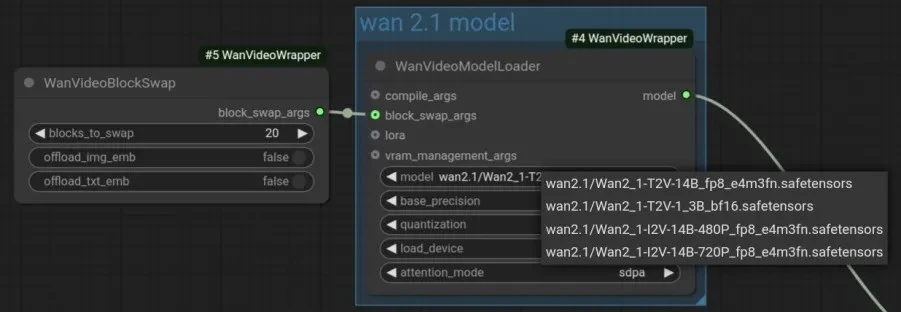
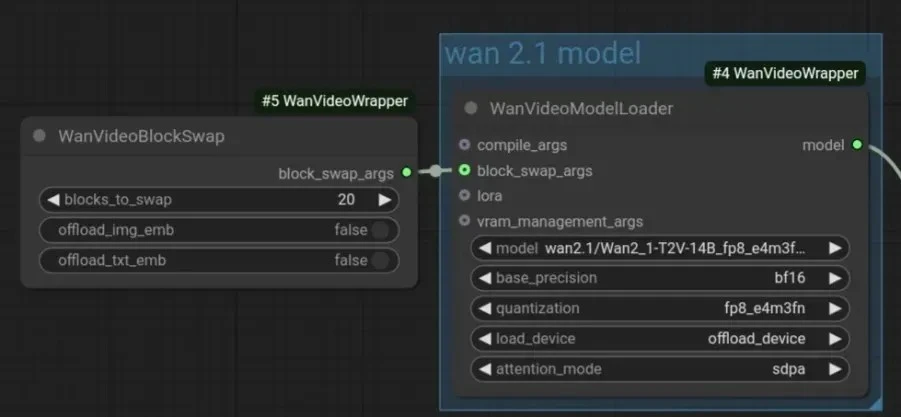
After selecting model, you don't have to change other settings from here. However, if you are using `Wan 2.1 T2V 1.3B bf16` version, you can change `quantization` to disabled. It doesn't effect that much since model is very small. You can try both and decide by yourself.
- Using 14B versions without quantization might end up with crash or error. Don't do it.
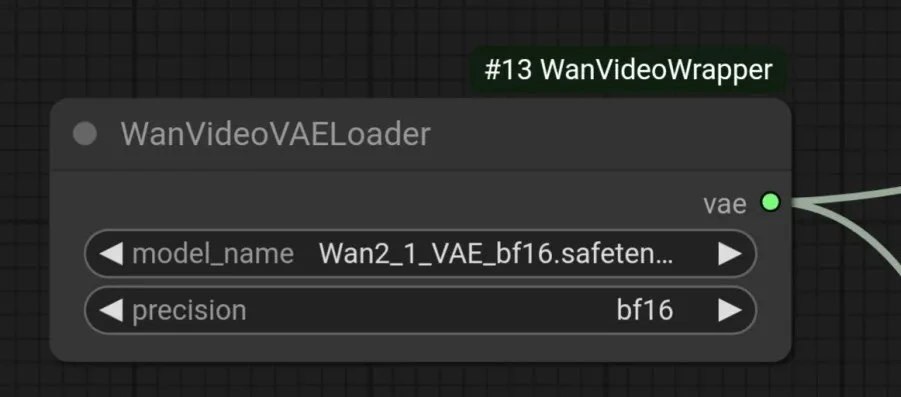
- You should use VAE made for Wan 2.1 model.
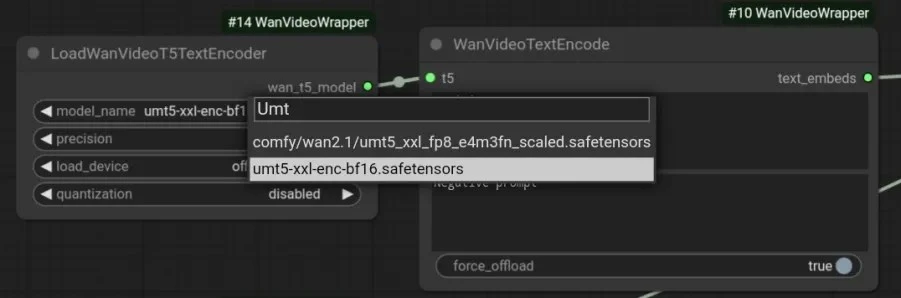
- bf16 version is better choice for Text Encoder. There is two option that specializes in Wan 2.1 which you can use.
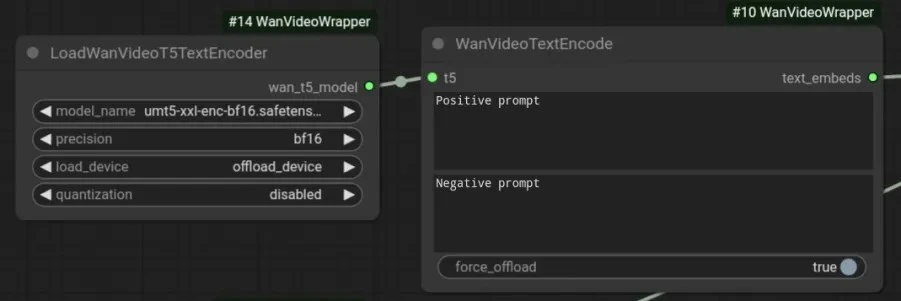
- Text inputs are seperated to two as Positive and Negative prompt. You must use NLP to get best results because it uses T5 encoder.
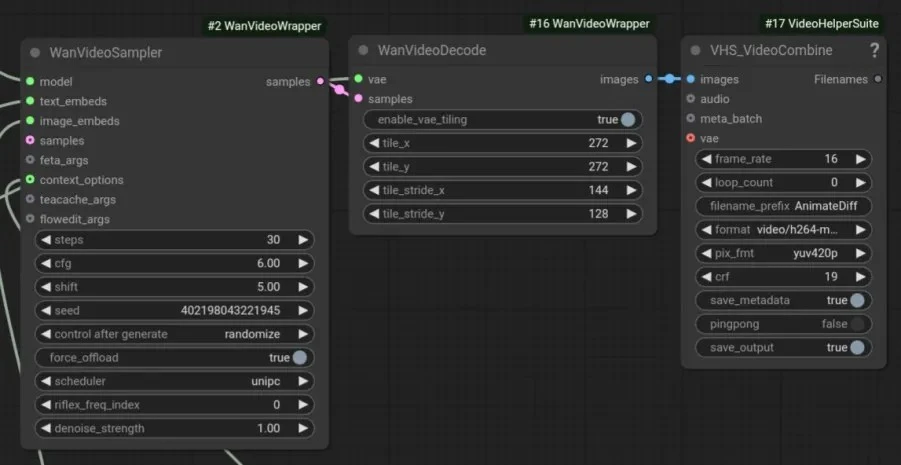
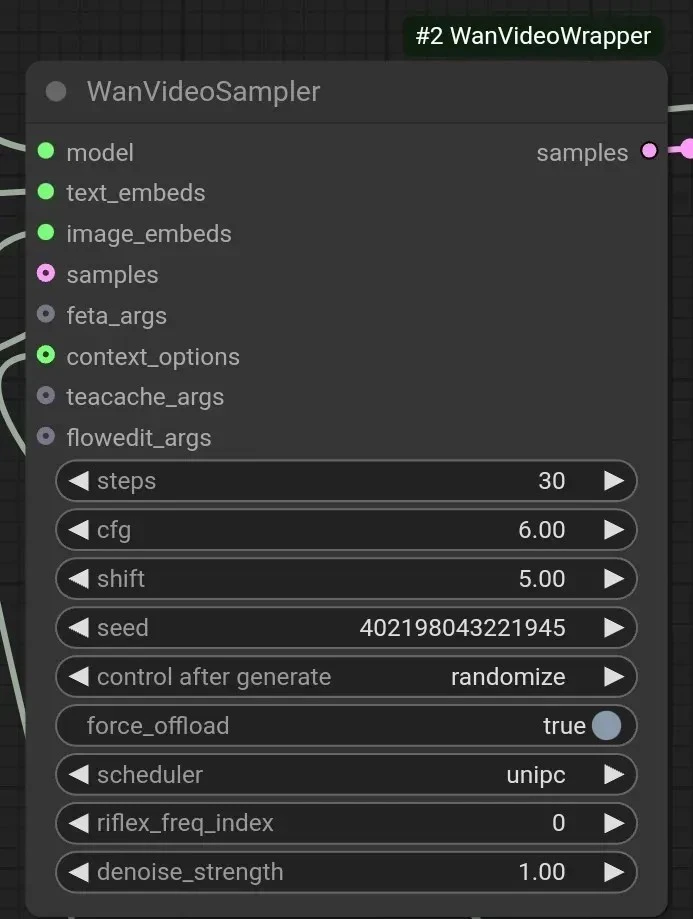
You can edit certain parts from these nodes but best ones already selected for you. These are adjustable values:
- Steps: can be changed between 20-50, it will significantly effect to generation time. Be careful about values so you don't get time limit cancel.
- CFG: Can be used between 5-7 but 6 is best option in general.
- Shift: Adjust the animation stability, inceeasing it may cause very fast nonsensical animations. 5 is best option in general.
- Seeds: You can randomize or lock the seeds for your work. Locking seed will generate same result with same settings.
- Scheduler: This is sampler selection but UniPC is recommended for Wan 2.1, it's better to not change.
- Frame Rate: 16 FPS can be changed but it's best option for model since it's trained to make 16 FPS videos. Also increasing it can cause crash or deform in video.
- You don't have to touch other settings.
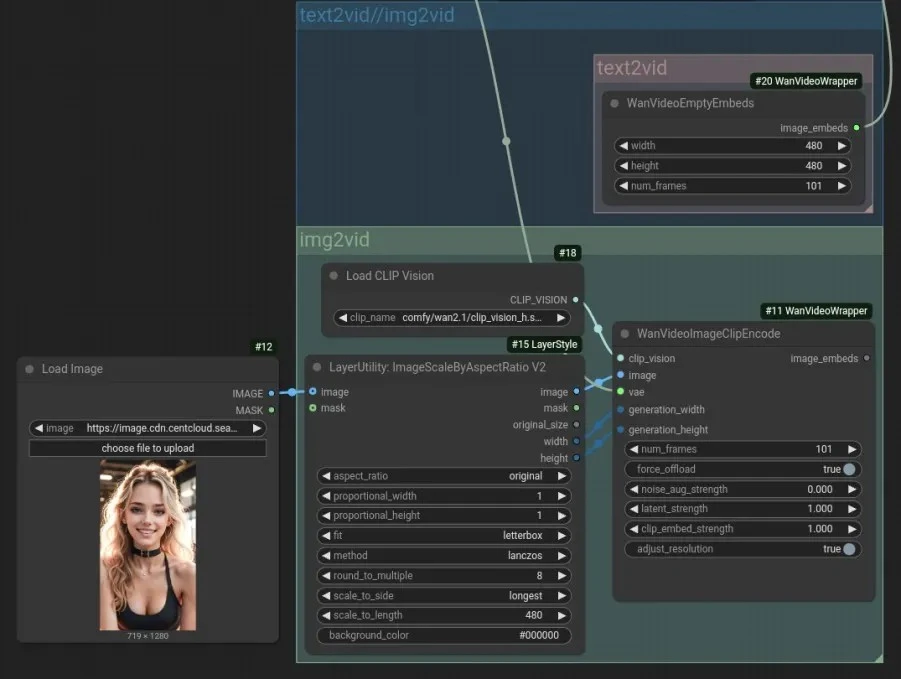
You can select one of I2V and T2V from here.
image_embeds part of node that you use must be connected to WanVideoSampler node's image_embeds part. You can use one at one time.
T2V: You can change resolution of output from here, please select correct resolutions that fits your model choice. Using 720P or higher resolutions may end up with time limit cancel.
I2V: You can adjust scale of your image after uploading but resizing image to correct resolution before uploading is better choice.
There is nothing you should additionally change. You can use workflow on SeaArt or download to use on your own setup.