
Hello!
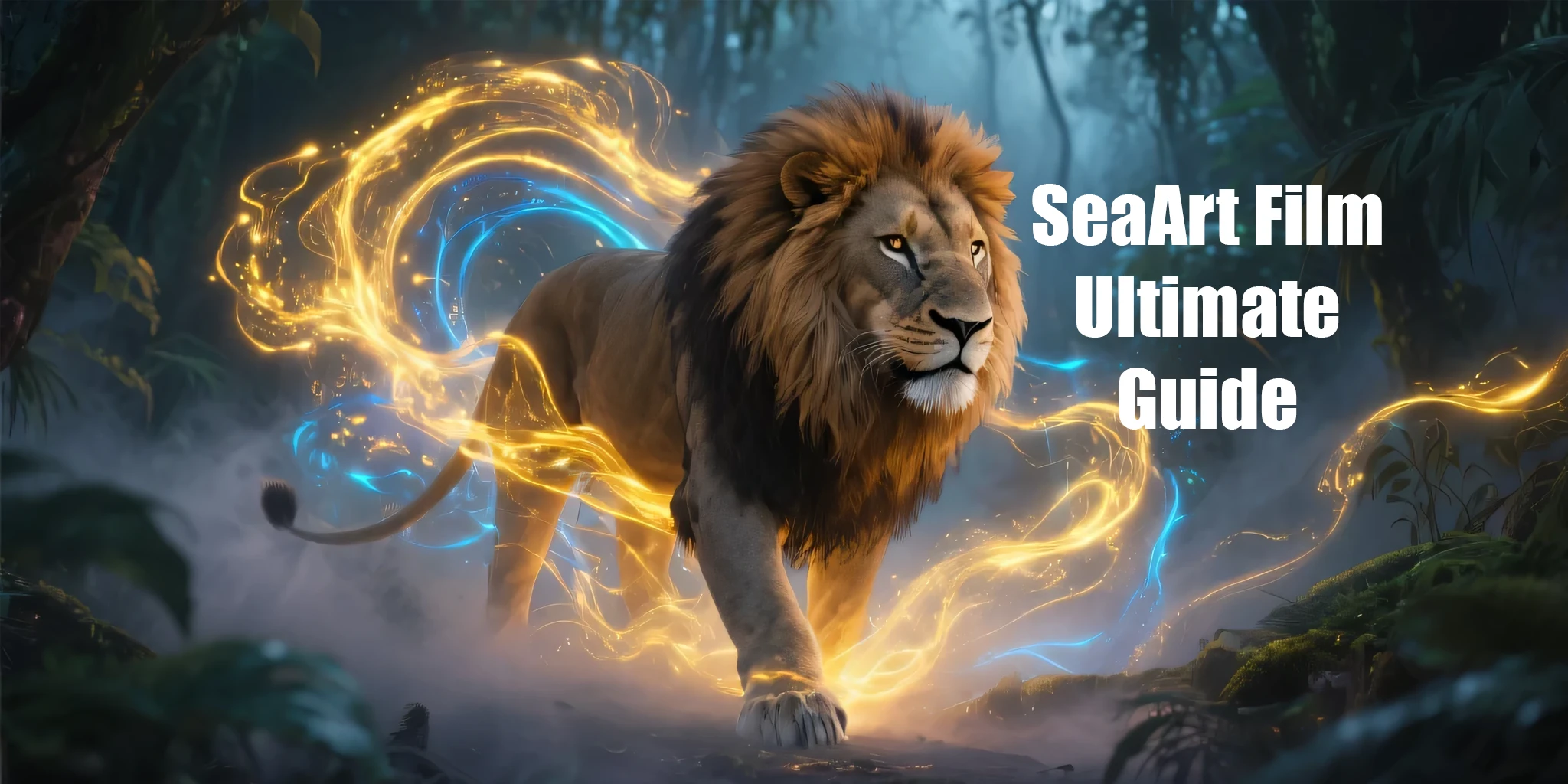
Today we're going to explore the SeaArt Film model and its features. I hope you'll read to the end and that we can share tips in the comments!
What is SeaArt Film, Fafnir?
SeaArt Film is a powerful AI model that transforms text prompts into images, excelling in photorealistic, cartoon, anime, and artistic styles. It outperforms models like Stable Diffusion and DALL-E 3 in benchmarks like HPS v2.1 and GenEval. It handles complex scenes, multiple subjects, and intricate details, making it ideal for creating diverse, high-quality visuals.
Why Good Prompts Matter??
A well-crafted prompt ensures SeaArt Film generates the exact image you envision. Clear, concise prompts with specific details about the subject, style, lighting, and composition produce better results. Poorly written prompts can lead to vague or unintended outputs. This guide will teach you how to structure prompts effectively.
Step-by-Step Guide to Crafting Prompts
Follow these steps to create prompts that maximize SeaArt Film’s capabilities. Keep prompts in English, concise (ideally under 60 words), and structured for clarity.
Step 1: Define the Main Subject
- What to do: Clearly state the primary focus of your image (e.g., "a majestic lion," "a futuristic city," or "three dancing ballerinas").
- Why it matters: SeaArt Film excels at interpreting complex subjects, including multiple objects or detailed scenes.
- Tip: Be specific about quantities or characteristics (e.g., "a single red rose" or "a crowd of festival-goers").
- Example: "A lone astronaut floating in space."
Step 2: Choose an Art Style
- What to do: Specify the style or medium, such as "photorealistic," "cartoon," "anime," or "oil painting."
- Why it matters: SeaArt Film supports a wide range of styles, from realistic photography to artistic interpretations.
- Options:
- Photorealistic:
For lifelike images. - Cartoon: For playful, animated looks (e.g., "in the style of Pixar").
- Anime: For vibrant, stylized characters (e.g., "in the style of Studio Ghibli").
- Artistic: For painterly effects (e.g., "by Vincent van Gogh").
- Tip: Reference specific artists or studios for precise styling (e.g., "by Claude Monet").
- Example:
"Photorealistic style."
Step 3: Set the Lighting
- What to do: Describe the lighting to create the desired mood (e.g., "soft morning light," "dramatic backlighting," or "neon glow").
- Why it matters: Lighting enhances the atmosphere and realism of the image.
- Options:
Cinematic lighting: For dramatic, movie-like effects. - Golden hour: For warm, golden tones.
- Moonlight: For cool, ethereal vibes.
- Natural light: For a bright, organic feel.
- Example: "Lit by a golden hour glow."
Step 4: Specify the Composition
- What to do: Define how the image is framed, such as "close-up," "wide shot," "portrait," or "landscape."
- Why it matters: Composition controls the focus and layout of the image.
- Options:
Close-up: Focuses on details (e.g., a face or object). - Wide shot: Captures a broad scene.
- Portrait:
Centers the subject. - Landscape:
Emphasizes the environment. - Tip: Use terms like "symmetrical" or "rule of thirds" for balanced visuals.
- Example: "Wide shot of the scene."
Step 5: Add Camera and Lens Details (Optional)
- What to do: For photorealistic images, include camera or lens specifics (e.g., "shot with a Canon EOS R5," "50mm lens," or "f/2.8 aperture").
- Why it matters: These details enhance realism by mimicking professional photography settings.
- Examples:
Camera: "Nikon Z9" or "Sony A7III." - Lens: "35mm lens" or "wide-angle lens."
- Settings: "f/1.4 aperture" or "shallow depth of field."
- Tip: Use this for photorealistic prompts; skip for artistic or cartoon styles.
- Example: "Shot with a Sony A7III, 85mm lens, f/2.8."
Step 6: Include Descriptive Details
- What to do: Add adjectives or specific elements to enrich the image (e.g., "vibrant blue sky," "moss-covered rocks," or "moody atmosphere").
- Why it matters: Details enhance texture, color, and mood, leveraging SeaArt Film’s ability to render intricate scenes.
- Tip: Be specific but concise (e.g., "a rusty vintage car" instead of just "a car").
- Example: "Highly-detailed, with a misty mountain background."
Step 7: Use Quality Boosters
- What to do: Add terms like "highly-detailed," "4k," "8k," or "trending on ArtStation" to improve image quality.
- Why it matters: These terms signal SeaArt Film to prioritize sharpness and detail.
- Example: "4k resolution, highly-detailed."
Step 8: Exclude Unwanted Elements (Negative Prompts)
- What to do: Specify what to avoid, such as "no watermarks," "no blurry textures," or "no text."
- Why it matters: Negative prompts refine the output by removing unwanted features.
- Tip: Use sparingly to avoid overcomplicating the prompt.
- Example:
"No watermarks, no logos."
Step 9: Fine-Tune with Technical Parameters
- What to do: Adjust settings like guidance scale, inference steps, or seed if using SeaArt Film.
- Why it matters: These control how closely the image follows your prompt or its randomness.
- Options:
Guidance Scale: Higher (e.g., 7.5) for strict prompt adherence; lower for creativity. - Seed: A number (e.g., 12345) for reproducible results.
- Example: "Guidance scale: 7.5
Example Prompts
Here are sample prompts combining all elements for different styles:
Photorealistic
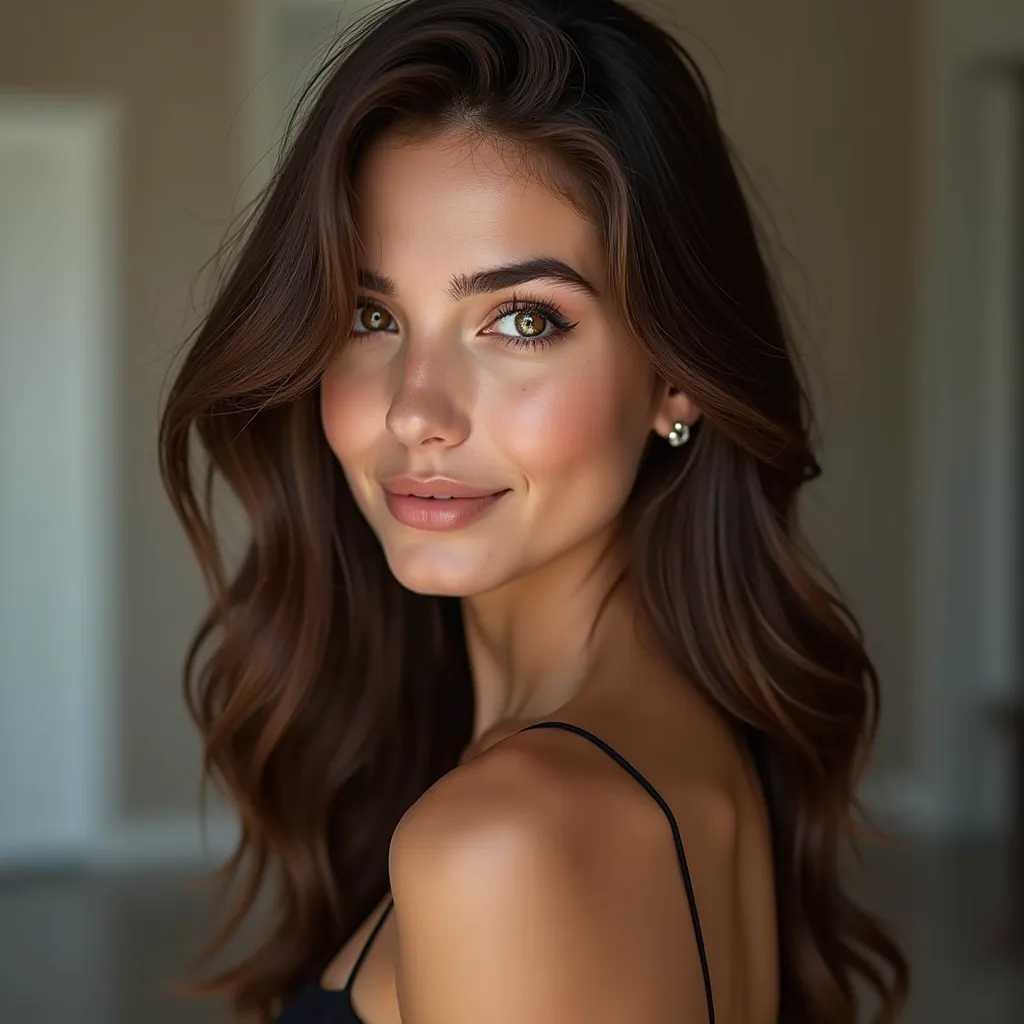
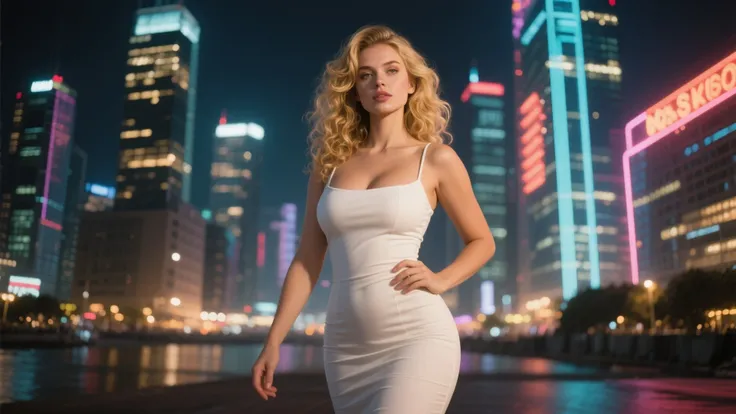
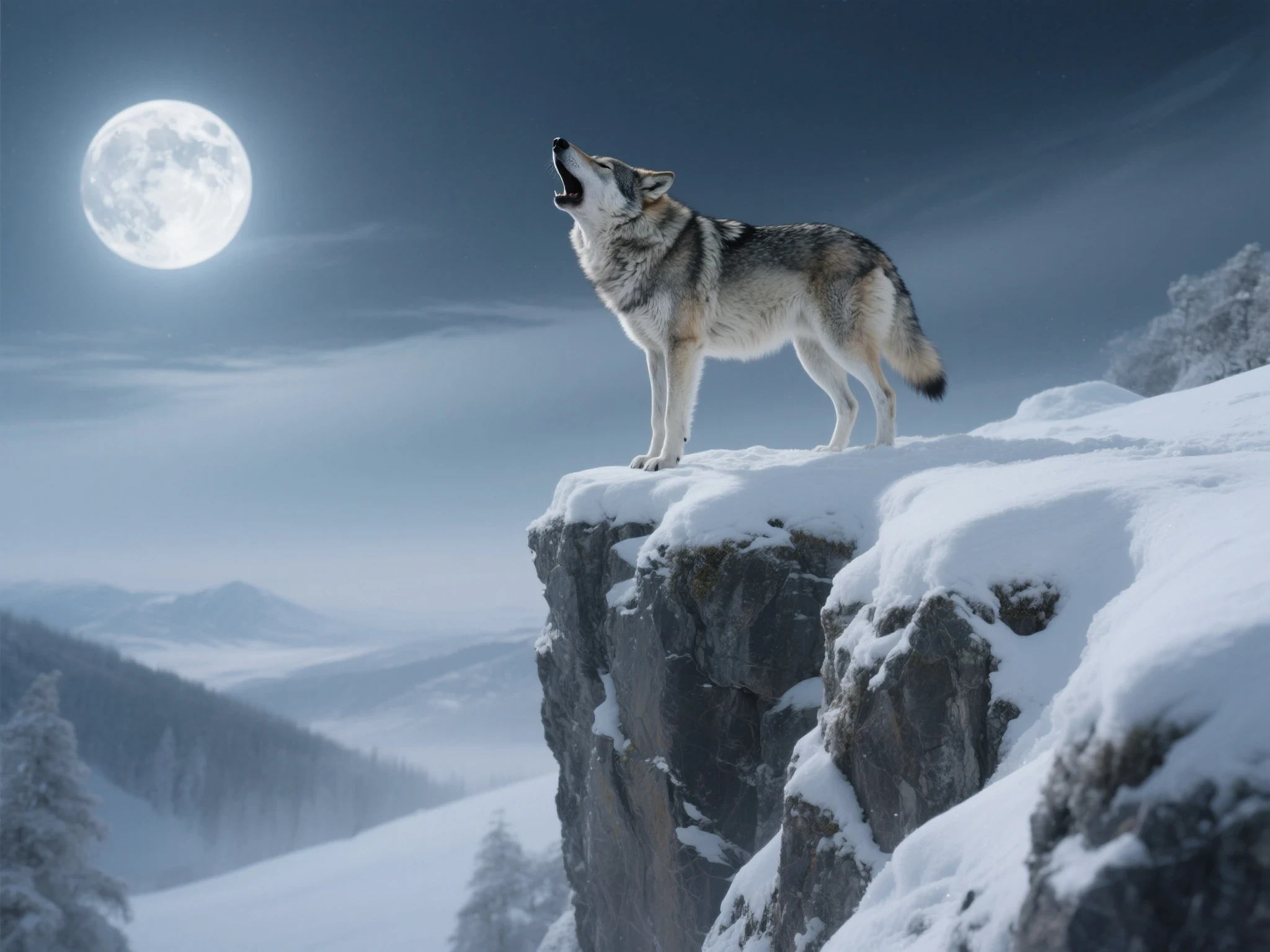
A photorealistic image of a lone wolf howling on a snowy cliff, dramatic moonlight, wide shot, shot with a Canon EOS R5, 70mm lens, f/2.8 aperture, highly-detailed, 8k, no watermarks.
Artistic
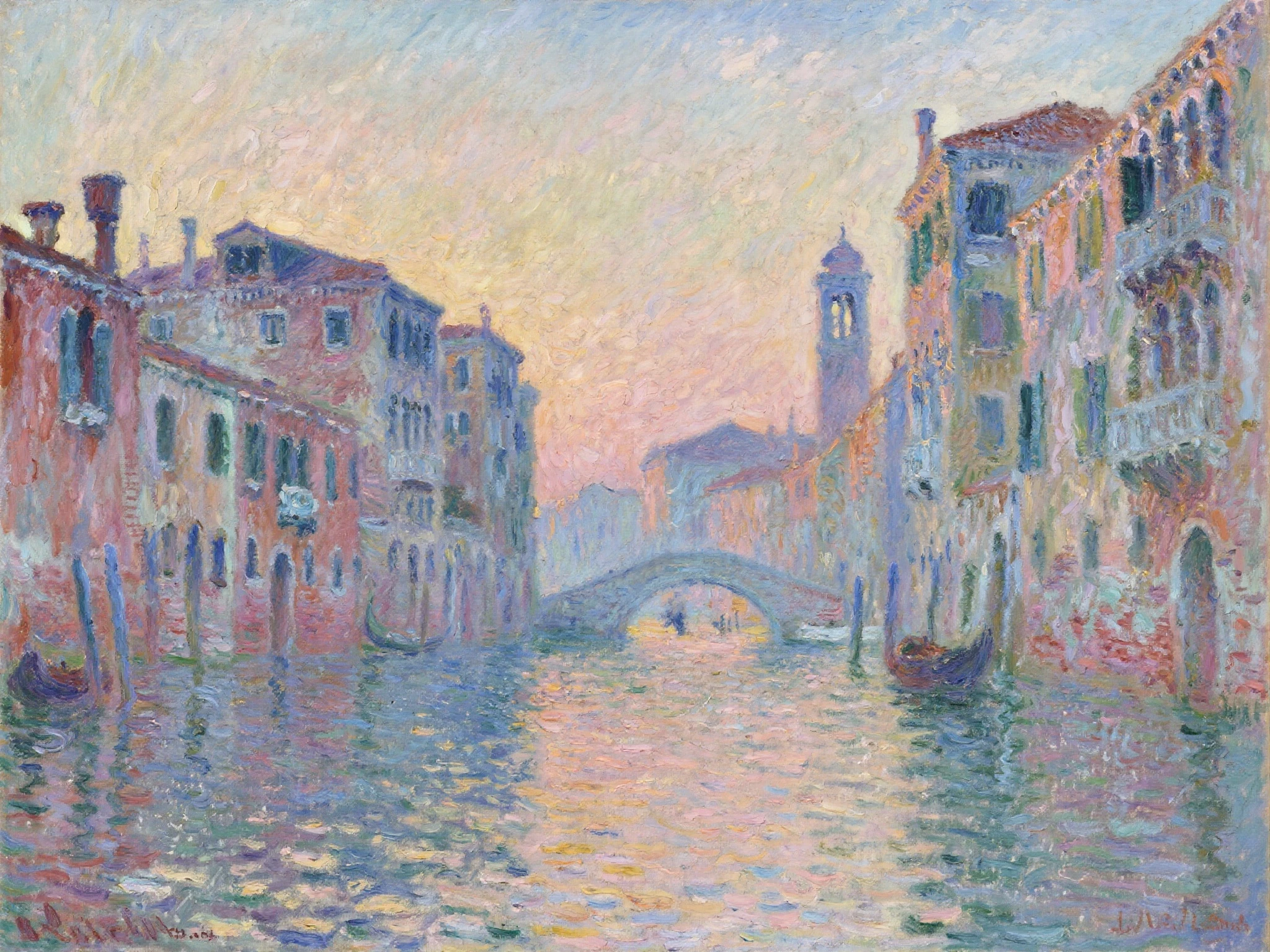
An impressionist painting of a Venetian canal at dusk, vibrant colors, by Claude Monet, soft brushstrokes, highly-detailed, trending on ArtStation.
Cartoon
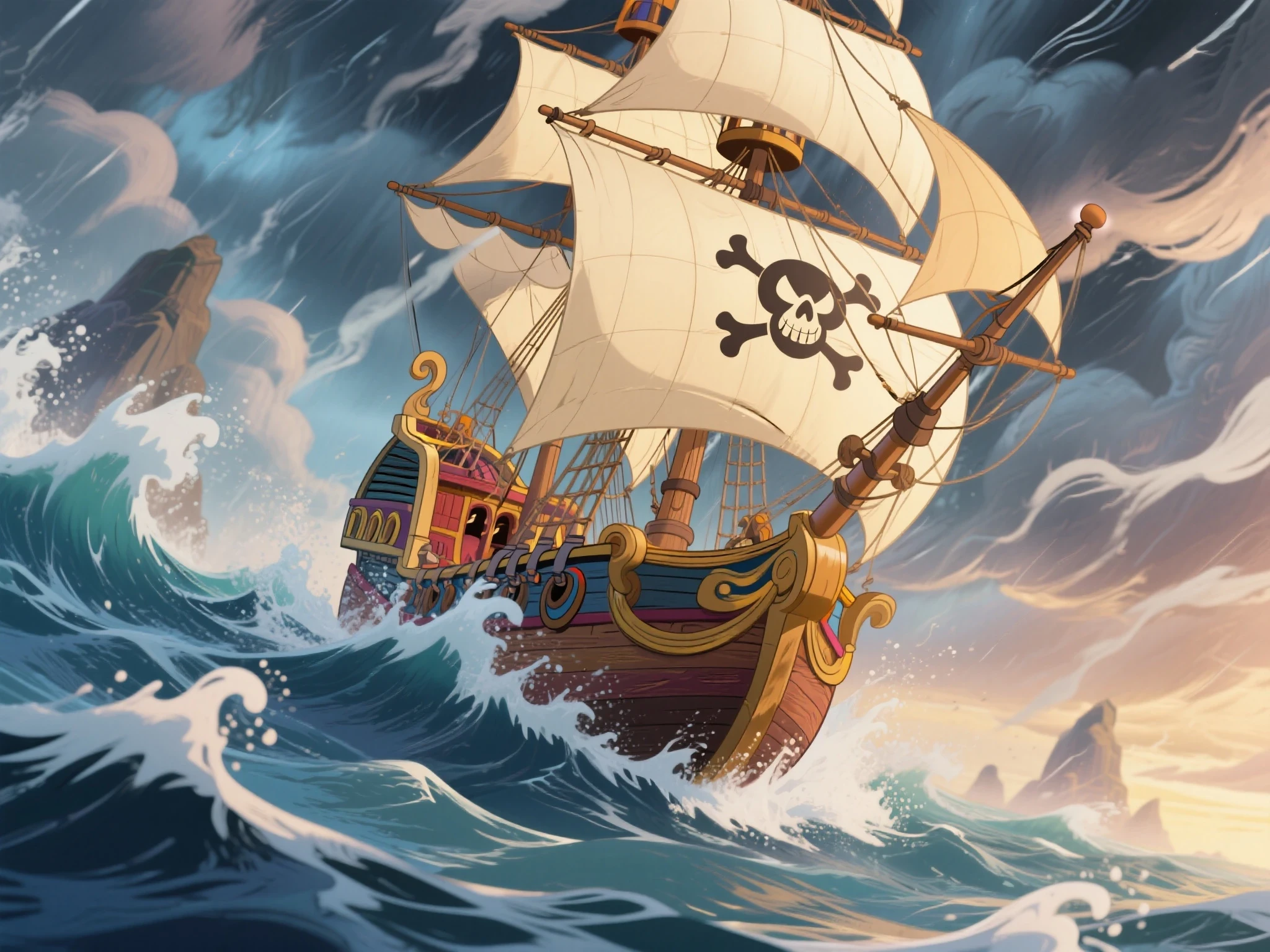
A cartoon illustration of a pirate ship sailing through a stormy sea, dynamic angles, in the style of Disney animation, bright colors, 4k.
Anime

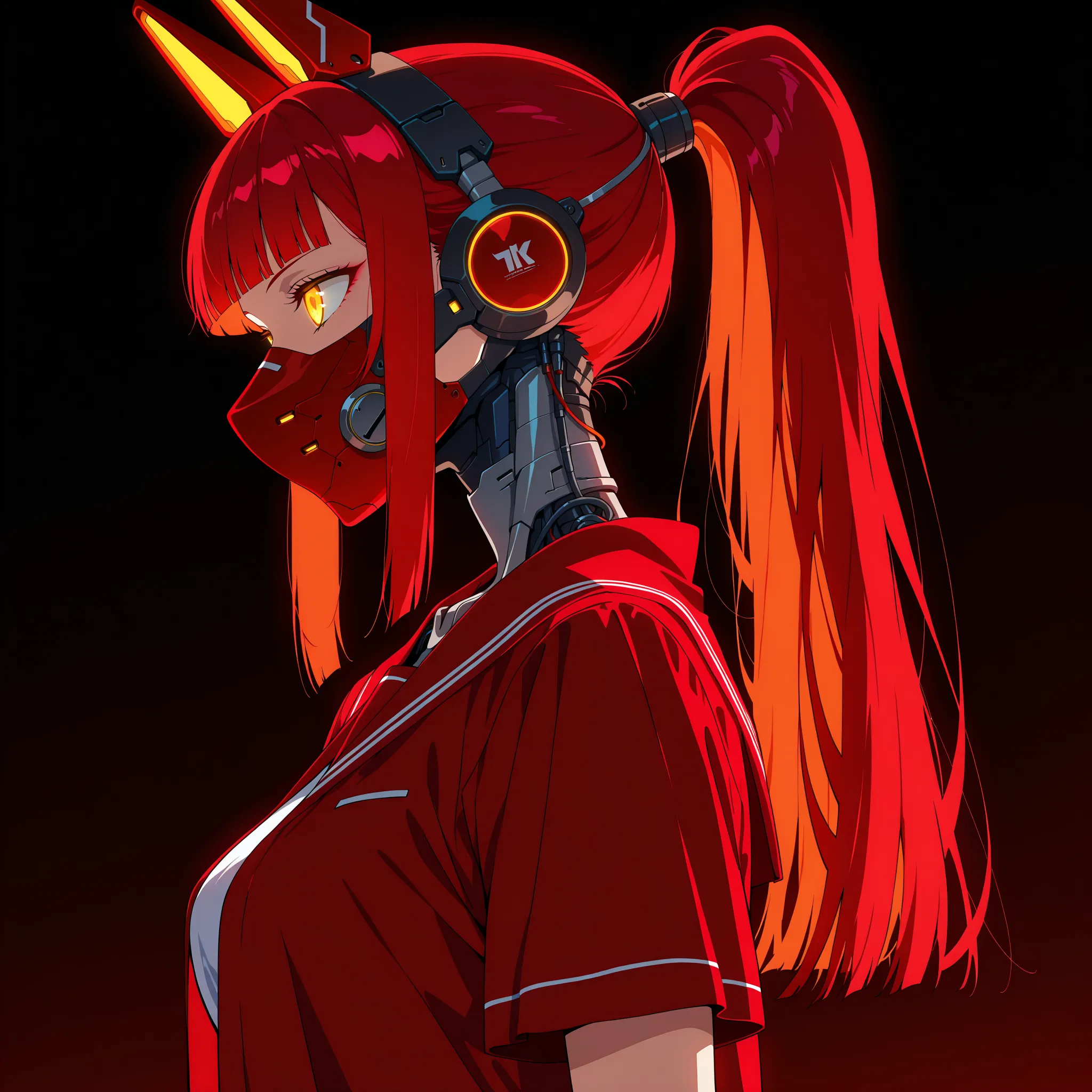
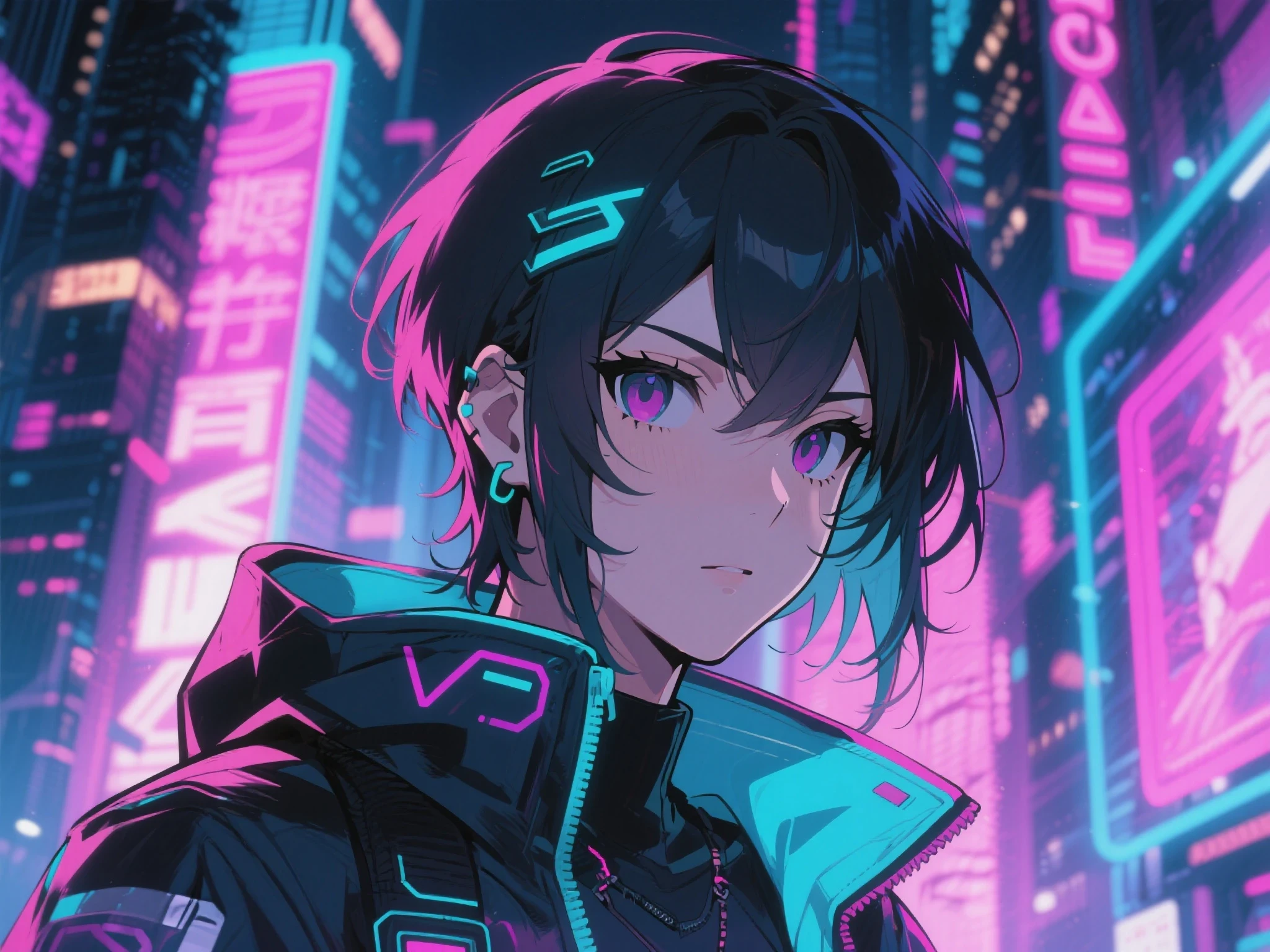
An anime-style portrait of a cyberpunk hacker, neon-lit city background, close-up, in the style of Shigenori Soejima, highly-detailed, 4k.
Tips for Success
- Keep It Concise: Aim for 20-60 words to balance detail and clarity.
- Use Separators: Separate elements with commas (,), pipes (|), or double colons (::) for clarity (e.g., "A dragon, fiery scales, cinematic lighting").
- Avoid Negatives: Instead of "not blurry," say "sharp details."
- Experiment: Try short, medium, and long prompts to find what works best.
By following this guide, you'll be able to craft prompts that unlock SeaArt's full potential, creating stunning images tailored to your vision. Happy generating!