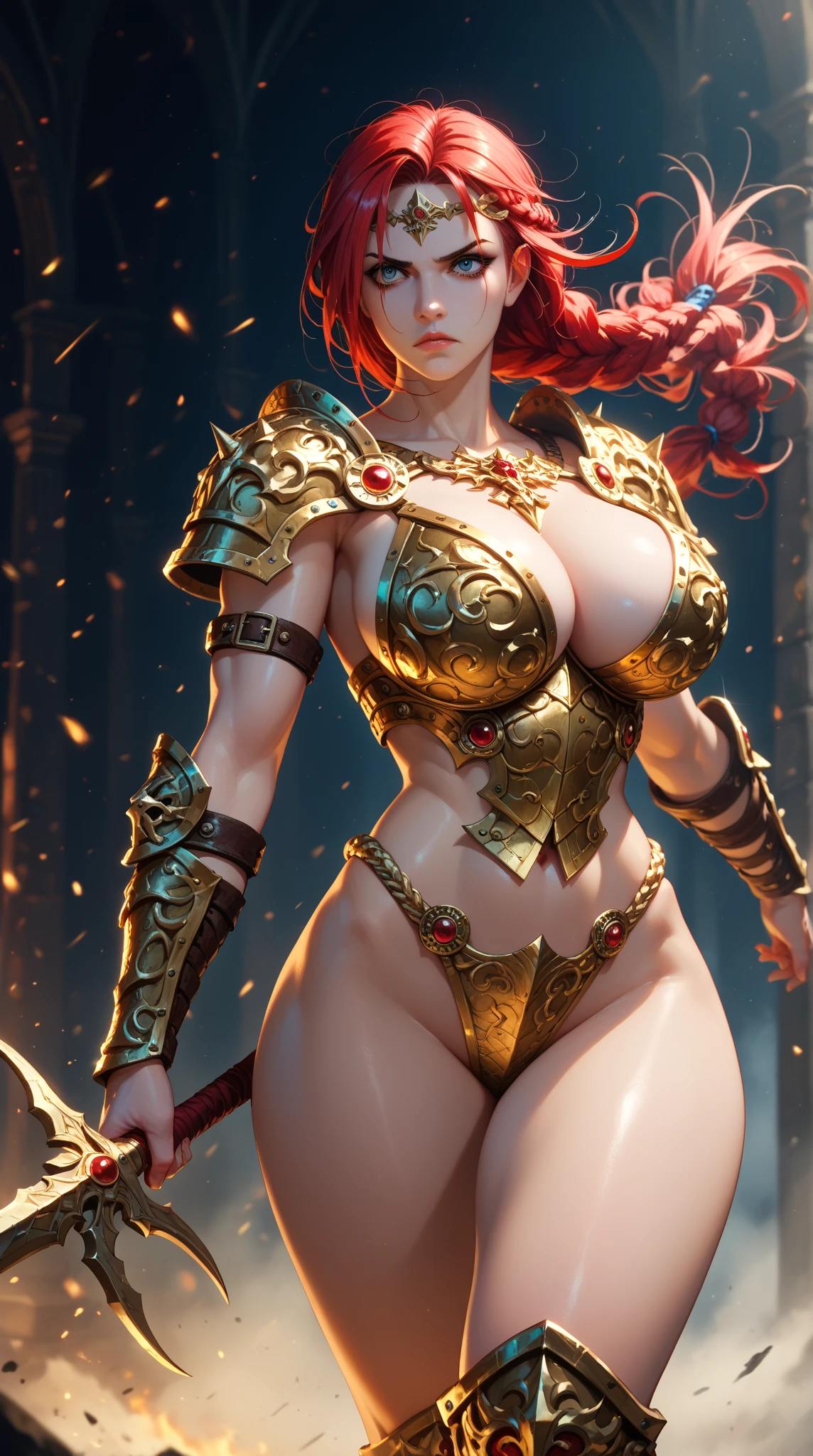
Mastering SeaArt.ai: From Confused Newbie to Creative Powerhouse
🎨 Chapter 1: That First “What Am I Doing?” Moment
I still remember my first time opening SeaArt.ai. A glowing interface full of options, a prompt box staring at me like it expected me to be a poet, and buttons I was afraid to click. Sound familiar?
I typed:
“A beautiful landscape.” ...and got something... okay. But I wanted magic.
That moment of “what now?” became the start of a journey. Today, people ask me how I make such stunning images. So here’s my step-by-step guide, tricks included, to shortcut your learning curve.
🚀 Chapter 2: The Foundation – Your First Image That Pops
💡 Pro Tip #1: Be Descriptive Like a Director
Instead of just:
“Cyberpunk city at night”
Try:
“A futuristic cyberpunk city at night, neon reflections on wet streets, rain falling, dramatic lighting, 4K, cinematic angle”
✅ Use specific adjectives
✅ Mention lighting, mood, angle, and detail
✅ Add camera terms like “bokeh,” “wide angle,” “DOF” for realism
🔧 Chapter 3: Unlocking the Hidden Power Tools
🧭 Feature Spotlight: Prompt Assistant
Stuck? Use the Prompt Assistant on the left sidebar. It helps you structure professional prompts with optional styles and themes.
🎭 Feature Spotlight: Style Fusion
Ever tried blending styles? You can combine “Anime + Cyberpunk + Renaissance” to generate unique hybrids.
Trick: Use slider percentages like 70% anime + 30% baroque to control balance.
🎯 Chapter 4: Advanced Tricks That Changed Everything
🧠 Model Swaps
Use different AI models for different moods. For example:
- RealisticVision for photorealism
- PastelDream for dreamy fantasy art
- AnimeHypeXL for top-tier anime styles
Power Tip: Use the Compare Mode to generate the same prompt with multiple models side-by-side. It's a game changer.
✂️ Inpainting & Outpainting
You can fix parts of an image or extend them beyond the frame. Use the brush to select a zone and type a prompt just for that section.
Example: I replaced the background of a portrait with a glowing forest in seconds.
🧬 Chapter 5: Train Your Own Model (Yes, Really)
Did you know you can train SeaArt on your own face, character, or art style?
- Go to Custom Models > Train Model
- Upload 10–20 images
- Let SeaArt learn your style
- Generate with prompts like: “A painting of [YourModelName] in a fantasy world, intricate armor, moonlight”
💡 Tip: Keep your training data consistent in lighting and pose for best results.
🎉 Chapter 6: Tips That Only Come From Experience
🏁 Prompting Tricks:
- Use “best quality, masterpiece, 8K” at the beginning for high-detail generations.
- Add “no hands, no text, no watermark” to avoid artifacts.
- Combine “fantasy, surreal, painterly” for unique art outputs.
🔄 Remix Existing Work:
Click “Remix” on any creation to improve or restyle it. Add new elements without starting from scratch.
💬 Chapter 7: Help Others, Grow Fast
The fastest way I improved was by sharing tips in the community and asking “How did you do that?” often. Now I’m the one getting asked.
I encourage you to:
- Explore daily challenges
- Join prompt battles
- Watch what others generate with shared prompts
- And don’t be afraid to experiment—even the mistakes teach you something.
✨ Final Words: From Confusion to Creation
SeaArt.ai isn't just a tool—it's your creative playground. Whether you're making anime avatars, cinematic posters, surreal landscapes, or even training your own model, you can go from lost to legendary.
I hope this guide becomes your shortcut. And if you ever feel stuck—just remember: every expert was once where you are now.
Now go make something amazing. 🌟