Do you feel dizzy in the "connect-the-dots" game of ComfyUI? Do you often find yourself having to open Photoshop just to print a piece of text on an image? Within the vast sea of ComfyUI's node library, many gems are hidden. Today is our third recommendation issue, bringing you 8 "artifacts" specifically designed to solve those hair-pulling "minor troubles".
Node Directory for This Issue:
●🔄 Universal Conversion: Convert Any
●🔀 Logic Switch: Switch
●✂️ Smart Cutout: LayerMask Segformer
●👤 Face Cropping: Auto Crop Faces
●🅰️ Text Generation: CR Draw Text
●🖼️ Alpha Channel Removal: ImageRemoveAlpha
●🏷️ Remark Label: Label (rgthree)
●🌓 Mask Inversion: InvertMask
1. Universal Converter: Convert Any
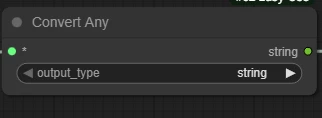
This node has four selectable options.
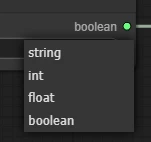
It can intelligently convert input data into the target type (String/Integer/Float/Boolean).

The output type of the node will change after selecting the parameters.
Note:Although the node's input port does not limit types, reasonable type conversion is recommended. If the conversion is incompatible (such as text to number), it may lead to errors.
This node has rich gameplay when paired with other nodes, for example, it can be paired with the Switch node below.
2. Logic Judgment: Switch
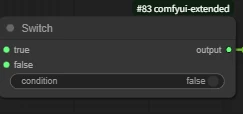
The usage is relatively simple:
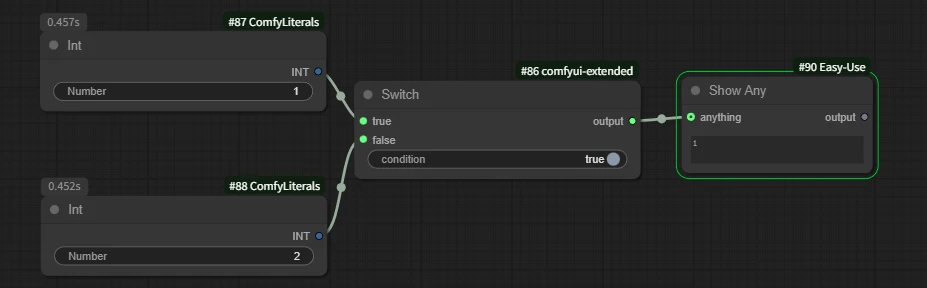
Control the output content through Boolean values.
As shown in the figure: Output the corresponding number: 1 after selecting true.
Case: If the user inputs prompt words, image generation is possible; however, if no prompt words are input, the default prompt word template is used for image generation.
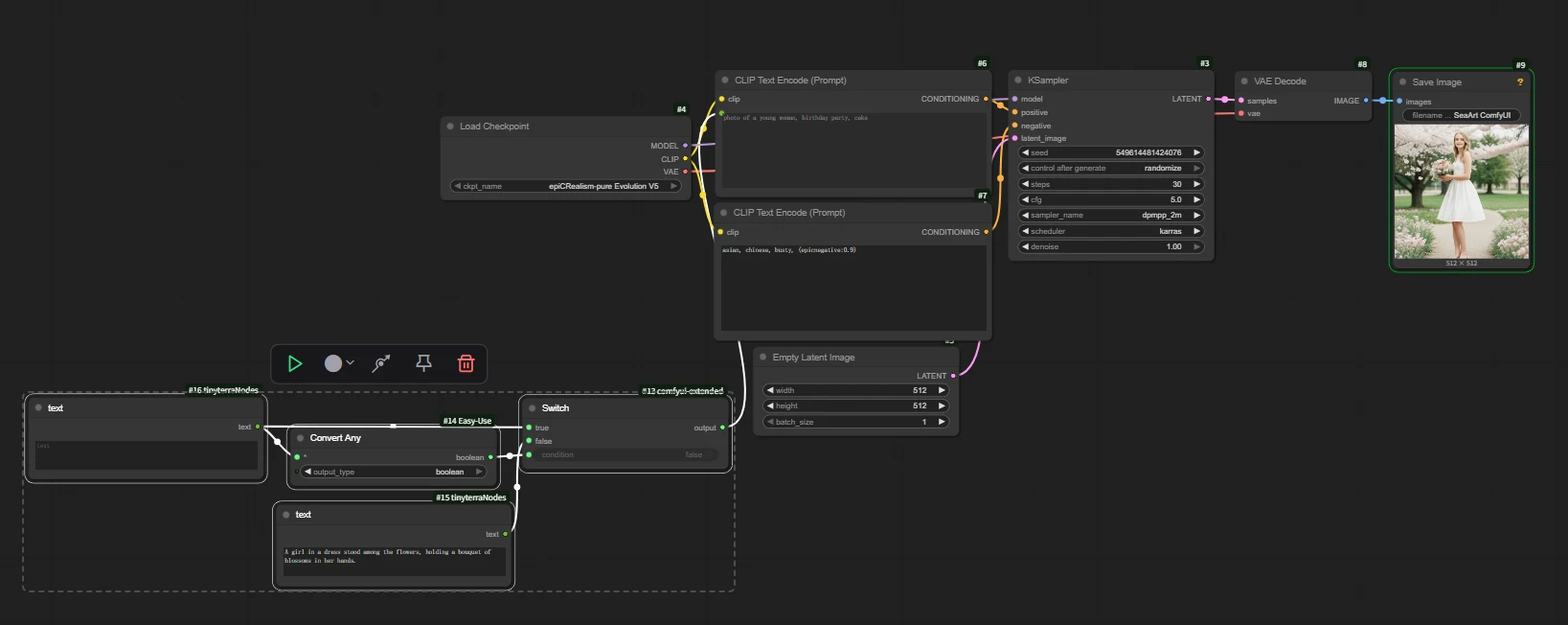
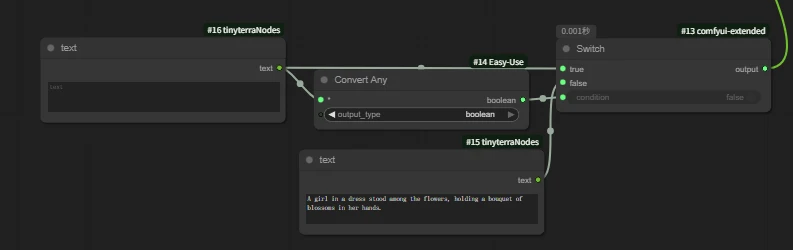
As shown in the figure: Taking the text-to-image workflow as an example, combine it with the Convert Any node to output a Boolean value. If the text input is empty, output false; if there is content, output true. Connect the result to the Switch node. If the content is empty, it will output false, connecting to the control node switch to output the corresponding preset prompt words.
Compared to workflows, this method is more suitable for AI application encapsulation. We only need to open the text input node numbered 16.
3. Lazy Person's Auto Cutout: LayerMask: Segformer B2 Clothes Ultra
Used for segmenting the human body and clothing/accessories in an image.
If you don't want to manually input prompt words for cutouts, it is recommended to try this node.
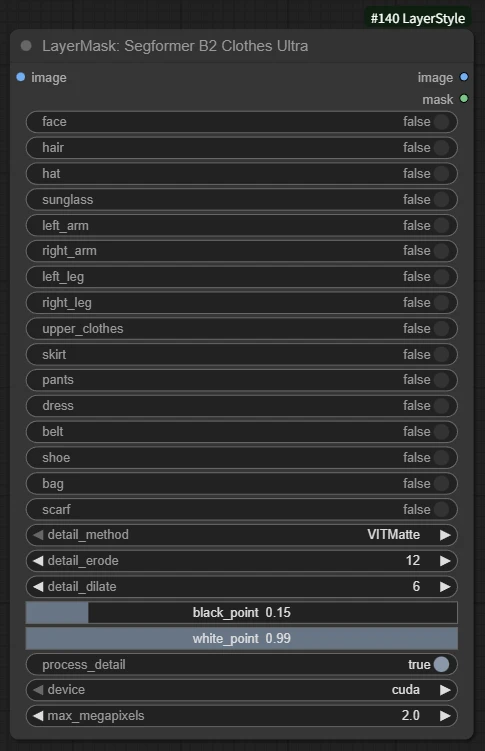
`detail_method`: VITMatte: Recommended, fast speed, good effect.
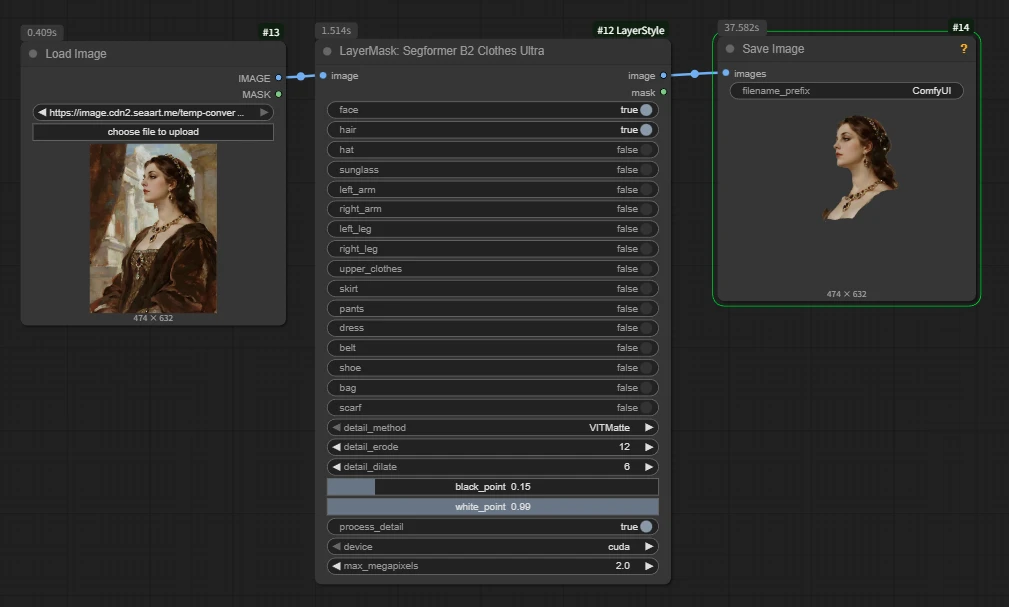
The node supports multiple selections, and the usage is also very simple.
Case: I need to cut out the head of the character in the image.
Similar nodes are also recommended:
`segformer_b2_clothes`
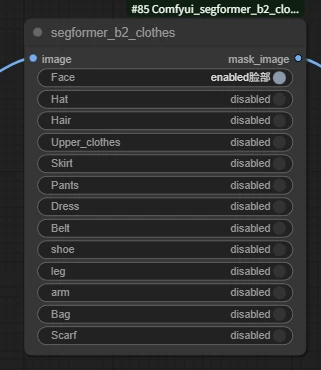
This node will directly output a mask image.
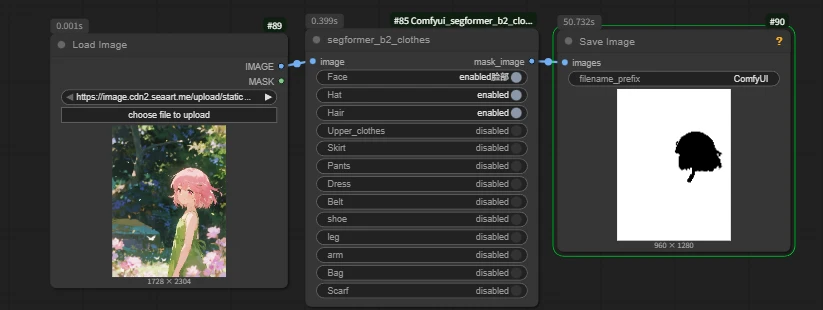
It can be combined with this node to convert to a mask.
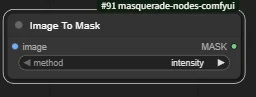
4. Face Cropping: Auto Crop Faces
This node is commonly used for faces (processing & reference).
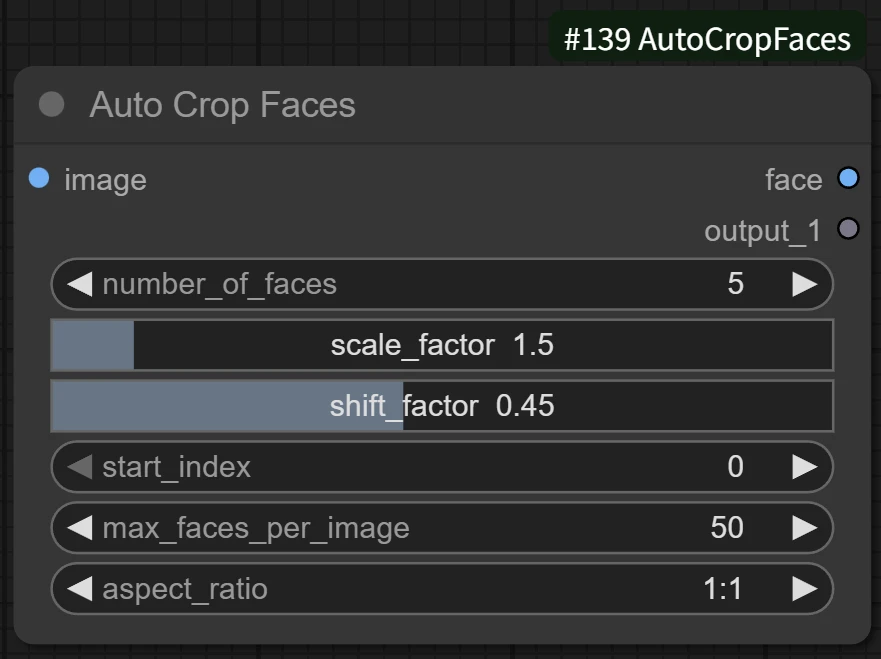
The `number_of_faces` parameter specifies the number of faces to crop from the image. There is no strict maximum value; set it according to the expected number of faces in the image.
The `aspect_ratio` parameter defines the aspect ratio of the face after cropping.
The `scale_factor` parameter adjusts the size of the bounding box of the face after cropping. `scale_factor` is suggested to be set to 1.2-1.5 to avoid cutting off the chin or forehead.
Usage:
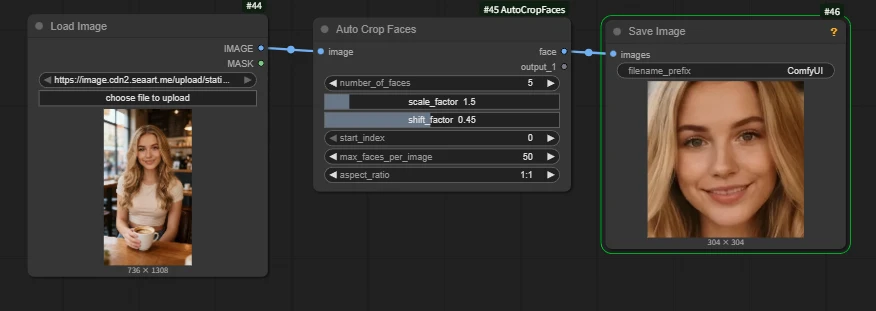
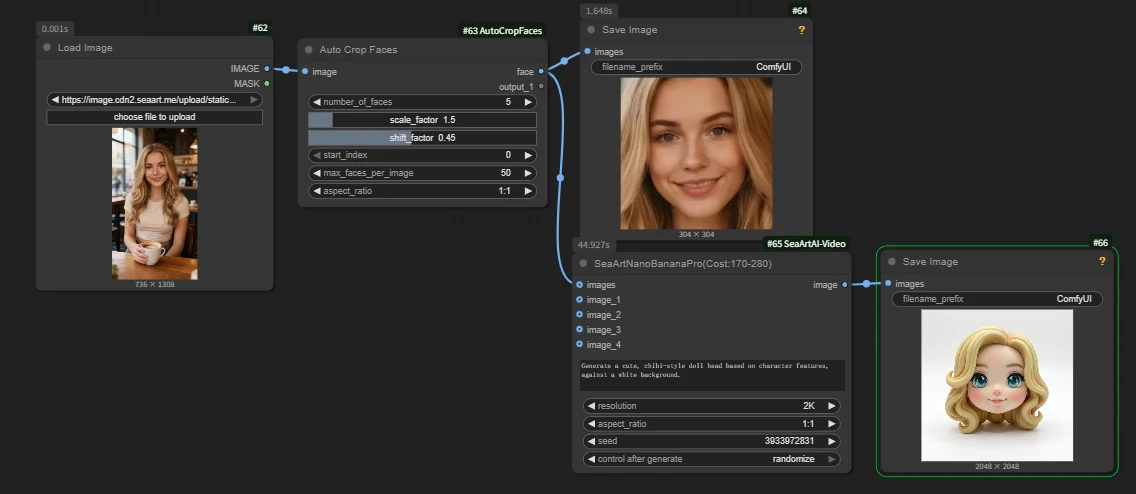
Case: Making a doll head through uploaded images.
We use Nano Banana pro to complete this operation. We only need to make the head, so elements like the body background or passersby will affect the result. We use this node to extract the face for generation.
5. Text Generator: 🔤️ CR Draw Text
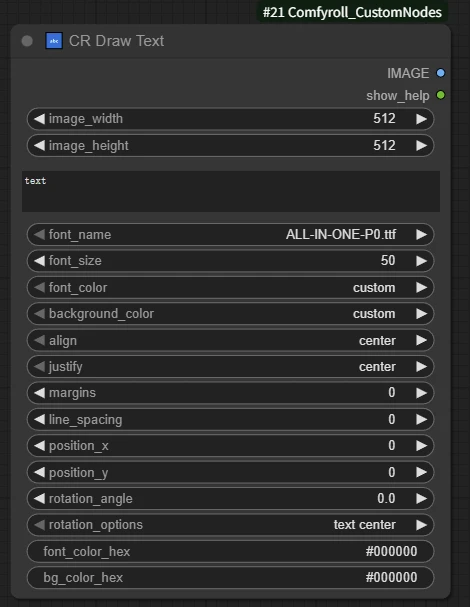
This node can generate images of corresponding text, supporting (font, font size, color, shadow, etc.) and can even output the corresponding text mask in the image.
Note: Inputting Chinese requires loading a font file that supports Chinese.
The default font and background color of this node are both black, which may make everyone feel that the node is not working.
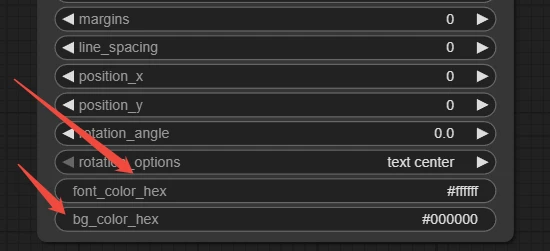
Just change the font or background color.
Extension:
🔧 Draw Text
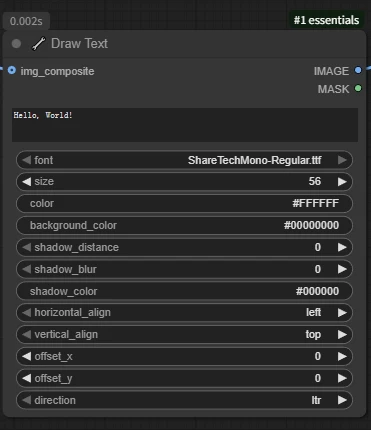
This node can also achieve the same effect. It can generate an image of the corresponding text or draw text directly on an image.
Note: Native nodes do not support Chinese (will display boxes).
There are two usage methods:
Standalone Text Image
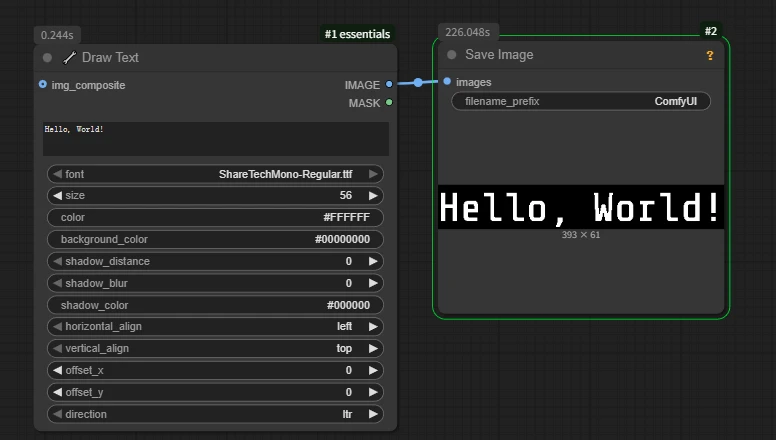
Add Text to Image:
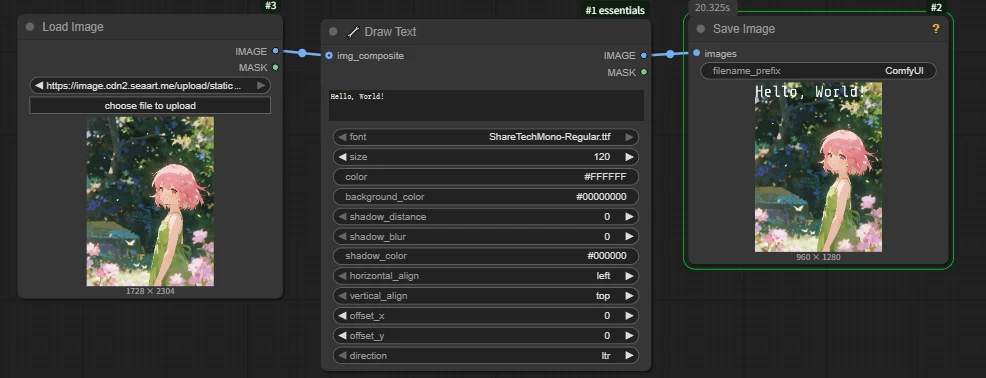
Note: The background color is turned off by default when adding text to an image. When a background color is forcedly input here, the background will be covered by the color.
If a background color is needed, it is recommended not to access the image interface and use image overlay later to solve it.
6. Alpha Channel Removal: LayerUtility: ImageRemoveAlpha
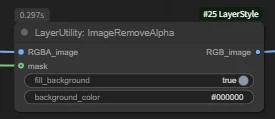
`fill_background`: Whether to fill the area background with a specified color.
`background_color`: Background fill color.
In our image generation, using images with channels will lead to error problems. Using this node can solve it.
Note:Although the node is named 'Remove Alpha', its actual principle is to handle areas by filling the background color, commonly used to merge layers onto a base map.
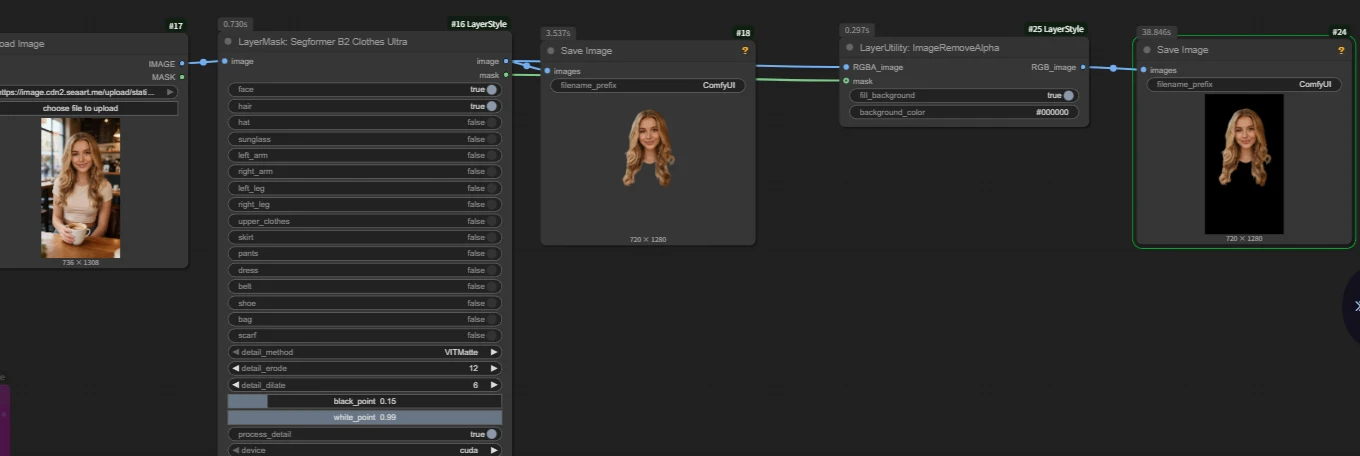
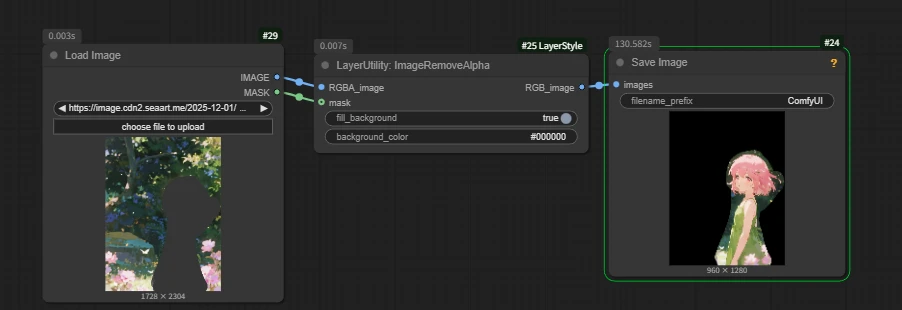
Then we can unlock extended gameplay: As long as you have a Mask, connect it to the mask port of this node, and it can immediately "cut out" the part you selected in the picture and paste it on a clean new background. This is much faster than layering in Photoshop!
7. Global Eye-catching Label: Label (rgthree)
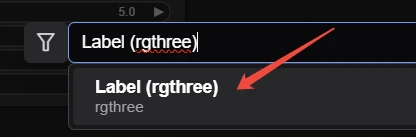
Every time we enter the official workflow, we wonder what this node is. The node name is not displayed, and we don't know how to add this node.
Search for the node by entering `Label (rgthree)` to find it directly.
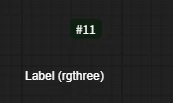
Initial State:Relatively small, inconspicuous.
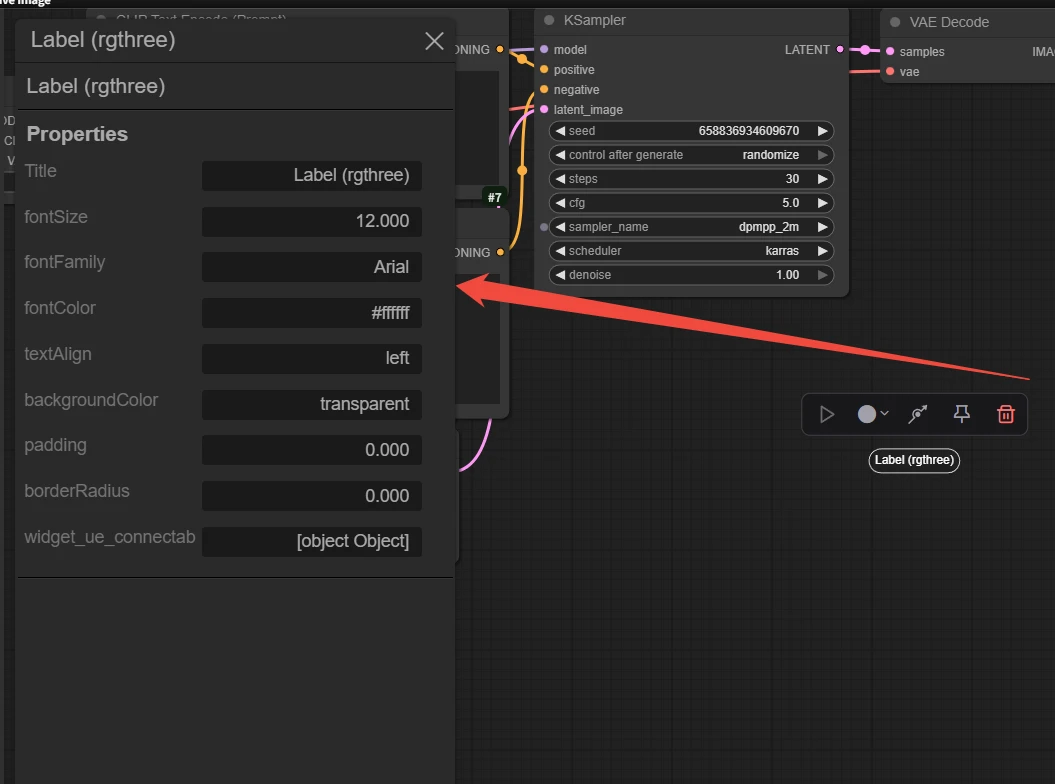
Q: How do I adjust the parameters of this node, and how should I use it?
A:Double-click the node to enter the node settings: You can freely set the text, size, color, etc.
Because the node can be enlarged to a conspicuous size, compared to using the note node, this node is commonly used for workflow titles or guiding users.
8. Mask Inverse Selection: InvertMask
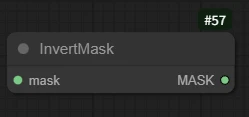
This node will invert the mask, and the usage is also relatively simple.
Case: Changing the character background in an image.
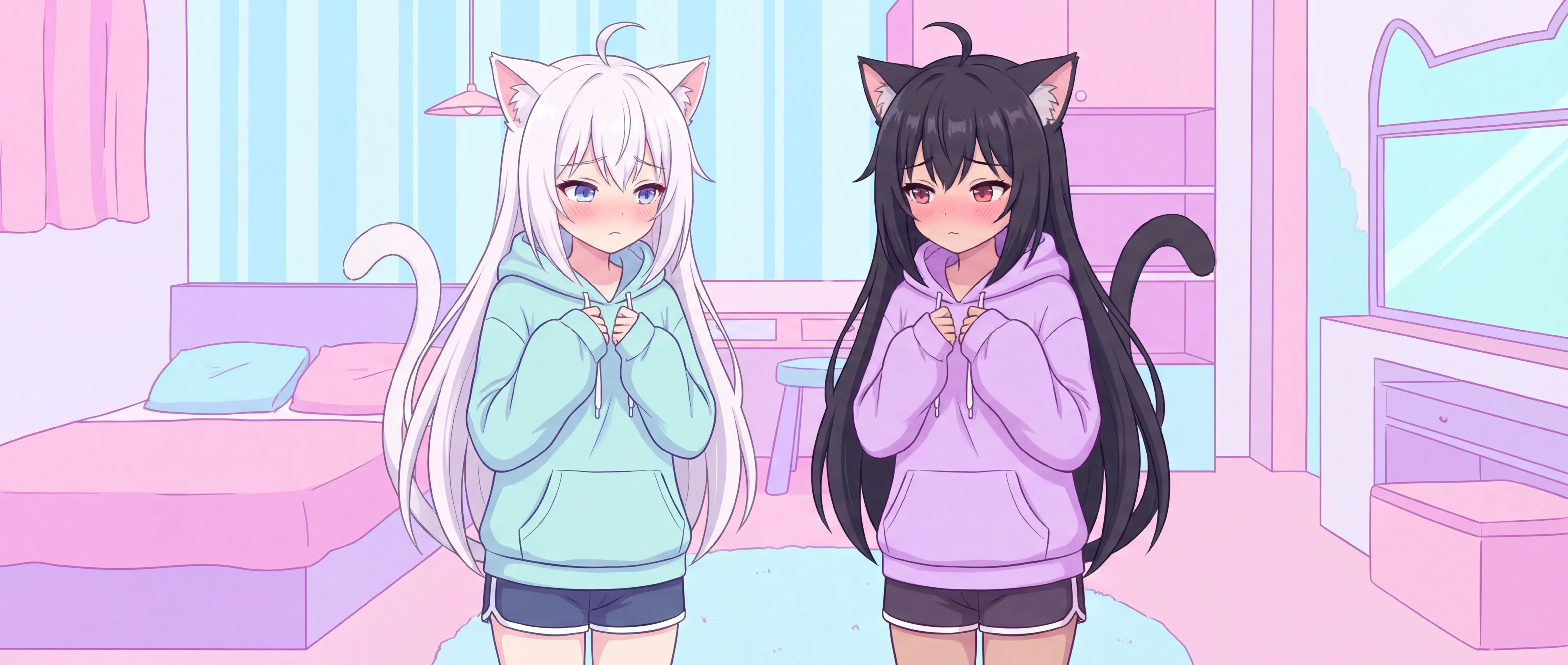
Let's take the recent z-image as an example. If manually painting the entire background mask, the efficiency is low and there are many flaws.
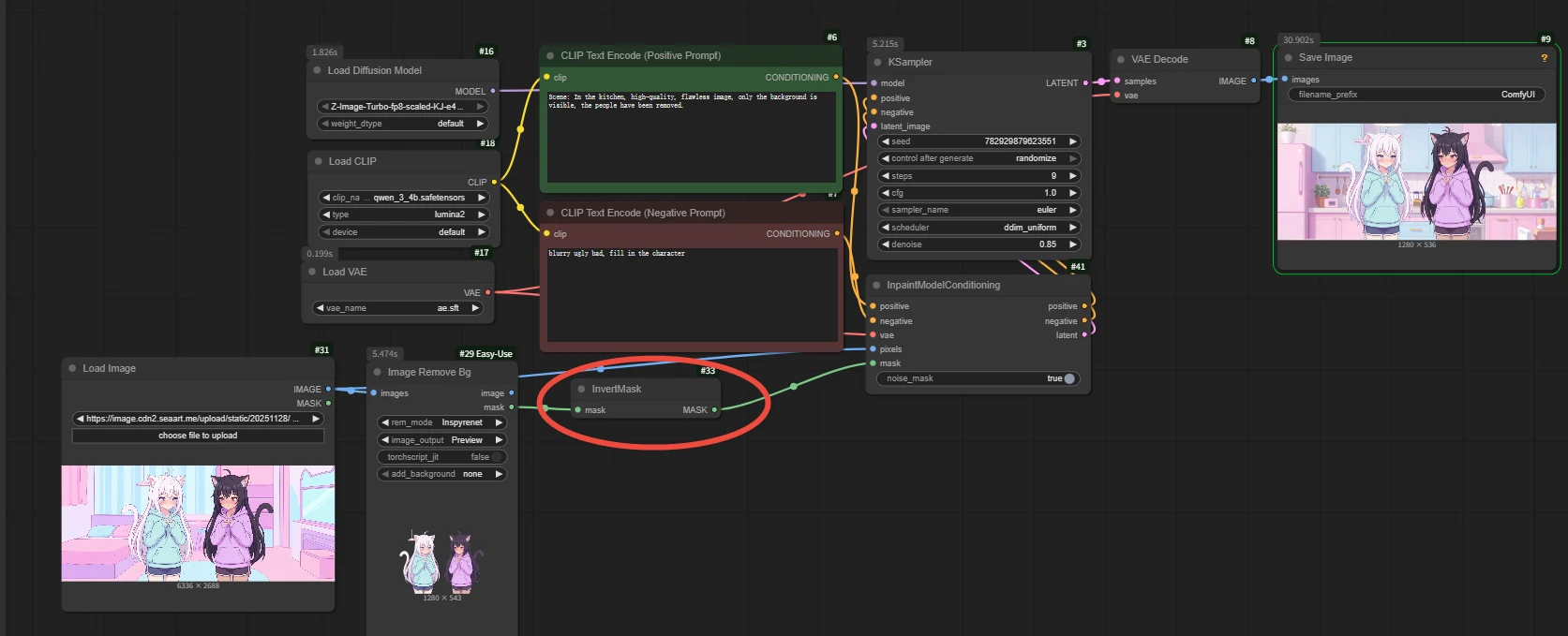
Then we can cut out the subject in the picture. At this time, using the invert mask can directly select the entire background.
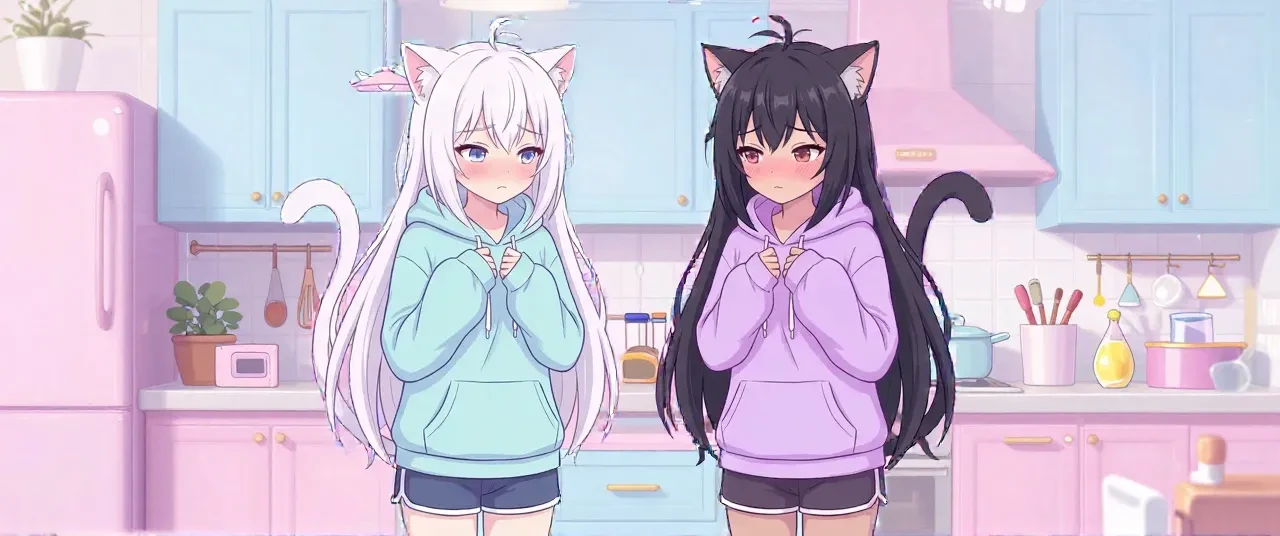
Subsequently, perform repainting to get:
The third issue of node recommendations is coming to an end. We hope that the eight nodes in each issue can help you become more proficient on the road of ComfyUI. If you find the content of this issue helpful, don't forget to like and collect!
If you want to learn about past tutorials, you can jump via the links:
Issue 1:
https://www.seaart.ai/zhCN/articleDetail/d3jornle878c73ba3irg
Issue 2:
https://www.seaart.ai/zhCN/articleDetail/d3r06tle878c73bfr3c0