
Terms of Basic Image Creation Settings
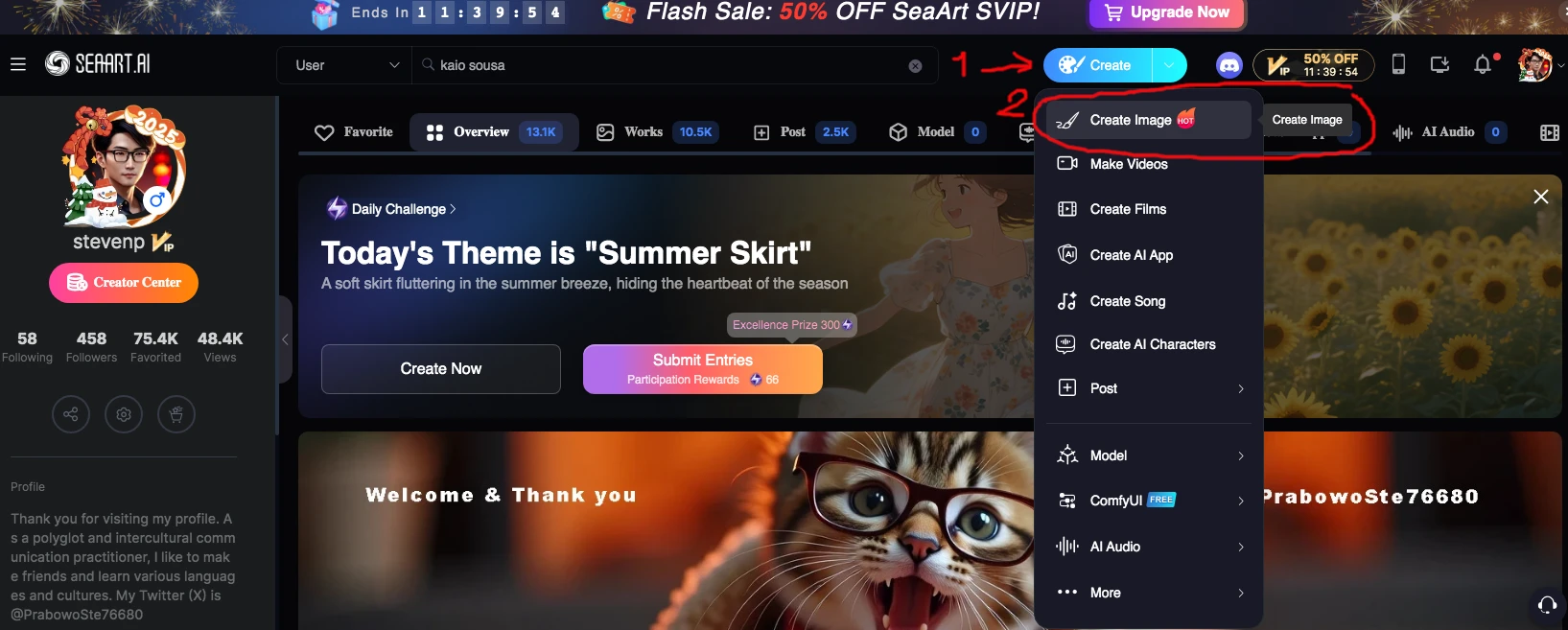
You need to know these terms as a ? minimum to create your image using AI. First please click Create Image to enter the Image Creation Interface (marked with red circle)
Now, you will see this on the left side of your image generation interface:
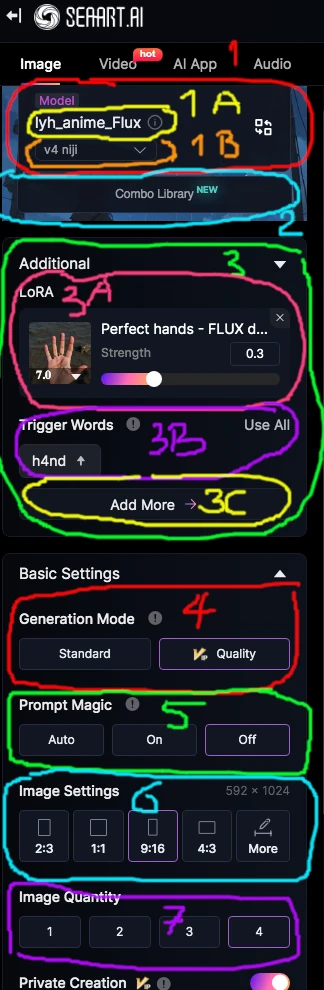
Terms and its explanation according to number above:
1. AI Checkpoint also known as big model.
It is the foundation of your AI assisted image generation process. It is a saved state of machine learning model. Therefore pay attention to the version of that model (checkpoint) beside the name.
In the example above lyh_anime_Flux ( marked by number 1A) is the name of the checkpoint
v4 niji (marked by number 1B) is the version or iteration. Choose a checkpoint that suitable for your art taste and goal. Each checkpoint is limited by its database and training. In case you want to create an image that is not trained by the checkpoint, you will need to use a LoRa ( marked number 3 )
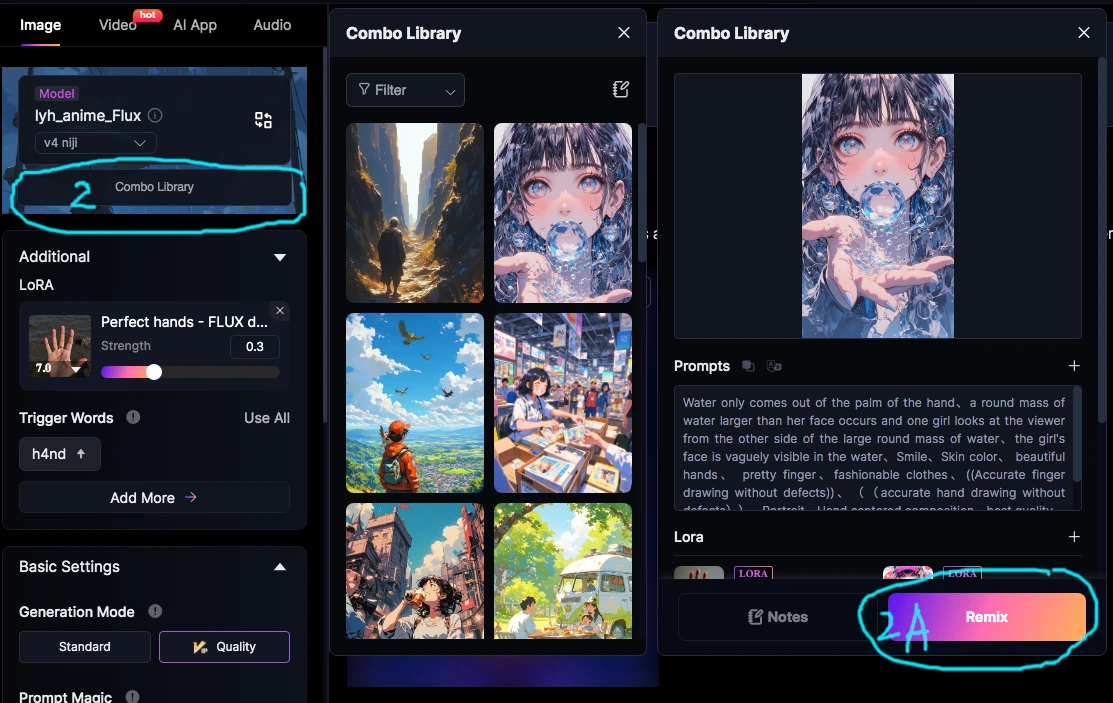
2. Combo Library
A unique feature of SeaArt, you can use prompt and settings of featured images. For detail explanation scroll down this article.
3. LoRA (Low-Rank Adaptation) also called by SeaArt as small model
It is the add on of your AI assisted image generation process. Use what you need. It is optional. For example if you want to create an image of a woman wearing kebaya dress, use the kebaya LoRA but not the kimono LoRA. In the example above the LoRA name is Perfect hand - Flux
3 A) LoRA strength
It is also called LoRA weight. You can set the emphasis of your LoRA(s) in the image creation process, in the example above I set it to 0.3. You can find out the optimal LoRA strength for your by doing all two steps: first read the instruction at the LoRA page, second: trial and error. Usually I use strength between 0.1 to 1.0. SeaArt enable LoRA strength between -2.5 to 7
3 B) Trigger Word(s)
Trigger Word(s) are what you should write in the prompt to activate the LoRA. Some LoRA needs trigger word(s), in the example above the trigger word is h4nd. Some LoRA needs even several phrases of prompt to activate the LoRA. On the other hand, most detailer LoRA do not need any trigger word
You can use up to 5 LoRAs at SeaArt by clicking Add More (marked by number 3C)
4. Generation Mode
Generation Mode denotes the size of your generated images. For SeaArt subscribers, you can choose between standard size and quality size (1.5 bigger5. )
5. Prompt Magic
Prompt Magic is a feature to enhance your short prompt. If your prompt is longer than 150 characters, I will recommend you to switch it off.
6. Image Settings
Image Settings in SeaArt enables you to choose aspect ratio of your image. That is the comparison of width and height of your image. For most checkpoints, I would not recommend using custom, except you know exactly the dimension that is supported.
7. Image Quantity
Image Quantity denotes the number of images created each time you click the generate button
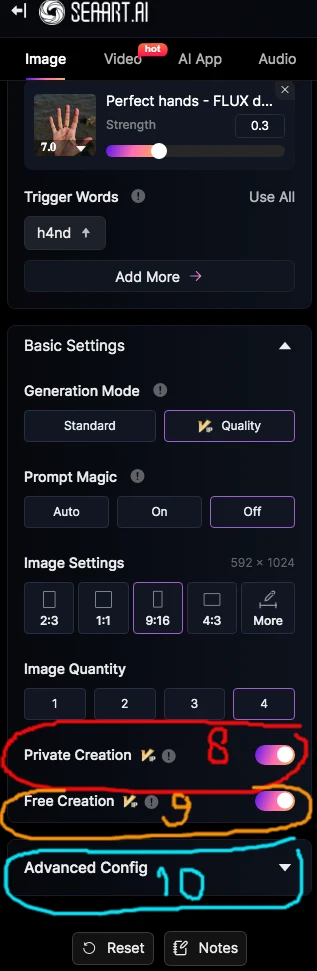
Please scroll down at your left side of the image creation interface. You will see the lower part of the menu as follow:
8. Private Creation
Private creation, if switched on, enables you to create image(s) without showing it to the public. This is a feature only available for SeaArt subscribers.
9. Free Creation
Free creation, if switched on, enables you to create image(s) using computing capacity that is not used by other users. That means long waiting time during rush hours and shorter waiting time when few users are active. This is subscribers only feature. It does not consume your staminas nor your credits.
Terms of Advanced Image Creation Settings
Please click Advanced Config (marked by number 10) at the example above to open the advanced menu.
10 A) Sampling Method
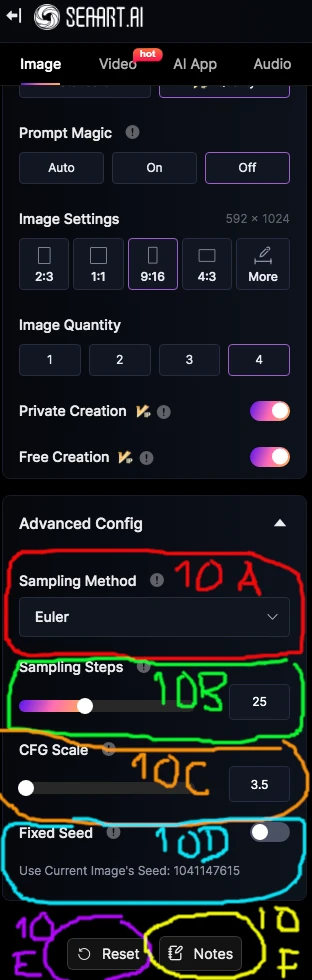
Samplers are technique used to iteratively clean up an image from noise, improving its clarity by each step. SeaArt usually has paired the most suitable samplers to the checkpoint you choose automatically. You can choose certain samplers to achieve effects and goals if you are an expert. In the example above the sampling method is Euler which is suitable for lyh_anime_Flux, the chosen checkpoint
10 B) Sampling Steps
Sampling steps are the amount of steps needed to achieve clarity in your image from the noise. SeaArt has chosen the suitable sampling steps for each checkpoint automatically. More steps require more computing resources and time. For the example above, the suitable amount of sampling steps for lyh_anime_Flux checkpoint while using Euler as sampling method is 25. The minimum sampling steps at SeaArt is 4 and maximum 60.
10 C) CFG Scale
Classifier Free Guidance (CFG) scale is a setting that indicates how closely you would like your image generator to follow the text (prompt) that you input. SeaArt has chosen the suitable CFG for your chosen checkpoints automatically. SeaArt enables you to set your CFG between 3.0 to 15.0. Please inform yourself about the CFG range of your chosen checkpoint.
10 D) Fixed Seed
Seed is a specific type of initial input to generate noise that will be used by the AI for image generation. This feature is to enable you to use a certain seed to achieve character consistency, or to test your other settings, testing your prompt, etc. If you use fixed seed, you need to change your prompt or settings, otherwise the generated image would be exactly the same.
If you need to go back to default settings, you can click Reset (marked by number 10 E)
Notes
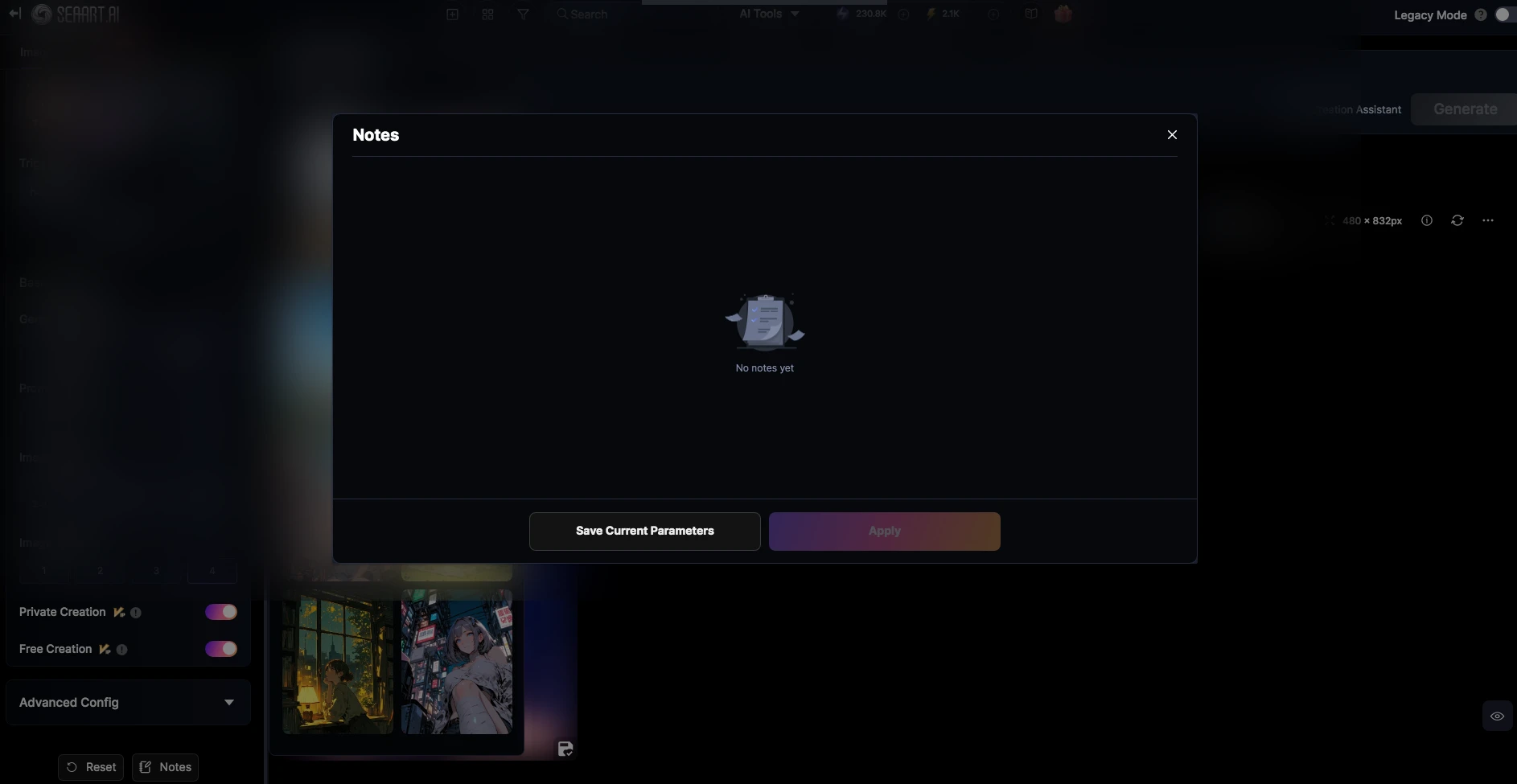
Notes is a SeaArt feature to save your own settings and prompt, or if you have already saved at least one, you can recalled it.
Combo Library Screenshot
After you clicked the Combo Library (marked by number 2) , you can choose one featured image to generate with the exact same settings and prompt by clicking Remix (marked by number 2A)
Creation Assistant
Creation Assistant is a chat feature using large language model to assist you to generate prompt.
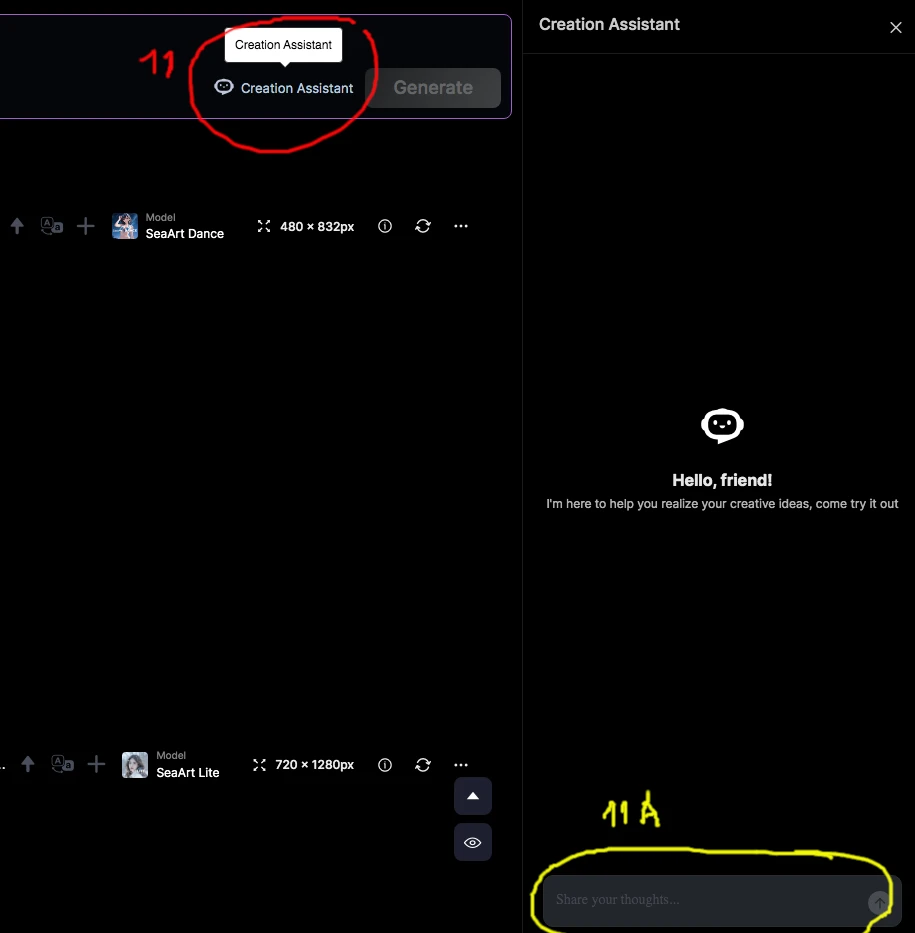
Click at Creative Assistant which located near the generate button to open a chat menu (marked by number 11) . Then type in some words at the Share your thoughts area (marked by number 11 A)
For example I typed summer skirt cubism
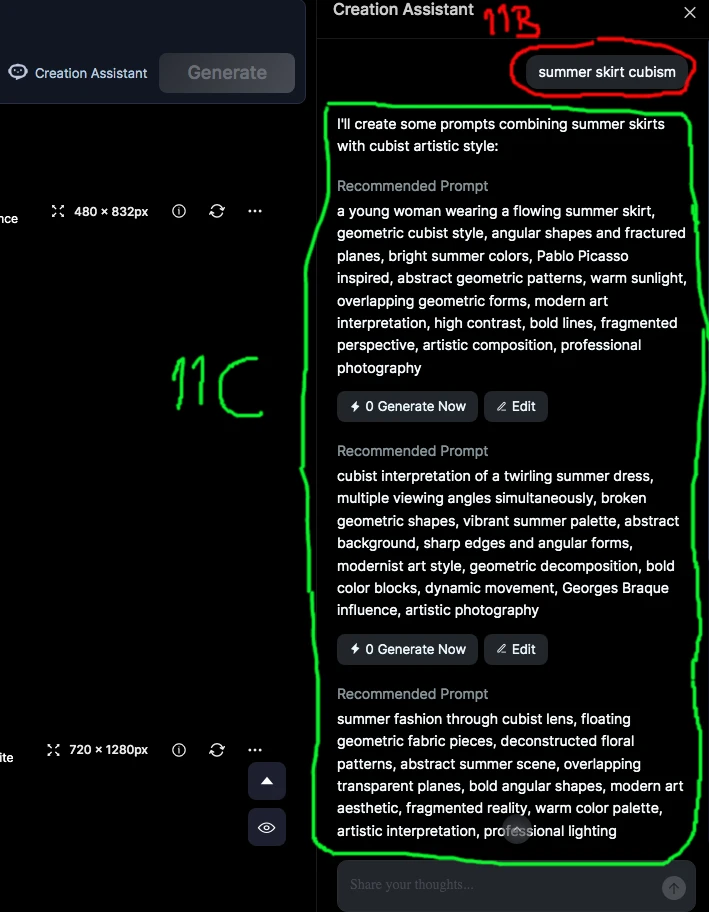
You can see my input summer skirt cubism above. (marked by number 11 B) and the result (marked by number 11 C) The creative assistant gave me 4 prompts and I could click Generate Now or Edit under the resulting prompt. Generate Now to generate image(s) using the prompt and my settings previously or Edit to edit the selected prompt.
AI Application
To open a pull down menu of AI Application features, click the magic wand symbol (marked by number 12)
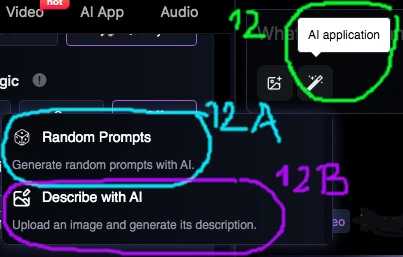
Random Prompts is to generate random prompts without any input (marked by number 12 A)
12 B) Describe with AI
Describe with AI is a feature in which you upload an image and the AI try to generate a natural language prompt by describing the image. If you click Describe AI ti will open your personal works or from URL to select an image for the AI to describe.
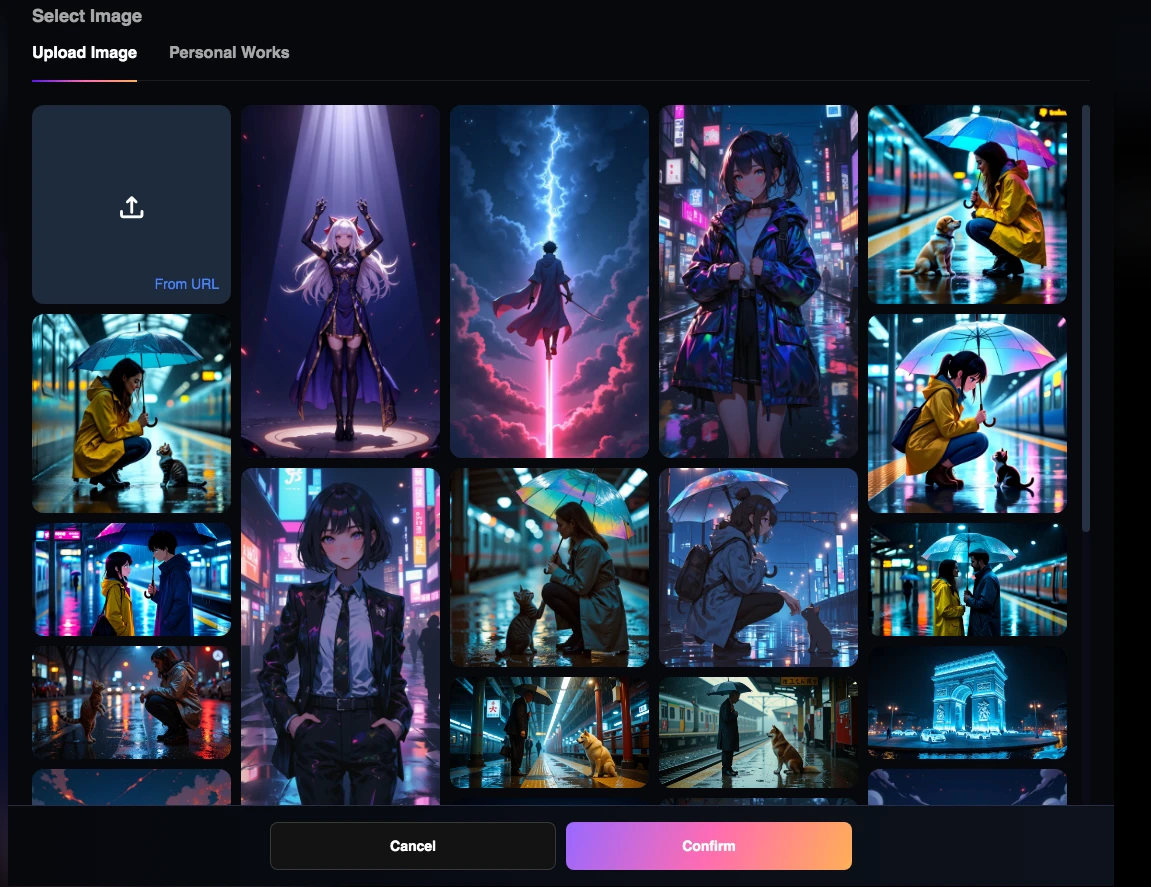
Terms of Generating Image using Reference Image
There are several methods to generate image using reference image.
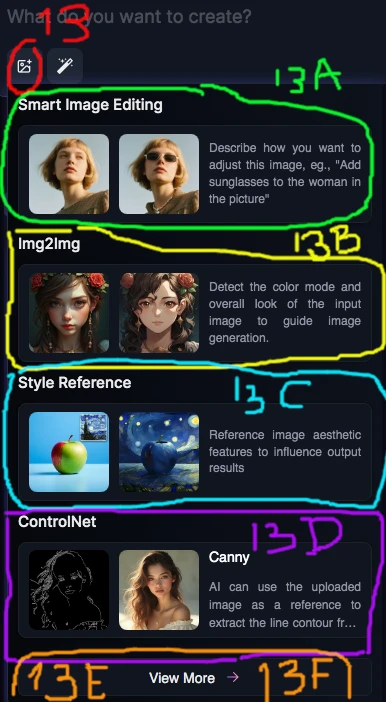
Please click the image symbol (marked by number 13) to open a pull down menu
13 A) Smart Image Editing
Smart Image Editing enable you to upload an image and add a short description on what to edit from that image. For example you upload a woman portrait, you can then type in the prompt : add sunglasses
13 B) Img2Img (Image to Image)
Image to Image use the reference image as guidance for image generation, you can then change the art style. For example a photo of a woman face, you can turn it into an anime style portrait of that woman, the color pallete remain the same
13 C) Style Reference
Style Reference use image aesthetic of the reference image like colors, composition and art style to enhance your generated image. For example you intend to create a painting of an apple in the style of Starry Night painting by Van Gogh. You can use Starry Night painting by Van Gogh as reference, then generated image will incorporate Van Gogh's Starry Night artistic elements into your painting of an apple.
13 D) Canny
Canny or better described as edge to image. This Control Net feature will use the countour of the reference image as guidance to create an image with the same countour but can contain different colors, lighting, etc.
To open Depth (13E) and ip_adapter (13F) please click View More. This will open another menu.
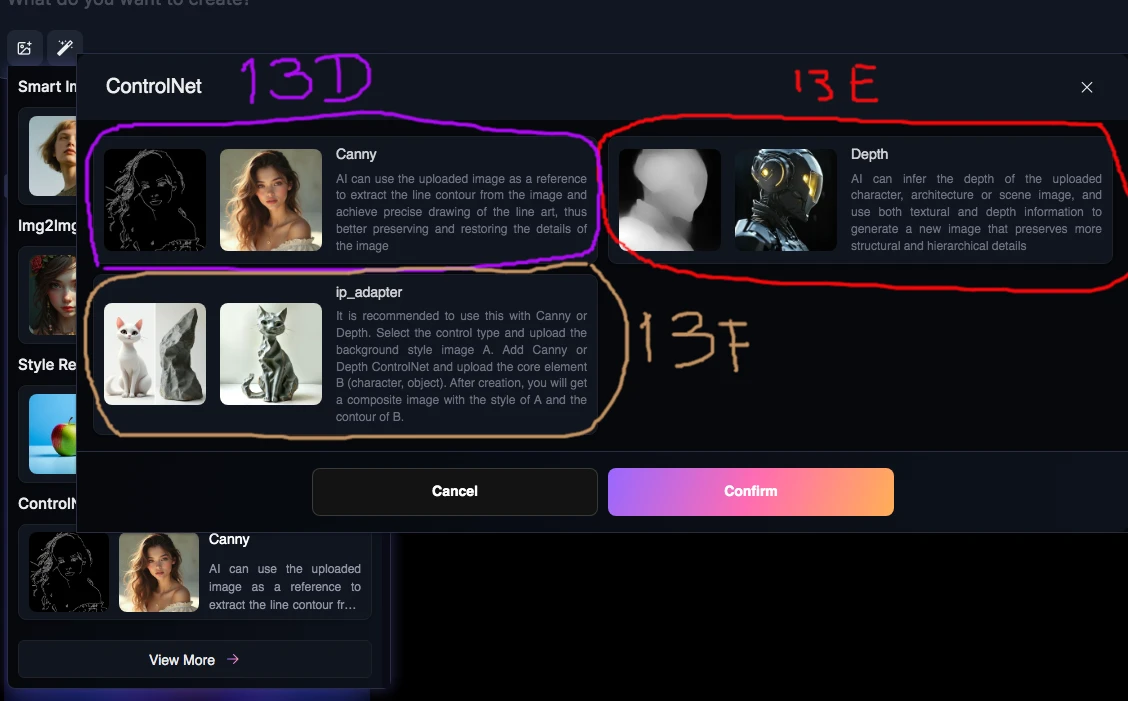
13 E) Depth
Depth or Depth to Image feature detect the texture and gradation of your reference image to guide the new generation. You adopt the structure of the reference image into the new image.
13 F) ip_adapter
ip_adapter should be used with Canny (13D) or Depth (13E) to create the main actor of the image, for example a reference image of a cat. Then use ip_adapter to use reference image of a gemstone to made the image of a cat that is made of gemstone.
Good luck and have fun. For more detailed guide please read my previous guides or my future guides.