50M
+Creator

Kling 4.0 turns text prompts, images, and creative ideas into dynamic videos with stable dynamic motions and an immersive audio-visual experience, taking generation to professional-grade production.
Kling 4.0 brings stable dynamic motions and an immersive audio-visual experience to every AI video creation workflow.
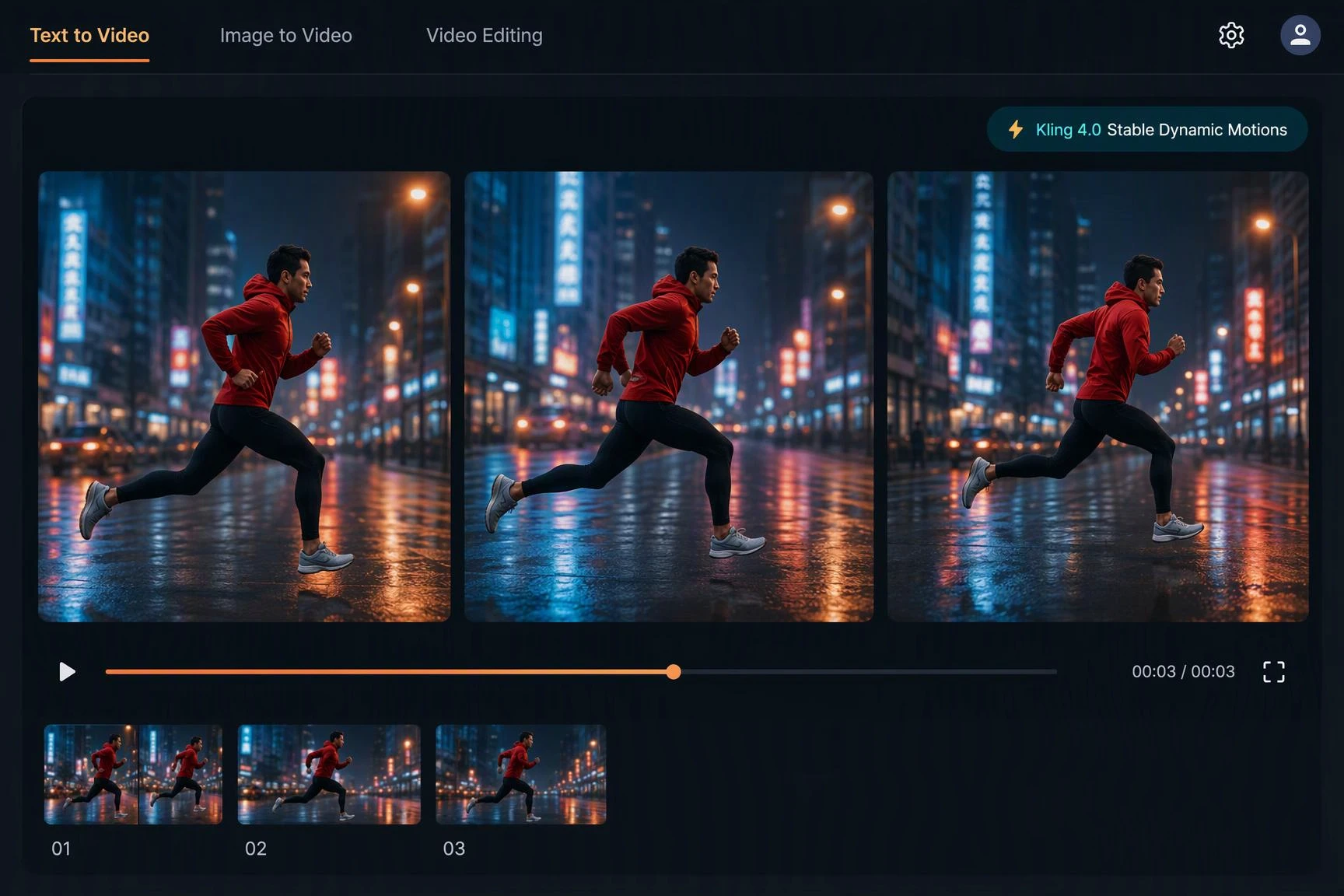
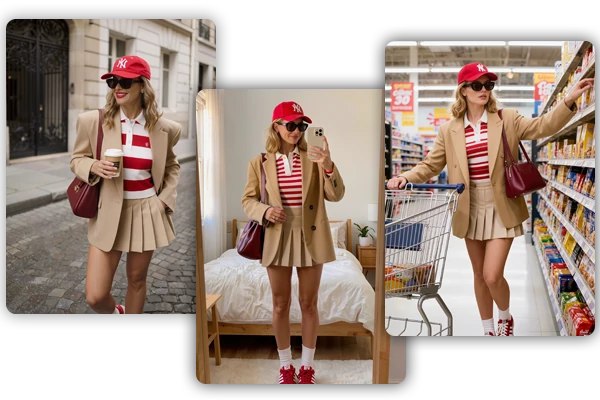
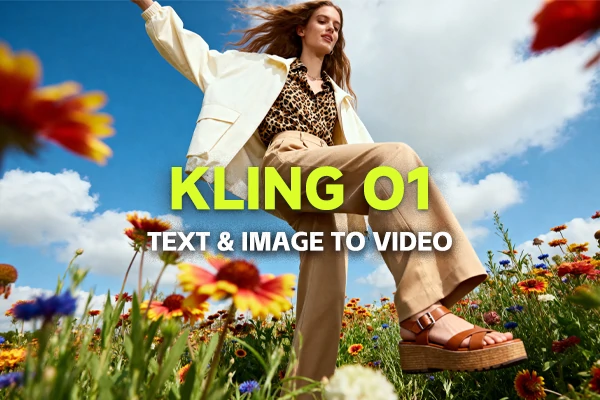
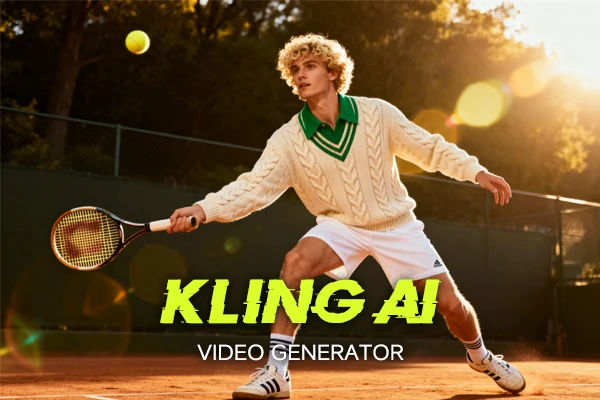
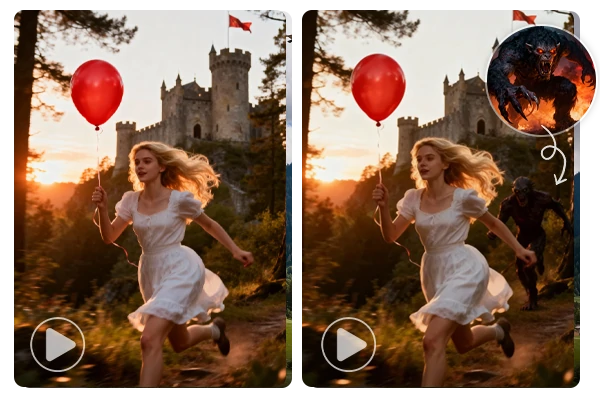
Fast body motion is where most AI video clips fall apart. Kling 4.0 stable dynamic motions keep walking, running, and object motion clean across the whole clip, so a real Kling 4.0 generation model test actually shows what the model can hold.
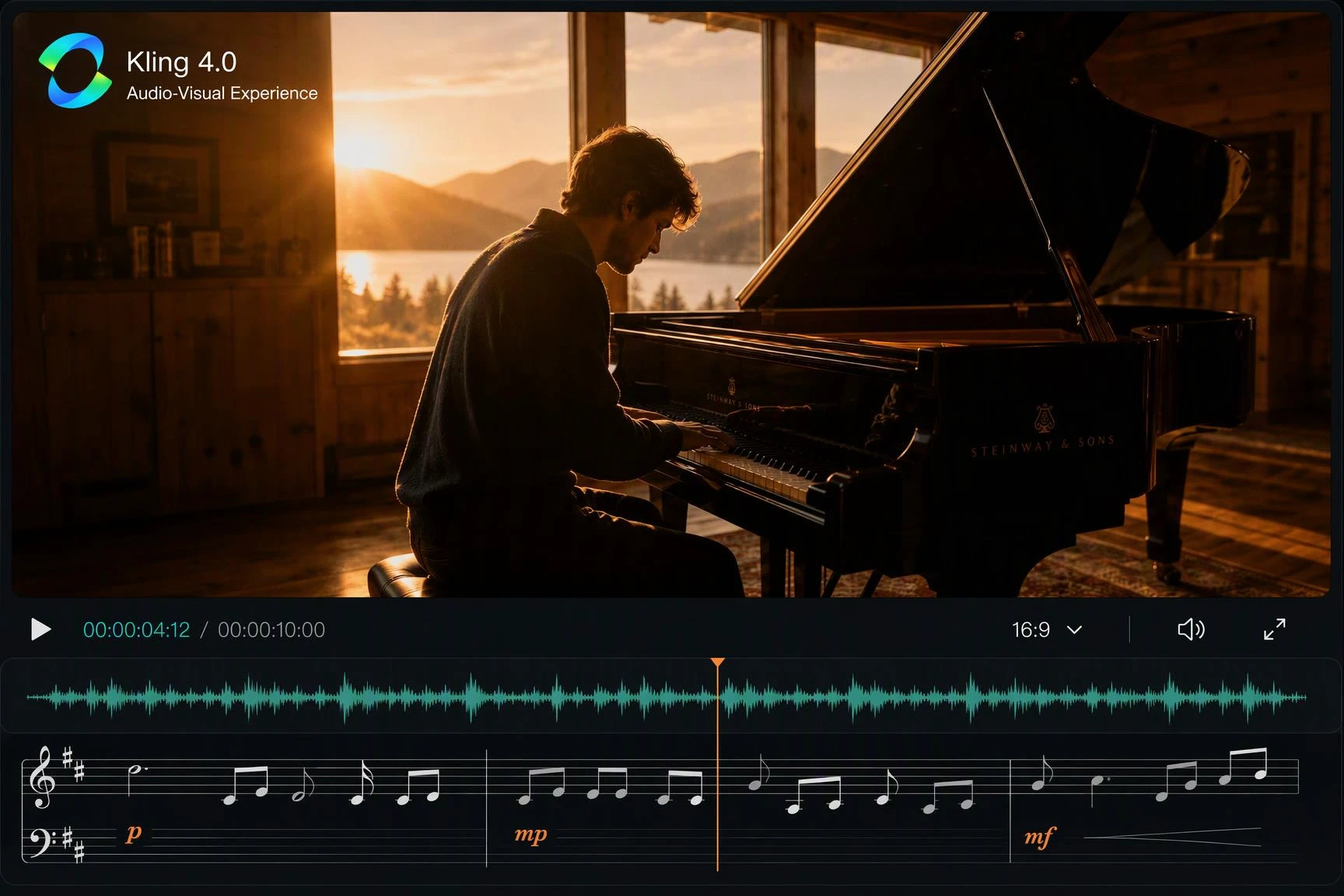
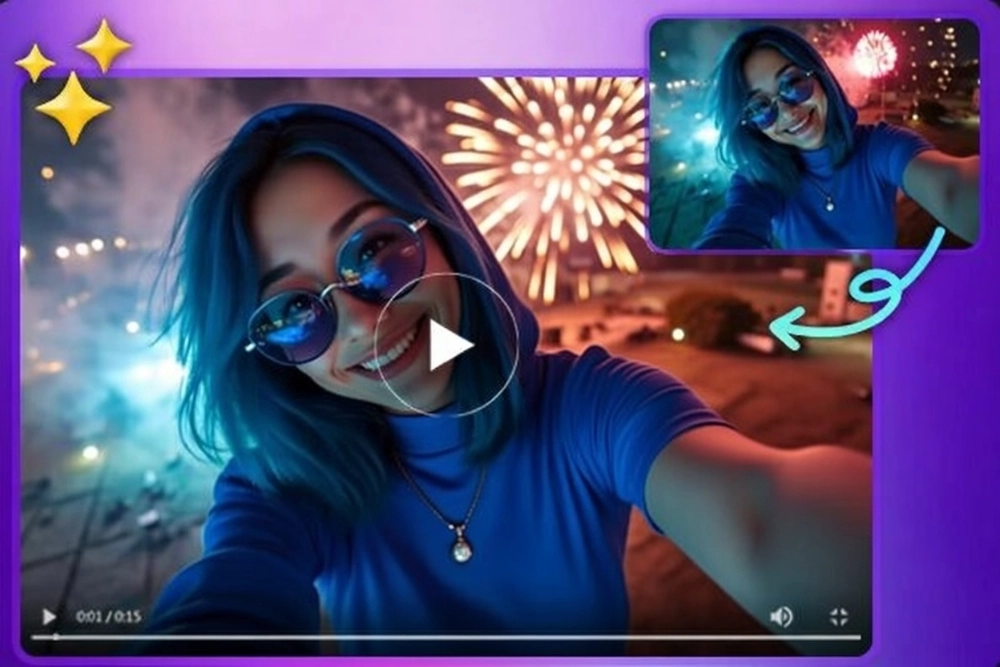
Silent AI videos feel flat on social feeds. Kling 4.0 pairs stable motion with an immersive audio-visual experience, so the clip arrives with sound, atmosphere, and pacing already locked in and ready to share.
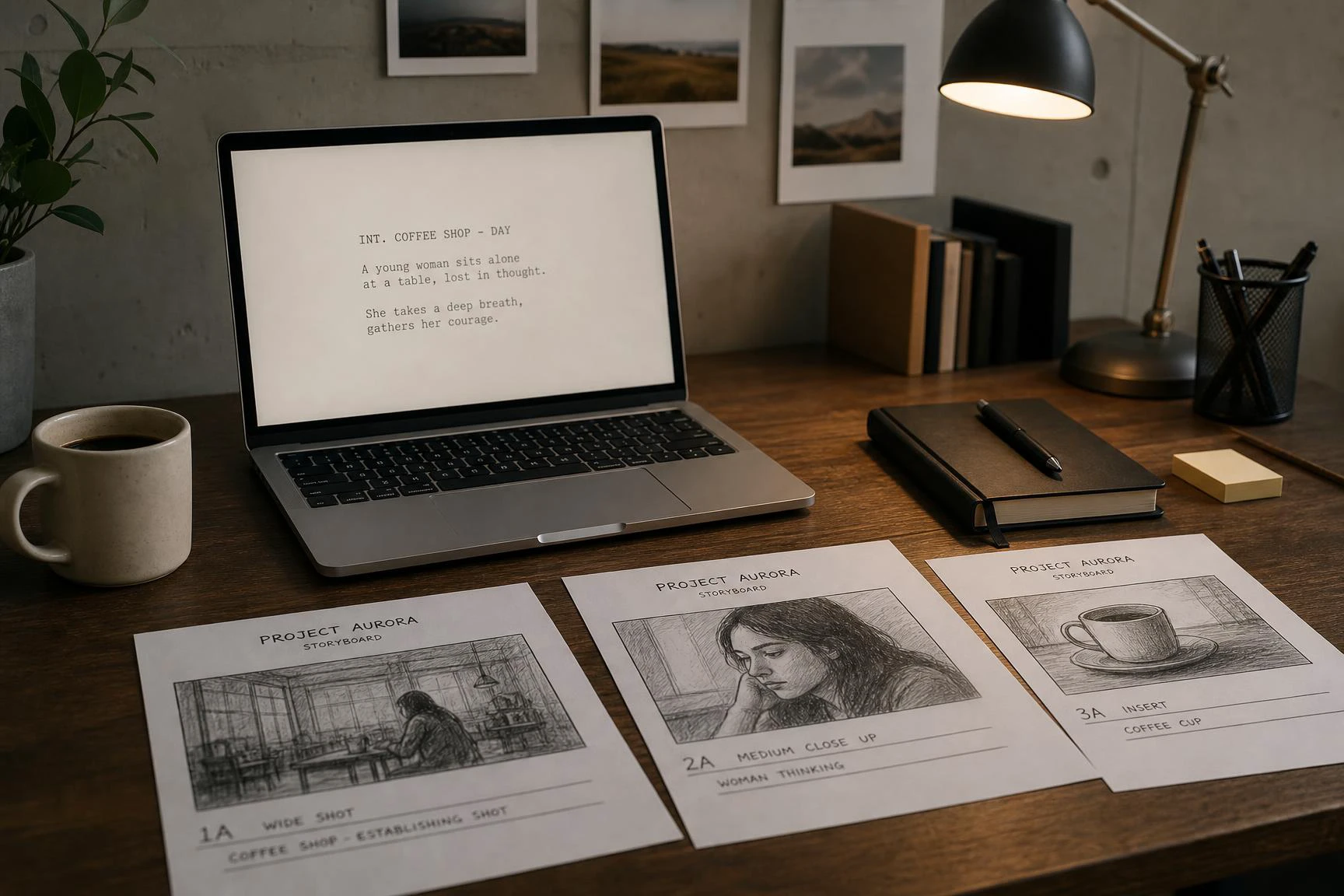
Waiting on a Kling 4.0 Quality render is how teams lose the morning. Kling 4.0 Flash is the fast option for quick storyboard drafts, so the team can compare angles, lighting, and pacing in minutes, then send only the winning shot to the full quality render.
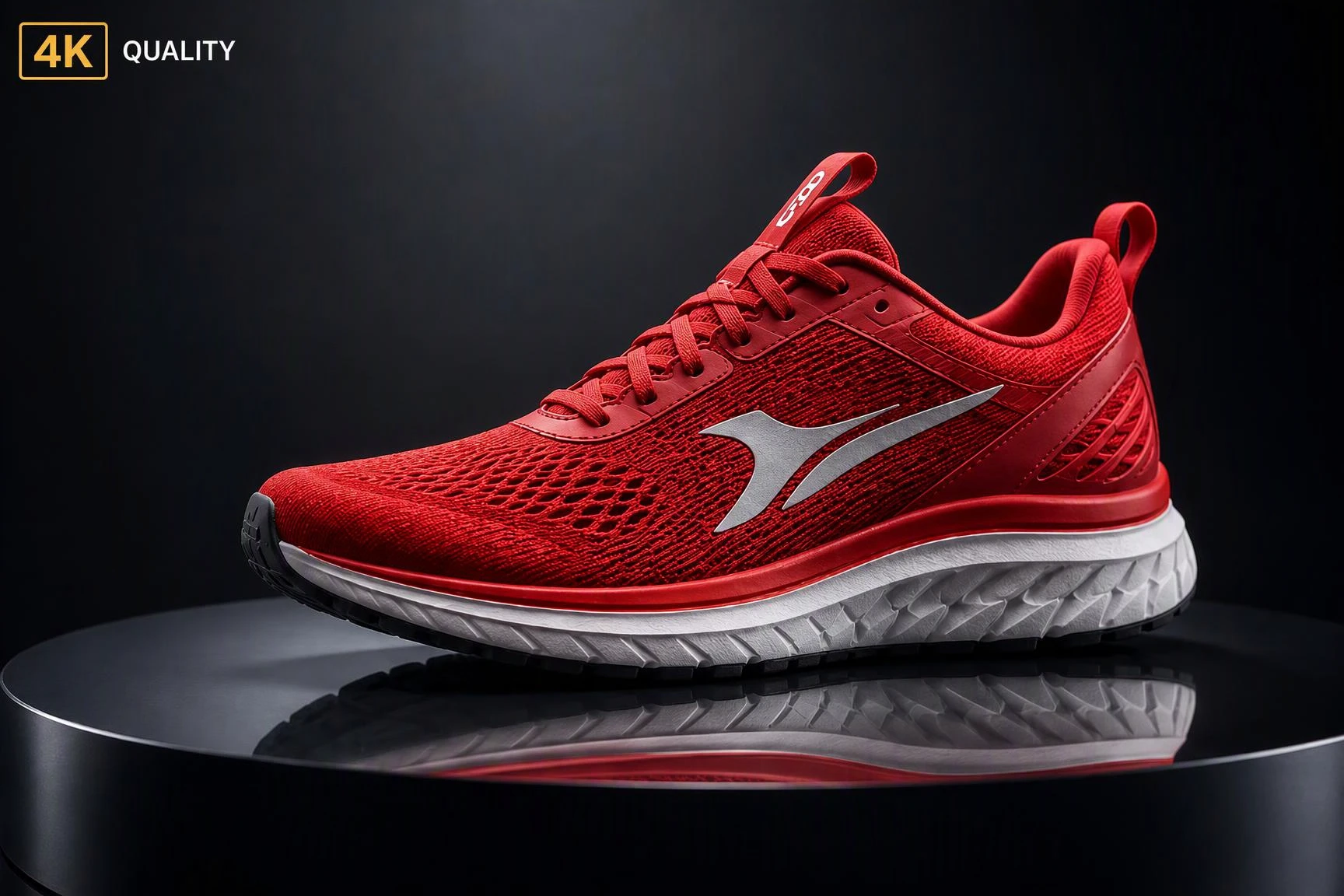
Drafts that look fine on a phone often fall apart on a 4K screen. Switch the same brief to Kling 4.0 Quality for the final pass, where stable motion and audio hold up at cinema-grade native 4K, ready for ads, social cuts, and product pages.
Write the Prompt
Type a short text prompt that names the subject, action, place, camera, and ending, or upload a source image and add the same details on top. Example: A barista pours latte art in a sunny cafe, slow close-up, ends on a smile.
Render with Kling 4.0
Open the model menu, pick Kling 4.0, then send the brief to the AI. Wait for the render to come back before making any change, so every test uses the same setup and the result is fair.
Check and Download
Watch the rendered clip, confirm motion, audio, and ending match the brief, then download the final file. Share it on social, in ads, or on a product page, and keep the prompt for next time.

Stop Rewriting Prompts
A model only looks better when the prompt, source frame, and edit notes all change at once.

Freeze the Source Frame
Every retest that uses a different crop is really a new shot, not a model comparison.

Skip the Spreadsheet
Review notes get lost across folders the moment the Kling 4.0 family mixes with active models.

Same Baseline, New Model
Use today's workflow for deadlines while keeping one Kling 4.0 Flash test queue ready.
Most teams hit a wall the day they compare two models without a fixed baseline. Run the current AI video generator workflow now with Kling 4.0, and reuse one locked brief across every retest.













What is Kling 4.0?

Why does my Kling 4.0 character change between shots?
Most drift comes from changing the prompt between scenes. Lock one character description and reuse it in every shot, or upload the same reference image each time so face and outfit stay the same.
Why is my Kling 4.0 video shaky or off frame?
The model follows camera words literally, so vague prompts like "cool camera move" usually drift. Name the move directly, like "slow push in," "static wide shot," or "orbit from the left," and the framing will lock.
How do I stop Kling 4.0 from ignoring the ending I want?
Most endings fail because the prompt describes the whole video but not the last frame. End the prompt with "ends on…" and describe one clear final image, like "ends on a close-up of the product logo."
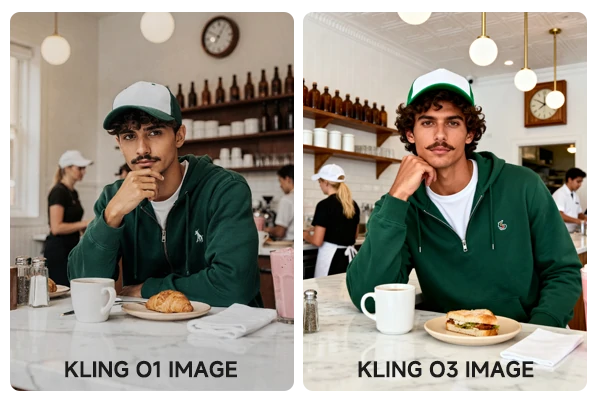
Kling 4.0 vs Kling 3.0 - why does Kling 3.0 sometimes look better?
Kling 3.0 is more forgiving on short, vague prompts. Kling 4.0 follows the brief more literally, so a clear prompt wins and a loose prompt can look worse than the older model.
What should I do when Kling 4.0 keeps adding things I did not ask for?
Extra objects usually mean the prompt leaves room for invention. Remove filler words like "cinematic," "beautiful," "8K," and add the missing details, like the exact outfit, exact prop, and exact background, so the model has less room to invent.
Move from Kling 4.0 into the rest of the Kling series on SeaArt AI, including Kling 3.0, text to video, image to video, and Kling AI avatar.