Hello.
i know this is not something new, but my friend Bikachu asked me to make this guide,
so... here is the easy guide, easy to understand, i won't talk about technical,
but i will show the simplest tutorial to use this feature.
First of all,
what is Seaart Flow?
SeaArt Flow is redefining the creative process
by bringing the power of node-based logic to the world of generative AI.
Far more than a simple generator,
it serves as a visual orchestration layer where users can link diverse AI models
to automate everything from storyboard development to final video production.
Whether you are looking to streamline complex workflows
or build standalone AI applications,
SeaArt Flow provides the infrastructure to turn modular nodes
into meaningful, high-impact media
How to Access it?
you only can access this feature via web, you can't access it in your mobile phone or tablet.
here the direction:
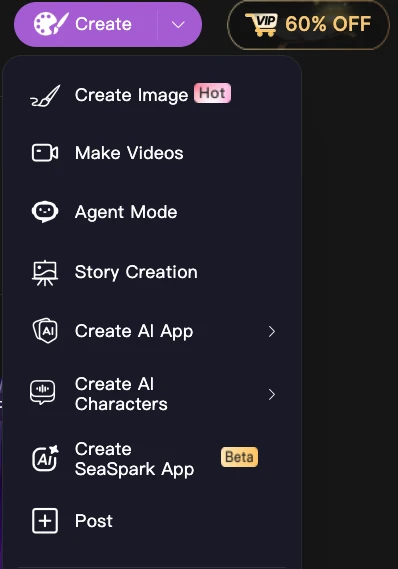
click "create", then pick "create Ai App"
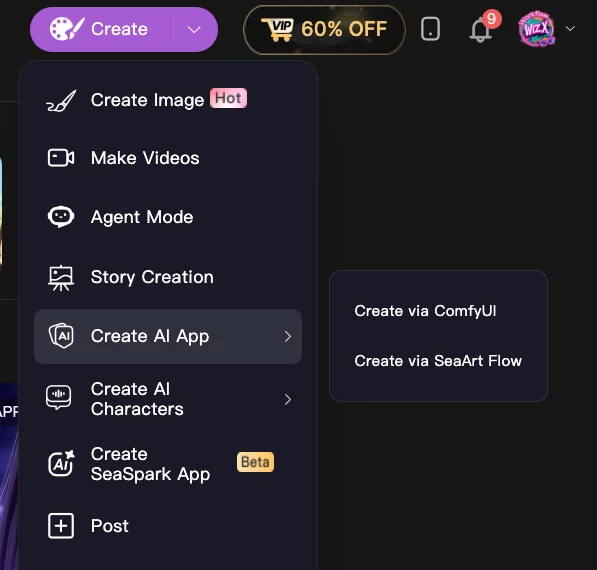
then the web will open a new tab for you, and you will see this page:
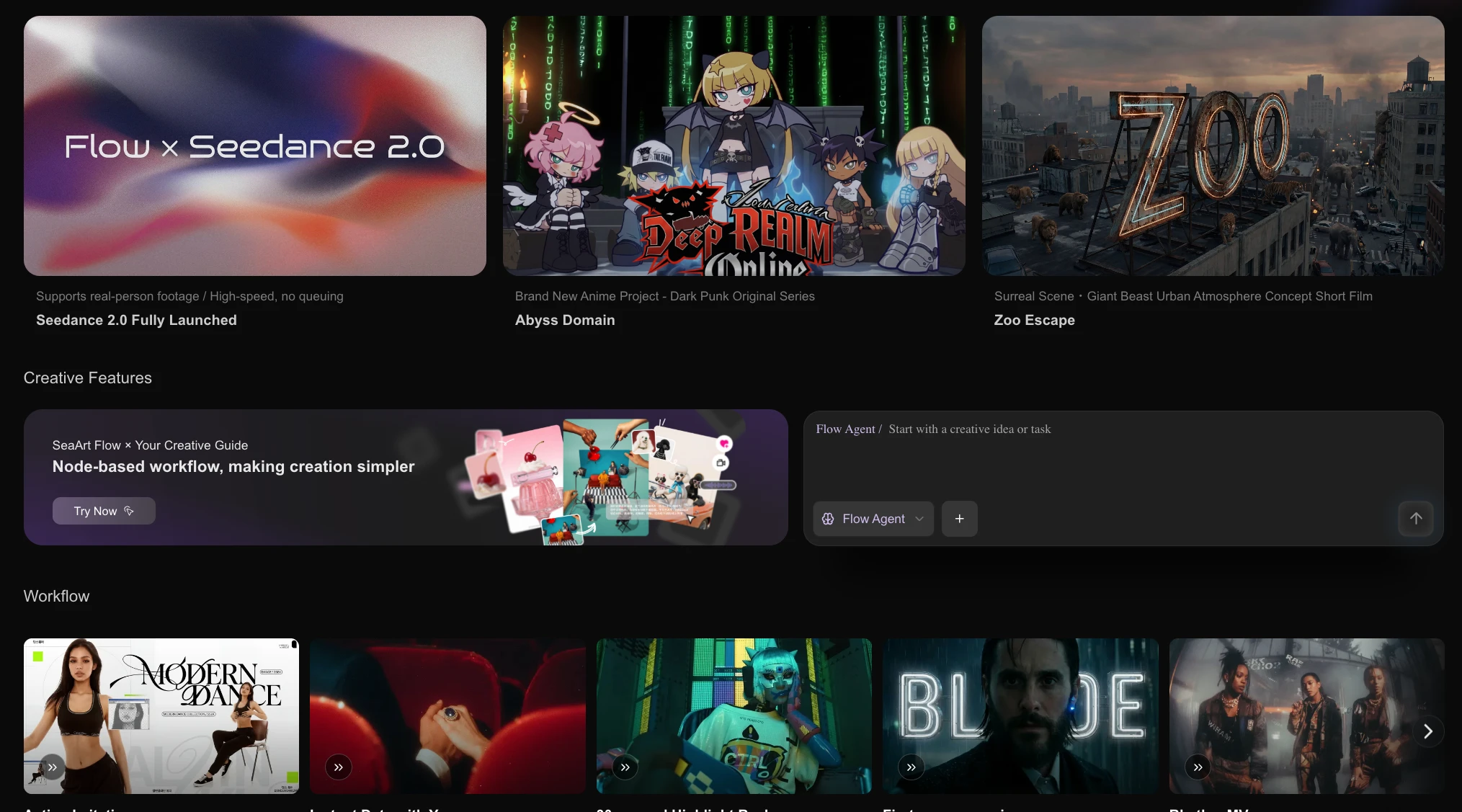
there are already various templates inside it, and you can pick whatever you want
also you can ask the Flow Agent there (but i won't recommend it)
Start your own manual Journey
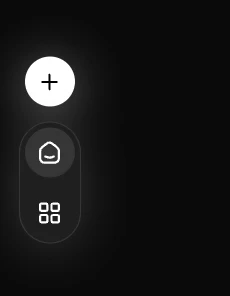
click the plus icon, then you will see blank canvas
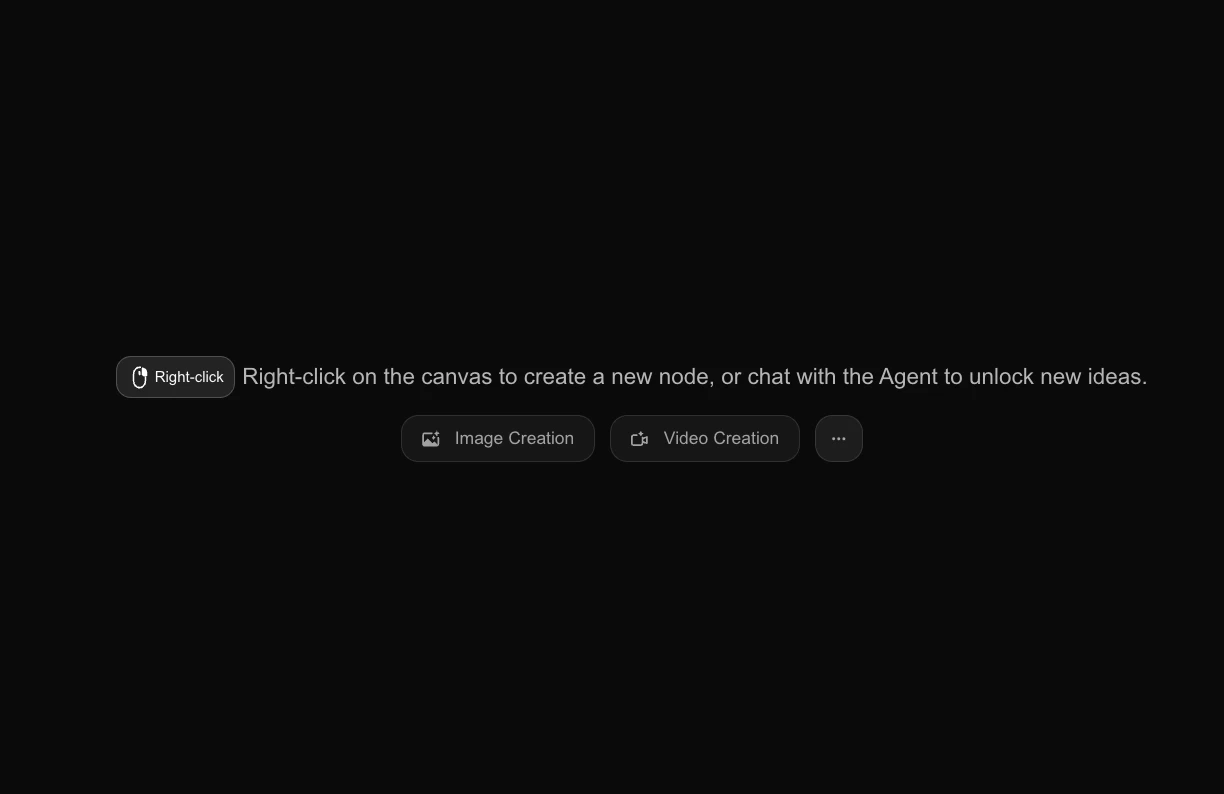
use your mouse to right-click, you will see this :
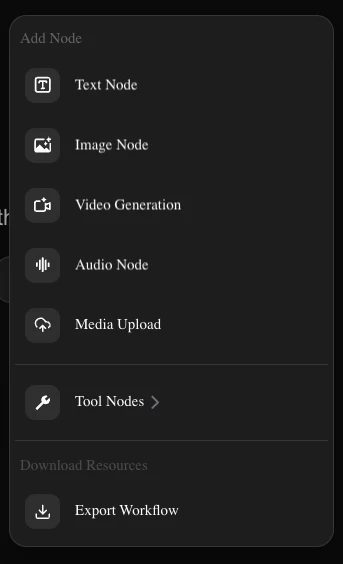
MAIN NODES
Node Name | Explanations |
Text Node | this is LLM chat node, you can pick the different models inside, and you can make this node to help you anything, read my Article HERE |
Image Node | this is image generation node, the models inside it is API models (no open source models), and this Node can be used for Text to Image generation or Image Editing generation |
Video Generation | this is Video generation Node, same as the Image, no open source model like WAN2.2 or Hunyuan or LTX in here, all the models are API, but this Node can be used for Text to Video, Image to Video, Video to Video or Reference to Video (Depends on the Model you use) |
Audio Node | this is text to audio generation, you can generate Speech, Music and Sound effects |
Media Upload | you can upload Image or Video or Audio with this Node, but it will upload file from your Local Drive, not from your Seaart Gallery |
TOOL NODES
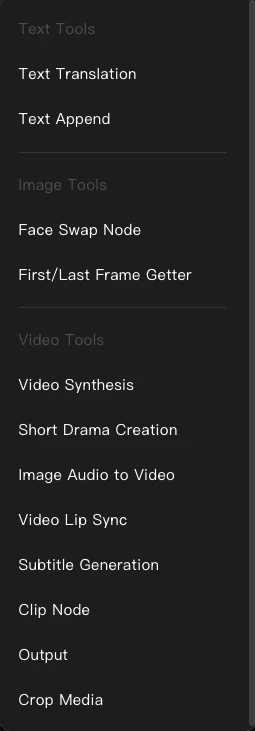
like their names, you can understand those nodes easily, lol
maybe i will tell a little bit about Clip Node
(this is video editing tool, to make a template, like capcut, but more simple)
START CREATING AN APP
First you need to have "THE IDEA" first.
i will give you a sample in 2 PARTS:
A. IMAGE APP
A.1 Text to image app
as easy as put the image Node, pick the model you want, like this :
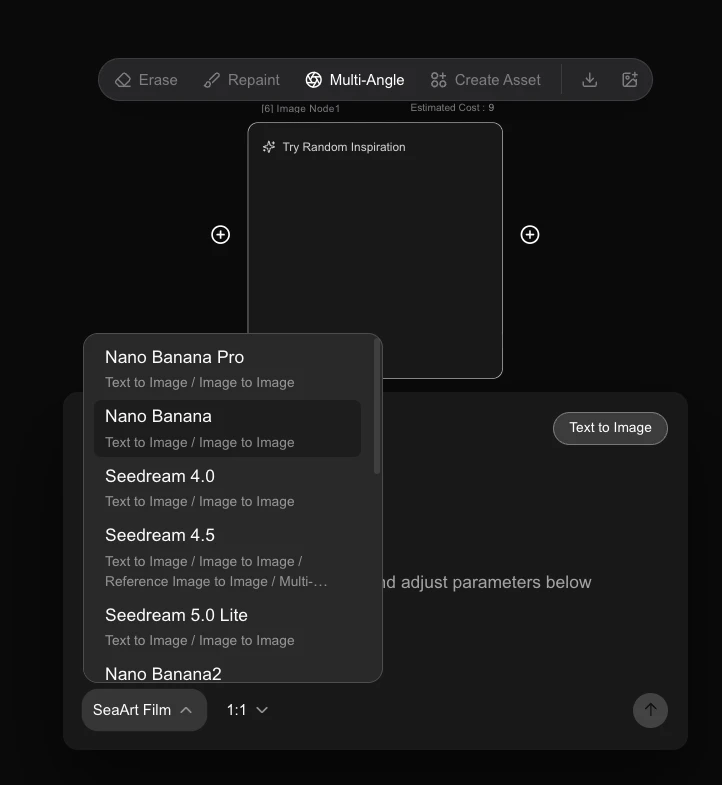
then generate one time, if you have the result generated,
then you can publish it into the simple image maker app.
A.2 Image editing app
first of all you need to use Media Upload node then Image node, connect them like this:
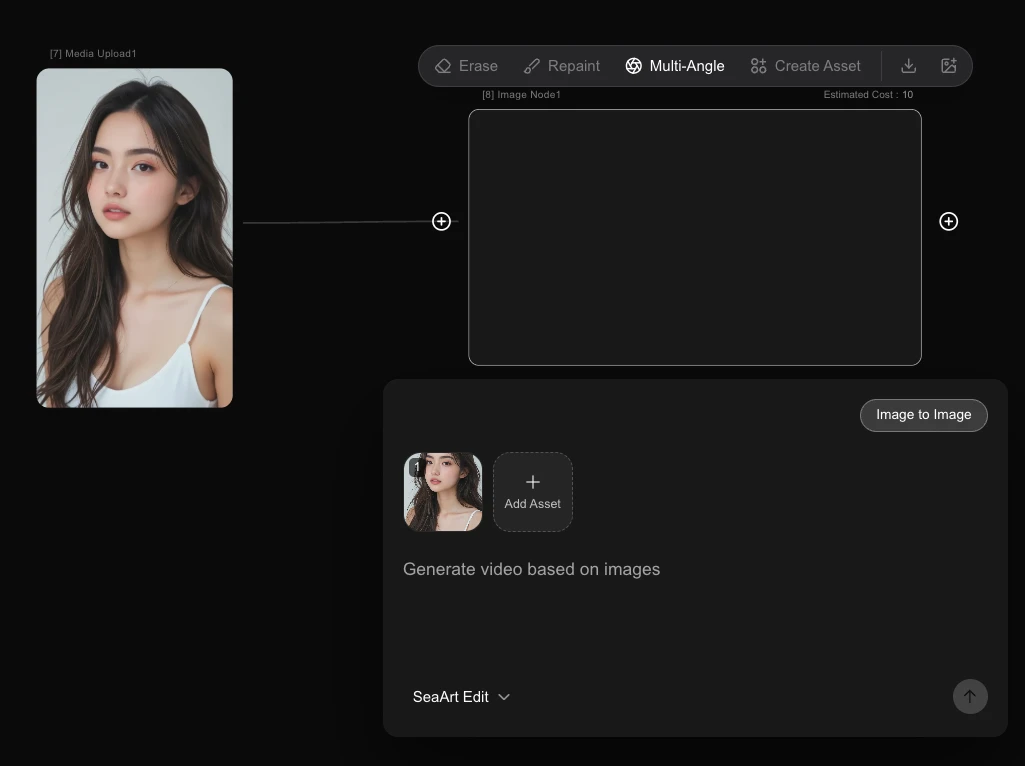
the Image Node will automatically sort the model that has the capability of image editing>
generate one, then you can publish it
don't forget in the publishing app input, you need to enable the prompt input
A.3 Themed image app
there is two methods, you can do like A.2, but you make the image editing prompts FIXED
such as, change the background into beach,
or you can use more detailed prompts and using the Text Append Node like this:
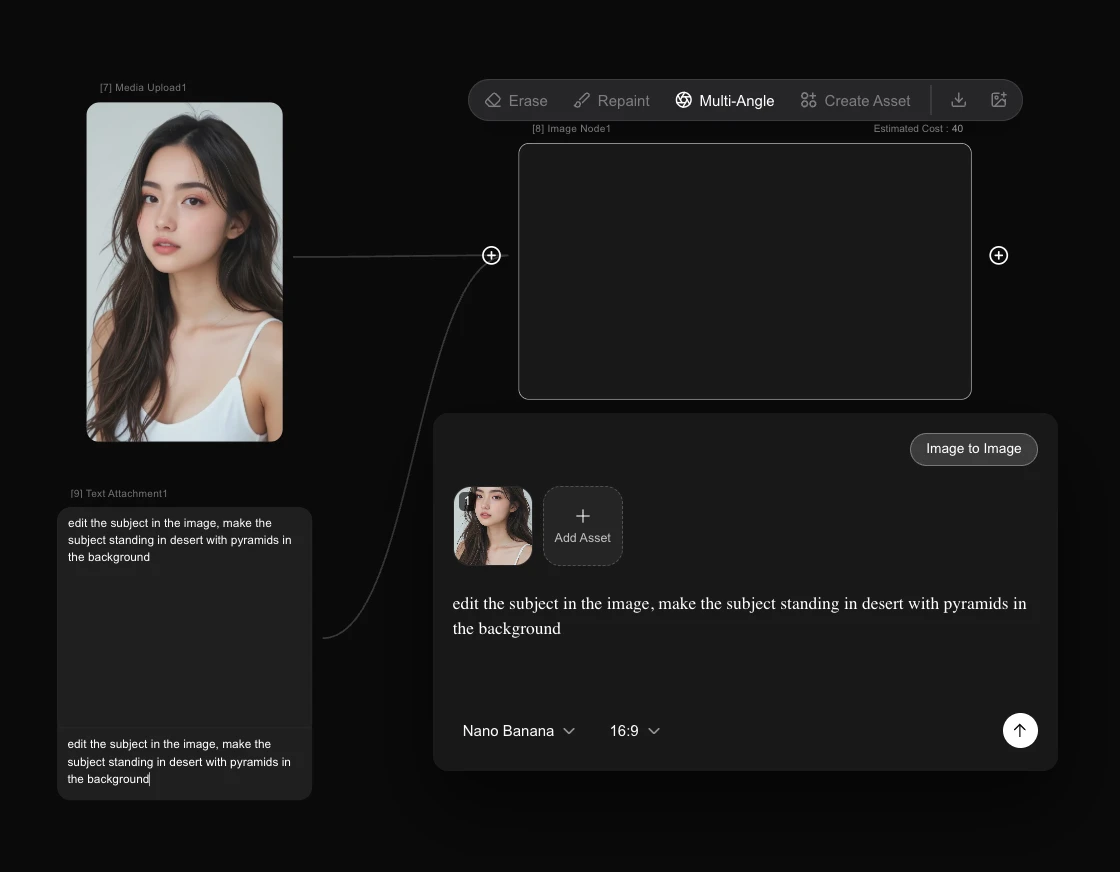
use the term subject / character
then publish it, but do not add the prompt in the publishing process.
A.4 Smart Themed customizable app
this method is advance method, where you add the TEXT NODE, TEXT APPEND NODE, IMAGE NODE
like this:
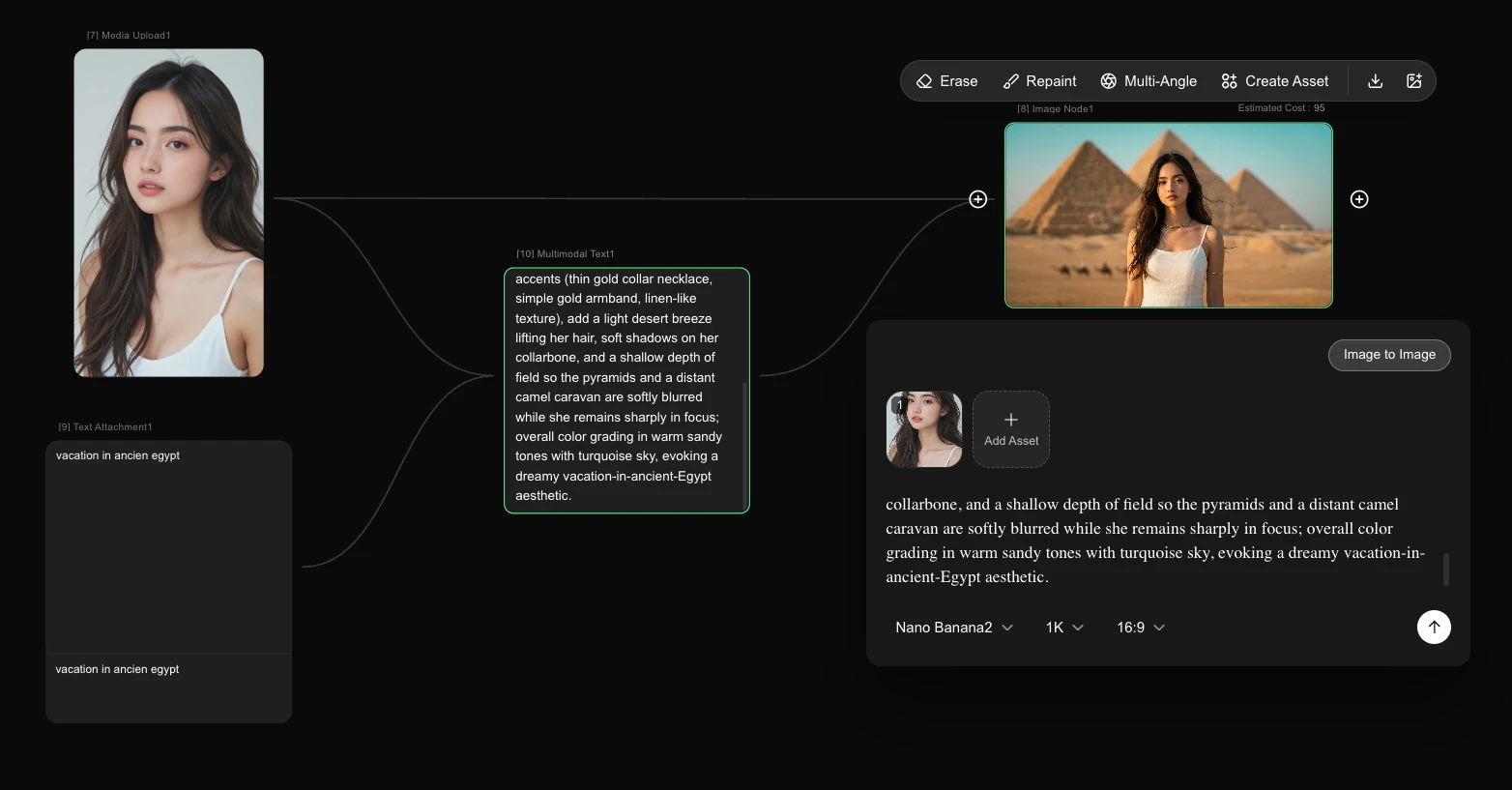
this method, you will use the LLM chat Bot to generate the image editing prompt for you
and the Text Append node role is to enter the theme input,
after that when you publish the app, enable only the media upload and text append.
B. VIDEO APP
B.1 Text to Video App
the method is the same as A.1, but you are using the Video Generation Node, like this:
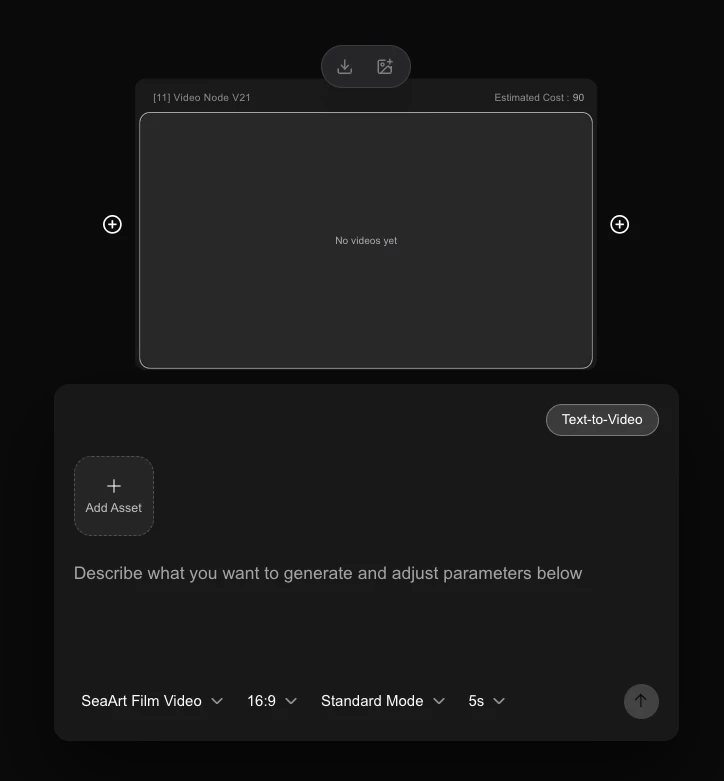
B.2 Image to Video App
same method as A.2, use the nodes like this:
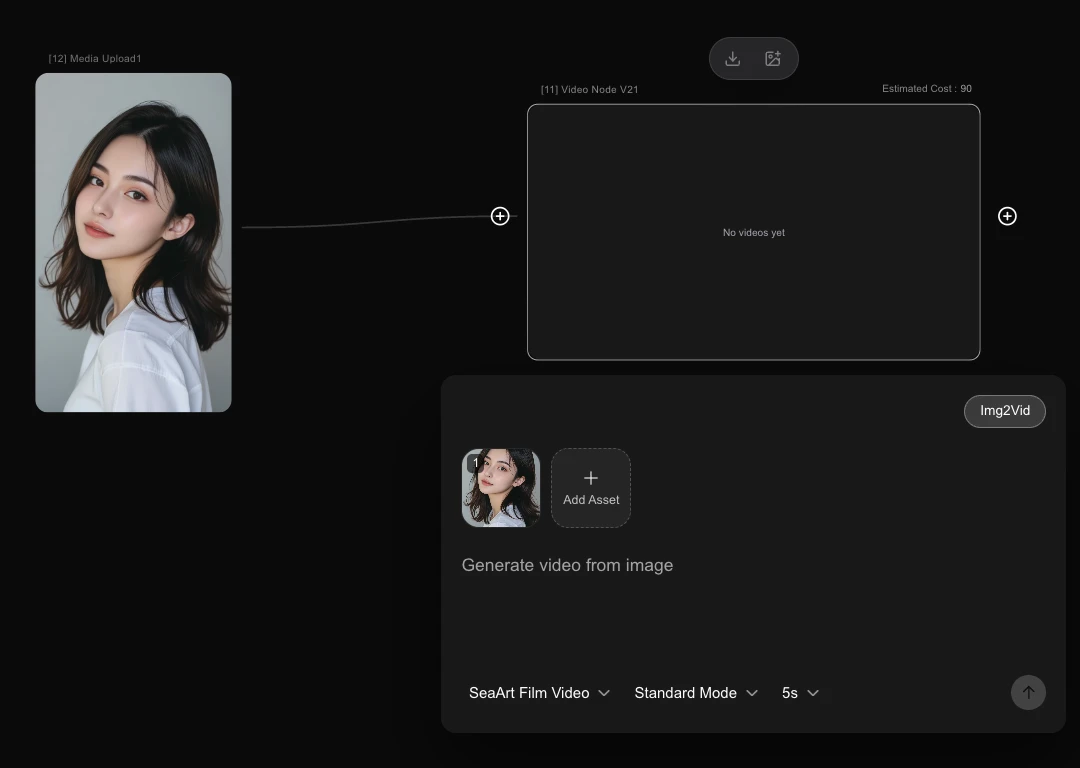
B.3 Themed Video App
same method as A.3, like this:
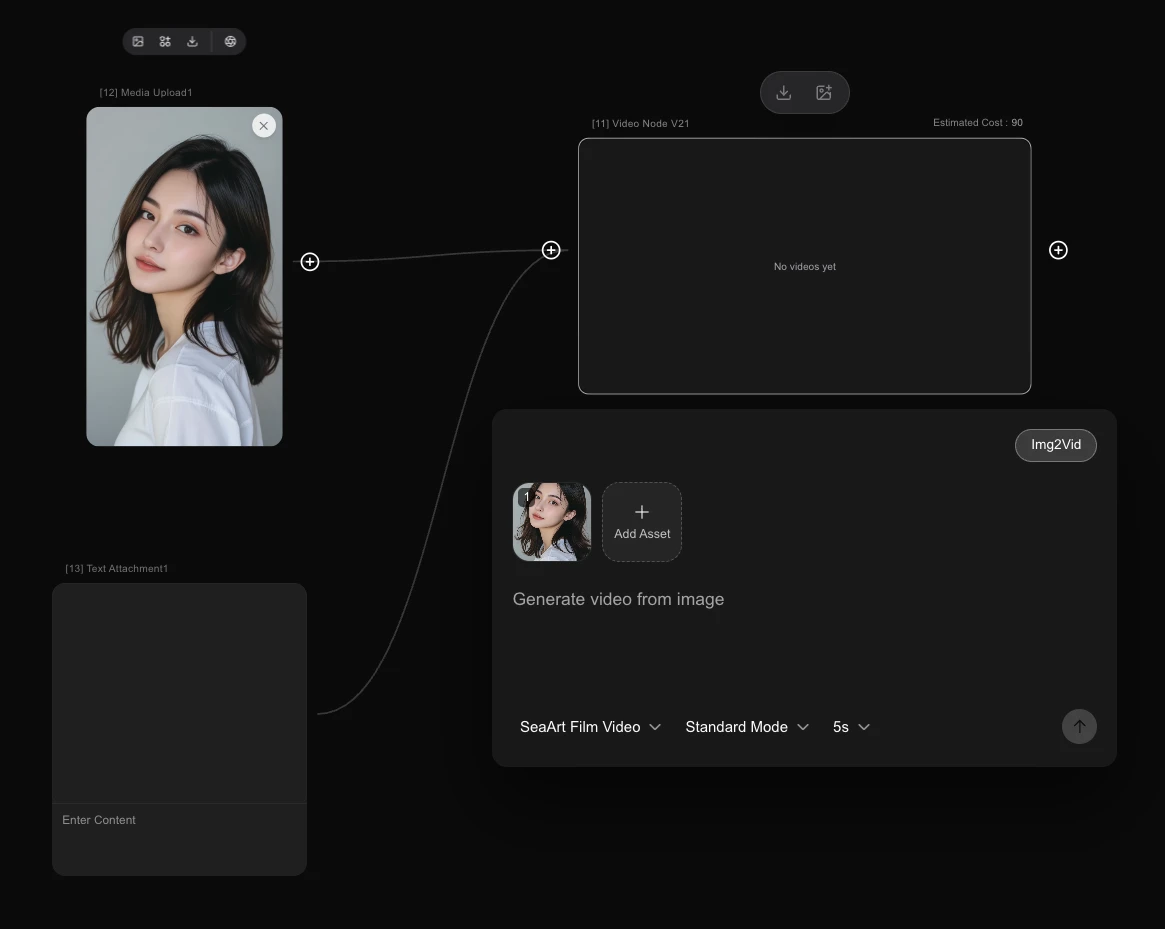
depends on the video model you want to use.
if the video model has audio generation feature, then you need to enter the audio prompt.
B.4 Smart Themed Video App
same method like A.4, but you need to brief the LLM chat bot more details,
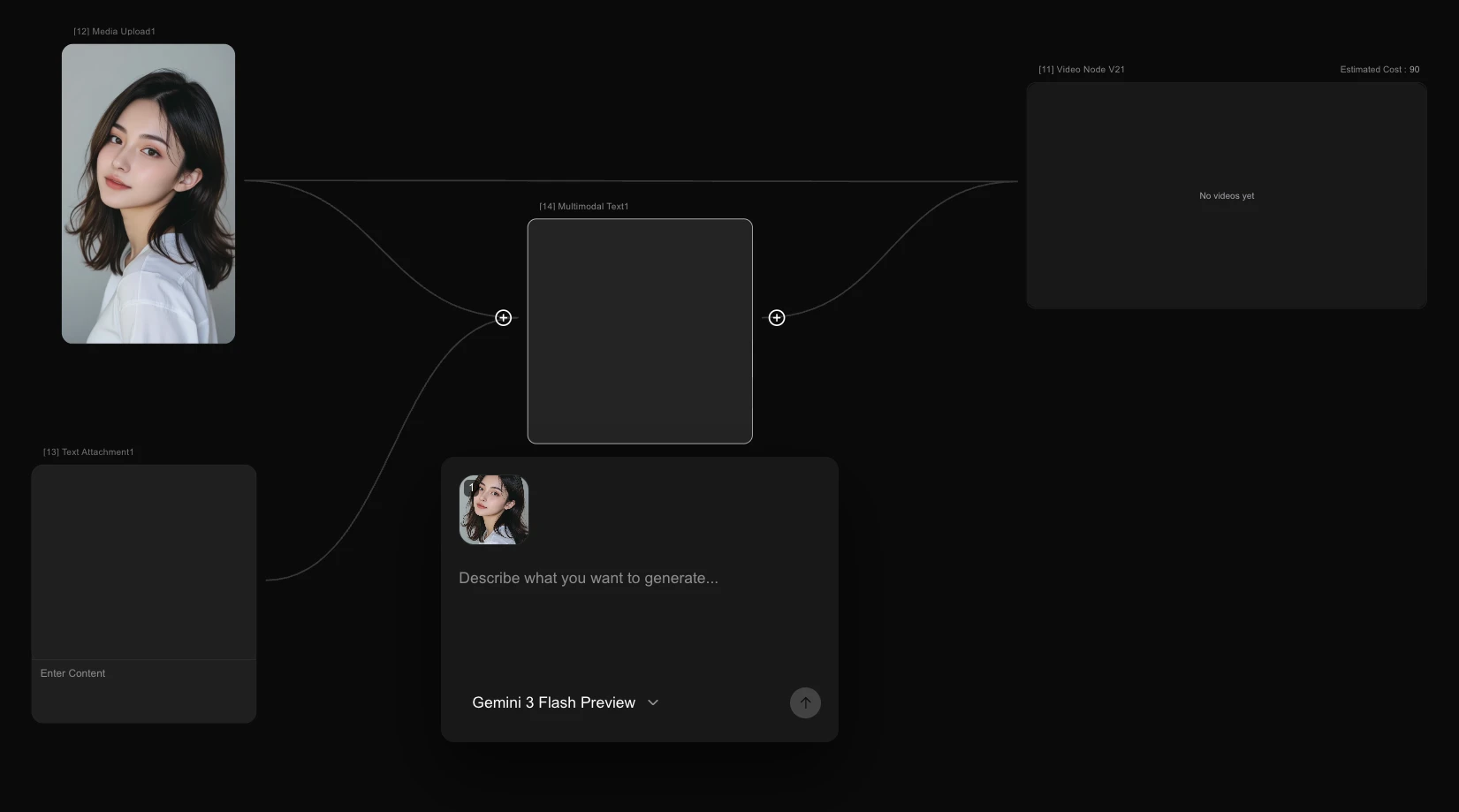
depends on the video model you want to use.
if the video model has audio generation feature, then you need to command the bot
to generate the prompts include with the audio prompt.
ANOTHER APP YOU CAN CREATE
- text chat app
- music generation app
- speech generator app
- translator app
- and many other apps
WHY SEAART FLOW?
why you need to use seaart flow to make an app in seaart?
here the reasons based on my experiences:
- while building the app, you can run per node, not per workflow, more efficient than using comfy UI
- there is no generation time limit, you can make 30s, 1 minute, or more video output!
- easy to use, friendly UI
- the image and video models inside it are using newest API models!
- i love the LLM chat bot with newest models, it can detect more than 1 image
DISADVANTAGES
All models are API-based, not open source,
so when building an app, you need credits to produce it.
Unlike comfy UI, where you can build apps using open source models like WAN 2.2, LTX, etc.
NEXT ARTICLE WILL BE THE ADVANCE METHOD IN USING SEAART FLOW
HOW TO CREATE THE HYBRID WORKFLOW LONG VIDEO.
That's all from me,