Detalhes
Recomendado
v1.0
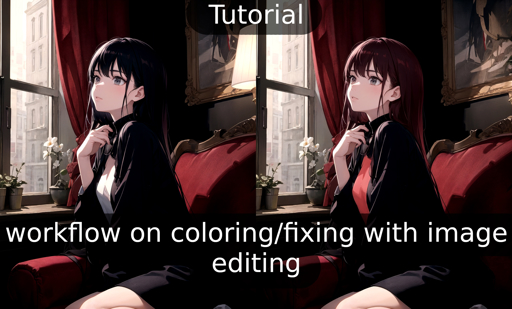
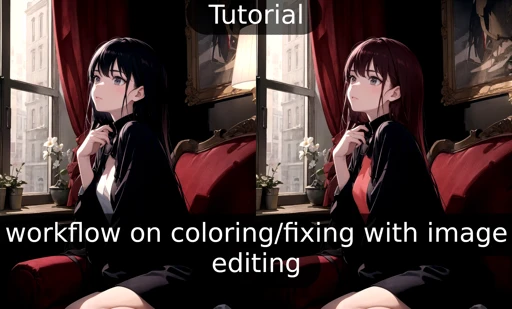
Tutorial, workflow on coloring/fixing with image editing

Tutorial, workflow on coloring/fixing with image editing

0
1
0
#Tutoriais
#guide

You can read from below or download the shitty scrapped PDF from this post. Cannot publish without having file.

Fixing image with photo editing:

This workflow consist of 3 things:

  1. Creating image with txt2img.

  2. Fast fixing what we want to fix in image editing software.

    1. Color of clothes/hair

    2. Messy hands, clothes,

    3. removing unwanted stuff in the image

  3. img2img enhance with method you prefer.

    1. Here are few tutorials which may help on your img2img journey and overall image quality enhance:

      1. Multidiffusion upscaling: https://civitai.com/models/34726/tutorial-for-multidiffusion-upscaler-for-automatic1111-detail-to-the-max

      2. Ultimate SD Upscale: https://civitai.com/models/59811/4k-resolution-upscale-8x-controlnet-tile-resample-in-depth-with-resources

      3. img2img enhance: https://civitai.com/models/34192/ultra-sharp-high-contrast-tutorial-vaeandupscaler

1. (~ ̄▽ ̄)~

First i will be generating shitty image for the purpose of showing this workflow. (It feels like it has become hard to create shitty images on purpose, had to take of my negative embeddings (~ ̄▽ ̄)~ )

1.1 Prompt + settings:

Keeping the prompt simple:

The settings simple: (Used random resolution to get more bad stuff to the image for the tutorial purpose)

The image i got with this:

1.2 The editing

The editing can be done with any image editing software. The methods might change a bit depending on the software, but generally the idea is the same. (For the sake of the tutorial i use simple methods and things that are available in simple image editing tools, there are better ways to do these things for example in photoshop. But that is not available for everyone)

Few free softwares you can use:

  1. Gimp

  2. Photopea (I will be using this in the tutorial, it is free and works on your browser. Mimics photoshop)

This is how photopea looks:

(have to keep it smaller to fit into civitai formatting)

Few shortcuts for photopea in windows:

  • Pressing alt + scroll wheel you can zoom in and out

  • pressing control + scroll wheel you can move left and right on the image

  • With scroll wheel you can move up and down

  • right clicking on image it will give you settings of the tool you are using

First thing i will be going to this image is fix the hand. It will be messy if we leave it like that. I will be using simple tools for the sake of the tutorial. If you are capable and know how to use image editing software, using more advanced tools can give better results. (You can use layers and blending modes, object selections etc....)

For the hand i will be using brush tool to fix the fingers.

Few tips with the brush tool:

  • With alt + left click you can select the color from the image where the cursor is

  • You can change opacity settings from the top of the screen when you have brush tool selected.

Before and after image:

I removed parts that might confuse the ai into making monster of an hand. Then i strengthened the lines to make the ai understand the hand better.

Next i am removing the lamp and only have the painting in the right side of the image

For this i used stamp tool (There are many different ways to do this, best would be with photoshop content aware fill, but for the sake of the tutorial i use simple methods and things that are available in simple image editing tools)

Tips for the stamp tool:

  • With alt + left click you select source from where you want to stamp from, and after that painting with the left click will stamp on your current location from the source.

  • The opacity can be changed from the top

  • This does not need to be perfect, AI will handle our shitty painting.

Before and after editing: I did this really fast and AI hopefully will fix my shitty painting

༼ つ ◕_◕ ༽つ

Next i will be changing color of the hair and shirt:

Tips:

  • This can be done better with selection + using layer and color blend for example.

  • I used brush to roughly paint over them with lower opacity.

  • Use low opacity to retain the detail of the original cloth/hair etc...

Before after editing hair:

Before after editing shirt:

1.3 IMG2IMG

Settings:

  1. REMEMBER TO SEND THE IMAGE FROM TXT2IMG to get right proportions etc...

  2. Save the image. In photopea -> file -> export as ->PNG

  3. Drop the edited image to IMG2IMG

  4. fix settings

  5. Generate

These are settings i used for multidiffusion:

The result:

The image is not perfect, the idea was to show way to alter your image without going into inpaint and pray ༼ つ ◕_◕ ༽つ

Results are better, more time you spend editing the image. Total time i would have spent on editing this image would around to around 1 minute. Could take 10 minutes in inpaint to fix bad hand.

The end

Than you for getting this far, if you liked please leave review. Discussion is open for any feedback for the workflow.

Thank you (~ ̄▽ ̄)~

Ver tradução

Classificação e Avaliação

-- /5
0 classificação(ções)

Sem classificações ou avaliações suficientes

avatar
Anúncio
2024-07-25
Publicar Modelo
2023-05-12
Atualizar info do modelo
Detalhes do modelo
Tipo
Other
Tempo de Publicação
2023-05-12
Modelo básico
Other

Escopo da licença
Fonte: civitai

1. Os direitos dos modelos repostados pertencem aos criadores originais.

2. Criadores originais que desejam reivindicar seus modelos devem contatar a equipe do SeaArt AI pelos canais oficiais. Clique para reivindicar

Escopo da licença de criação
Transmissão ao vivo
Fusão
Permitir download
Licença comercial
Imagens geradas podem ser vendidas ou usadas para fins comerciais
Permitir revenda de modelos ou sua venda após a combinação
QR Code
Baixar App SeaArt
Continue sua jornada de criação com IA no celular