
Created by a user in a desktop environment.
SeaArt SDXL Image Generation Guide
When generating images with the SDXL model in SeaArt, the specified image size may differ from the actual generated size. This is due to SDXL's image processing mechanism.
Size Adjustment Principles
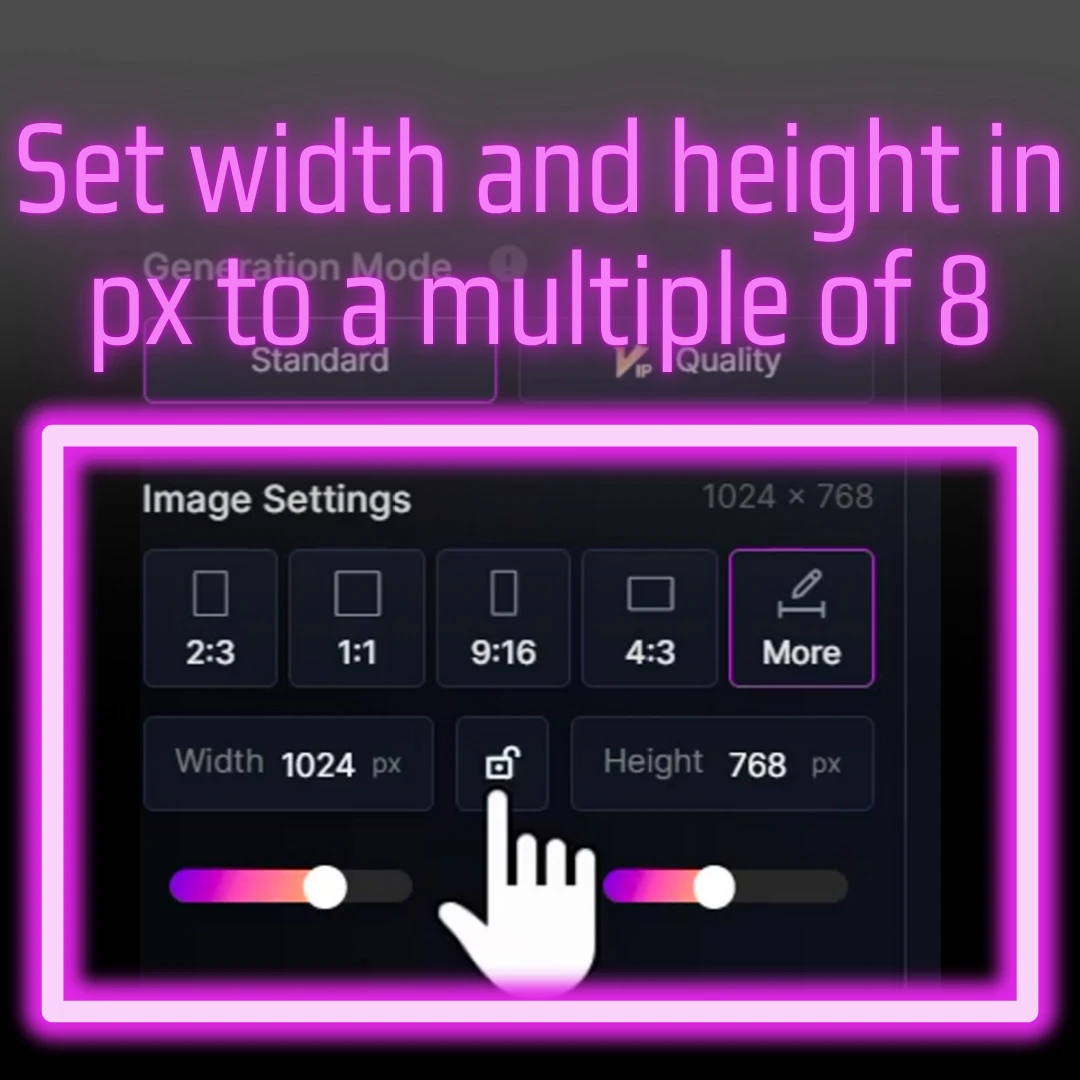
For SDXL, the width and height dimensions of the image must be multiples of 8.
For example, if you specify an aspect ratio of 4:5 with 400px × 500px, the width of 400px will not change because it is a multiple of 8 (400÷8=50). However, the height of 500px is not a multiple of 8 (500÷8=62.5), so it will be adjusted to 496px.
SeaArt's aspect ratios are mostly set so that image dimensions are multiples of 8.
However, if you want to manually change the values, you need to ensure both width and height are multiples of 8.
Recommended Image Sizes (Based on Multiples of 8)
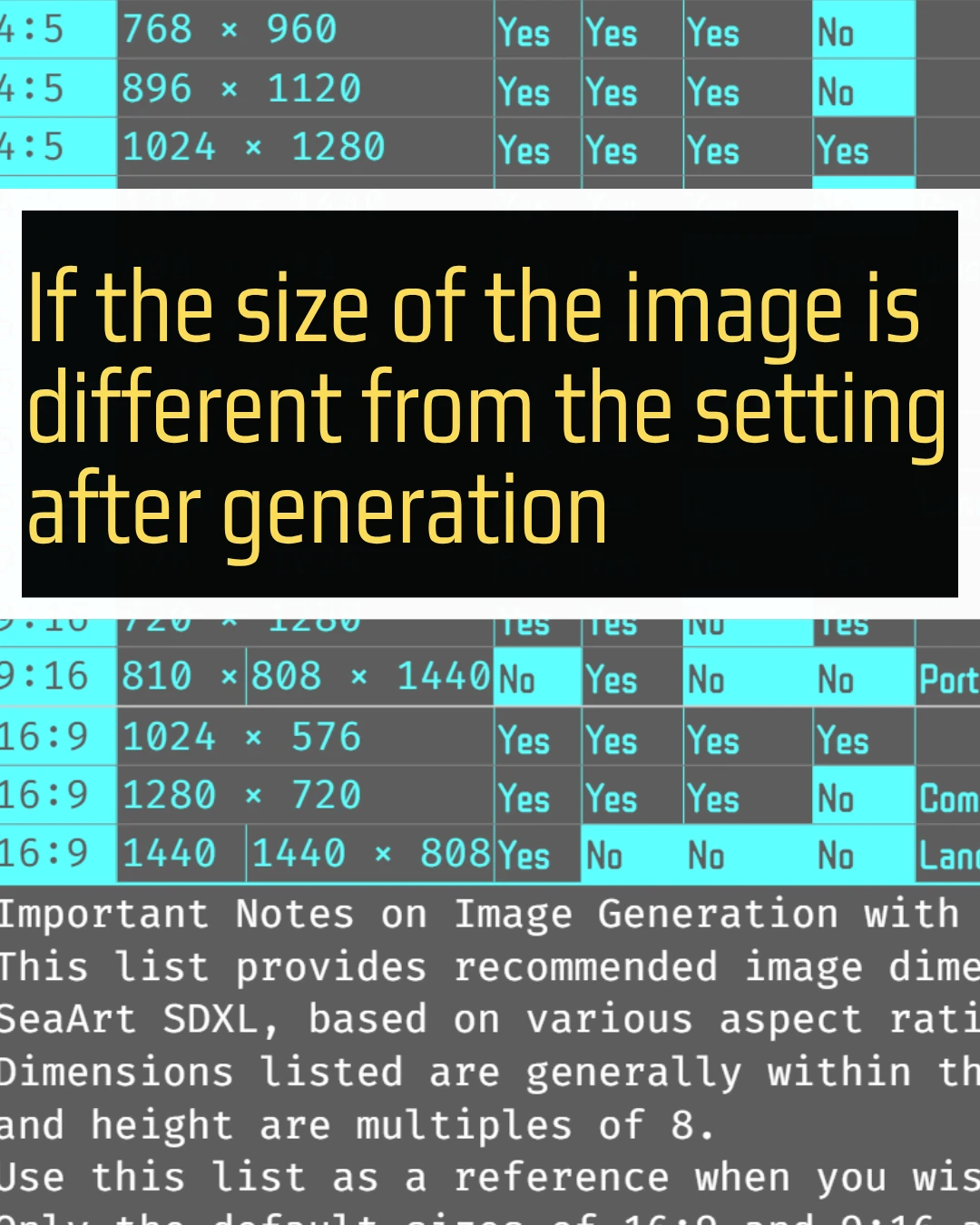
Below is a summary of recommended aspect ratios for SDXL generation, along with corresponding sizes where both width and height are multiples of 8. Unless otherwise specified, the focus is on sizes within the "Cost 6" range, which SDXL can process efficiently.
Aspect rates for resolutions where both the height and width are multiples of 8.
Here is a list of resolutions with multiples of 8 for both the vertical and horizontal dimensions. The quality drops even further below 786px. Generally, it is said that the quality is best for larger sizes such as 1024px and multiples of 64.
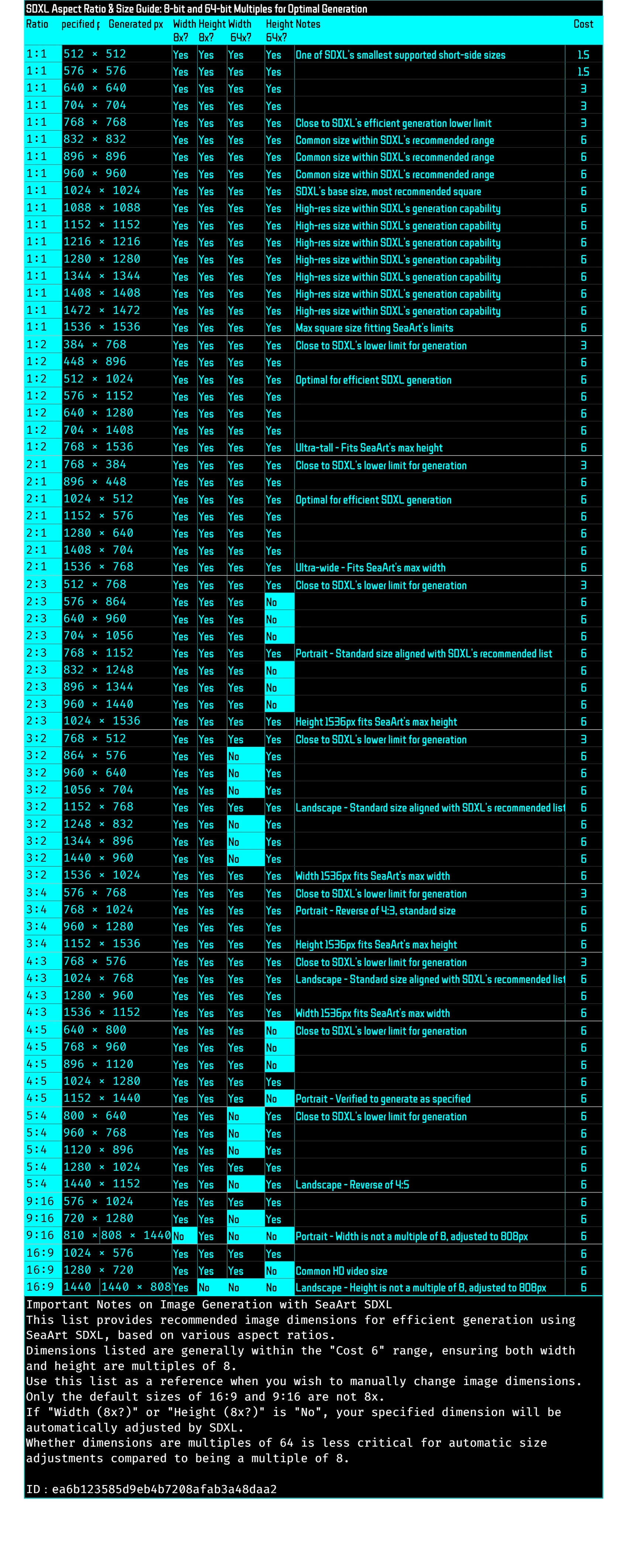
Important Notes on Image Generation with SeaArt SDXL
This list provides recommended image dimensions for efficient generation using SeaArt SDXL, based on various aspect ratios.
- Dimensions listed are generally within the "Cost 6" range, ensuring both width and height are multiples of 8.
- Use this list as a reference when you wish to manually change image dimensions.
- If "Width (8x?)" or "Height (8x?)" is "No", your specified dimension will be automatically adjusted by SDXL.
- Whether dimensions are multiples of 64 is less critical for automatic size adjustments compared to being a multiple of 8.
If the size remains the same after generation.
For example, 1150px becomes 1144px.
If you select "4:5" in More, the image size will automatically be set to 1152px x 1440px.
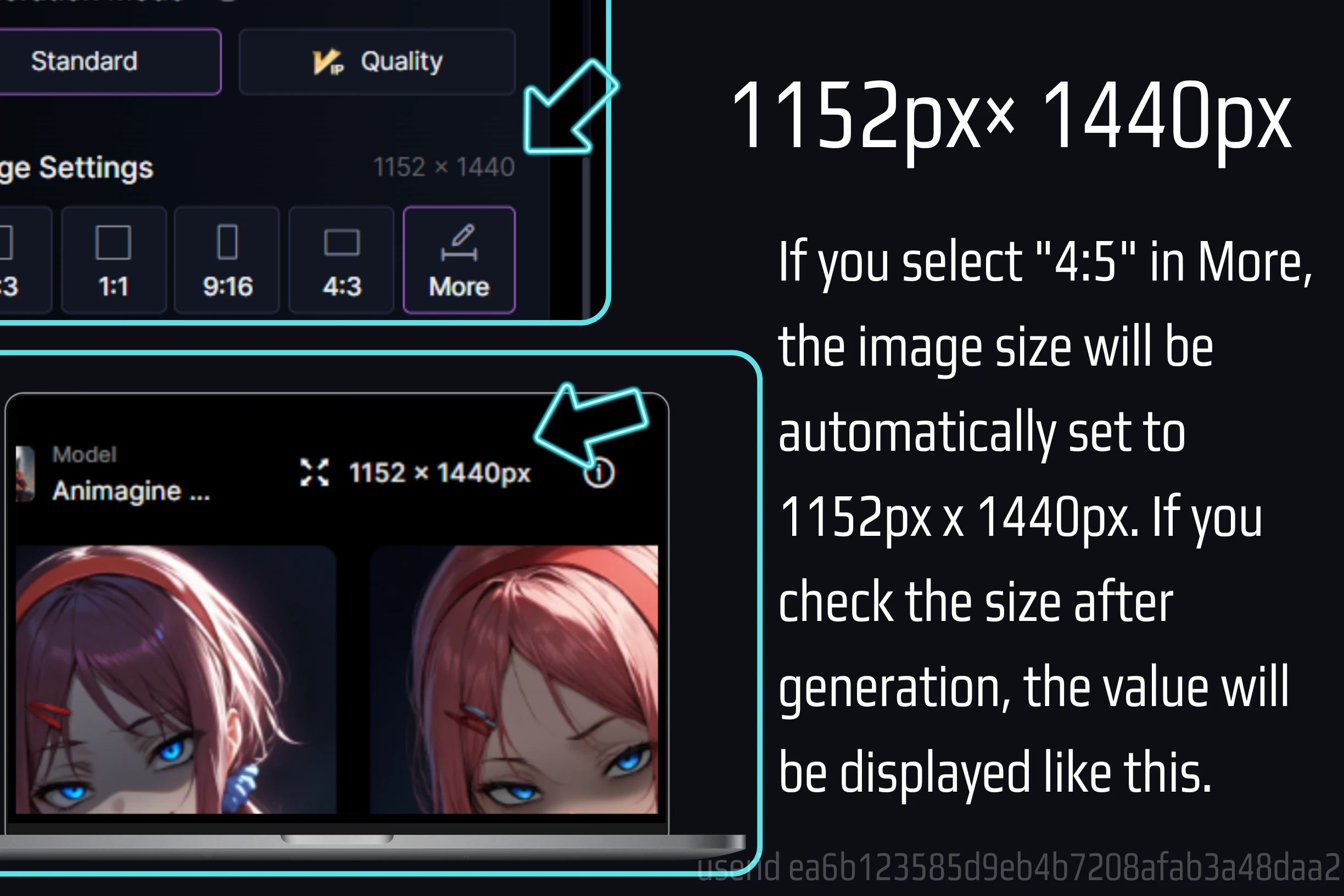
Same 4:5. Generated at 920px x 1150px.
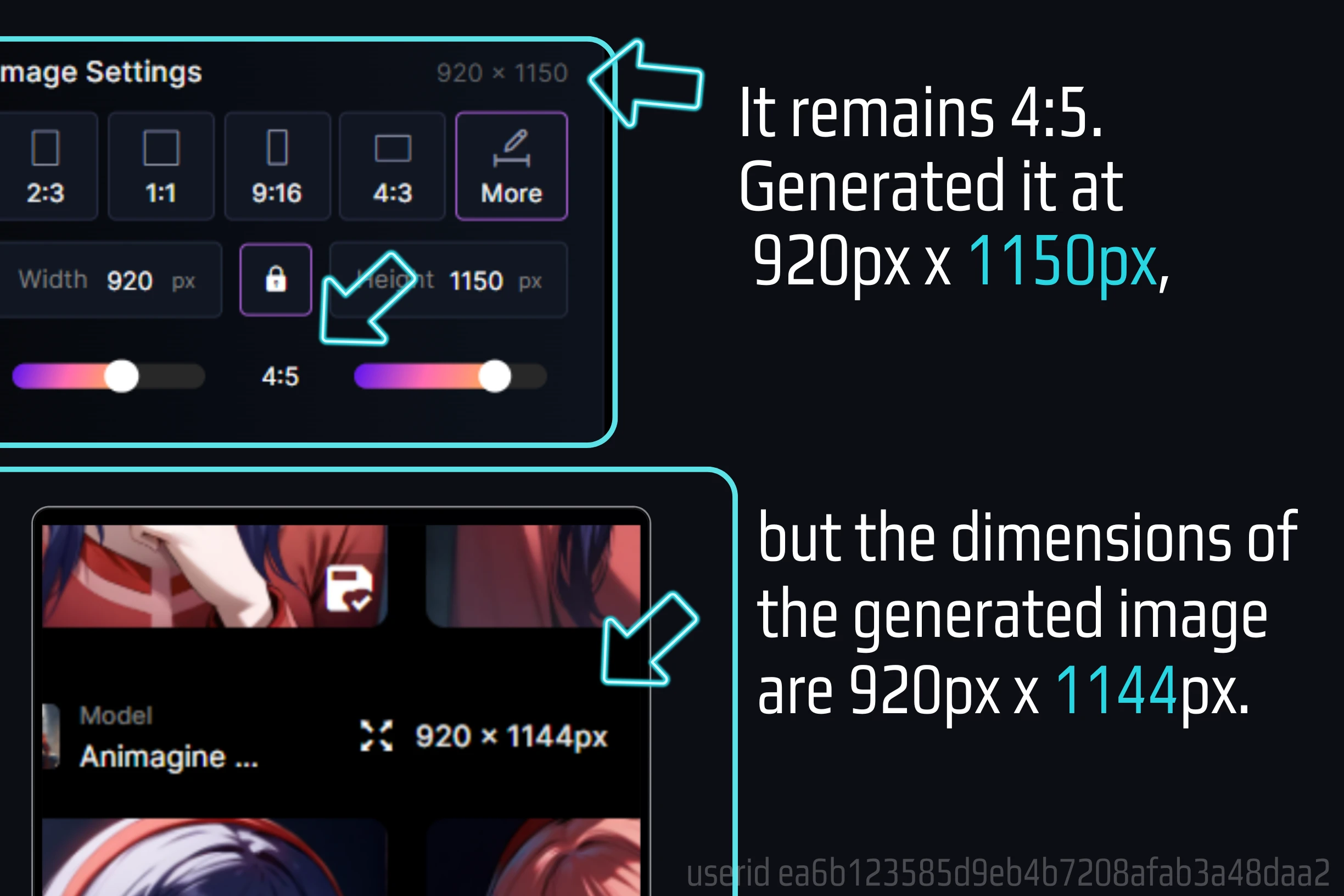
However, the dimensions of the generated image are 920px x 1144px.
Generated image are 920px x 1144px.
So what is the ratio of this 920px x 1150px? It's 115:143.
The image proportions have also changed.
Width (920px): 920÷8=115 (a multiple of 8)
Height (1150px): 1150÷8=143.75 (not a multiple of 8)
Actual generated result: 920px × 1144px
Width (920px): Remained as is. This is because the width was a multiple of 8 to begin with.
Height (1144px): 1150px was not a multiple of 8, so SDXL automatically rounded it to the nearest multiple of 8.
Closest multiple of 8 to 1150px: 8×143=1144 (difference is 6px)
Closest multiple of 8 to 1150px: 8×144=1152 (difference is 2px)
Why does the px size change⁉️
This is not limited to this size, but when the length and width are not a multiple of 8, they are automatically rounded to a multiple of 8.
In other words, since the height of 1150px was not a multiple of 8, it was adjusted to 1144px, a multiple of 8.
I did some testing and it was rounded to the smaller side.
Since the aspect ratio is 4:5(400px × 500px),
Since the aspect ratio is 4:5, if you generate an image with a resolution of 400px x 500px,
400px x 500px
Aspect ratio: 400÷500=0.8 (exactly 4:5)
Width (400px): 400÷8=50 (is a multiple of 8)
Height (500px): 500÷8=62.5 (is not a multiple of 8)
Note: This is an example of what you actually generated and adjusted to 400px x 496px.
Example where the width is not a multiple of 8, but the height is a multiple of 8:
410px × 512px
Aspect ratio: 410÷512≈0.80078 (not exactly 4:5, but very close)
Width (410px): 410÷8=51.25 (not a multiple of 8)
This is not limited to 4:5.
2:3 resolution
If you press the 2:3 ***on and it is 768px × 1152px, it is the size you set.
768px × 1152px,
However, in the case of 667px x 1000px, since 667px is not a multiple of 8,
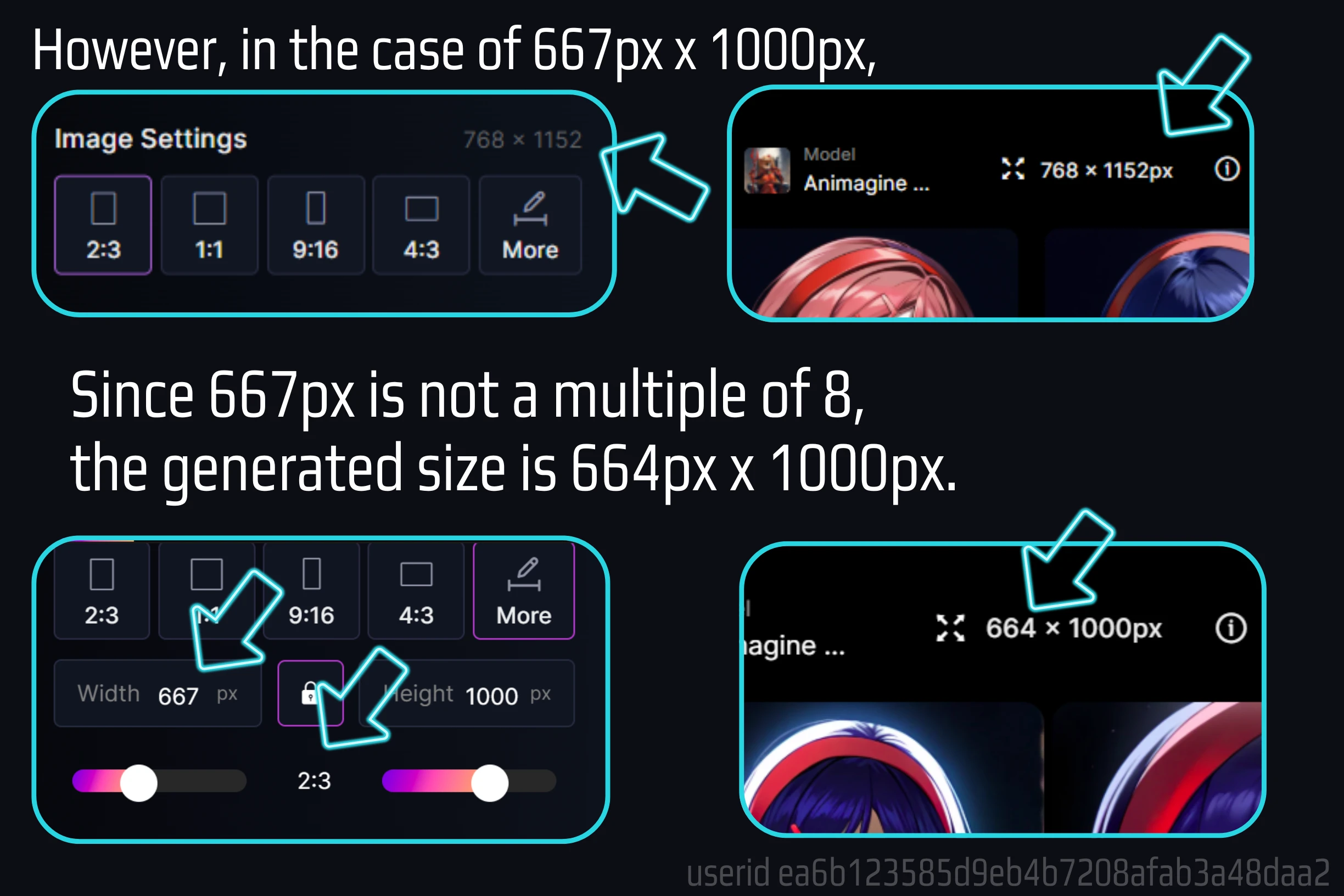
the generated size is 664px x 1000px.
The aspect ratios provided are basically 8x.
All aspect ratios recommended by SeaArt can be calculated at 8x, but 4:5 and 5:4 cannot be calculated at 8x.
If you manually set the vertical and horizontal pixels, please refer to the px size in the table introduced at the beginning.
If it is not 8x, the value will be rounded.