 Skill
Add SeaArt AI Art Creation Skills To Your Agent With One Command
- Install SeaArt AI creation skills into your Agent
- Log in to your SeaArt AI account within the Agent
- Generate images, videos, and creative assets from chat
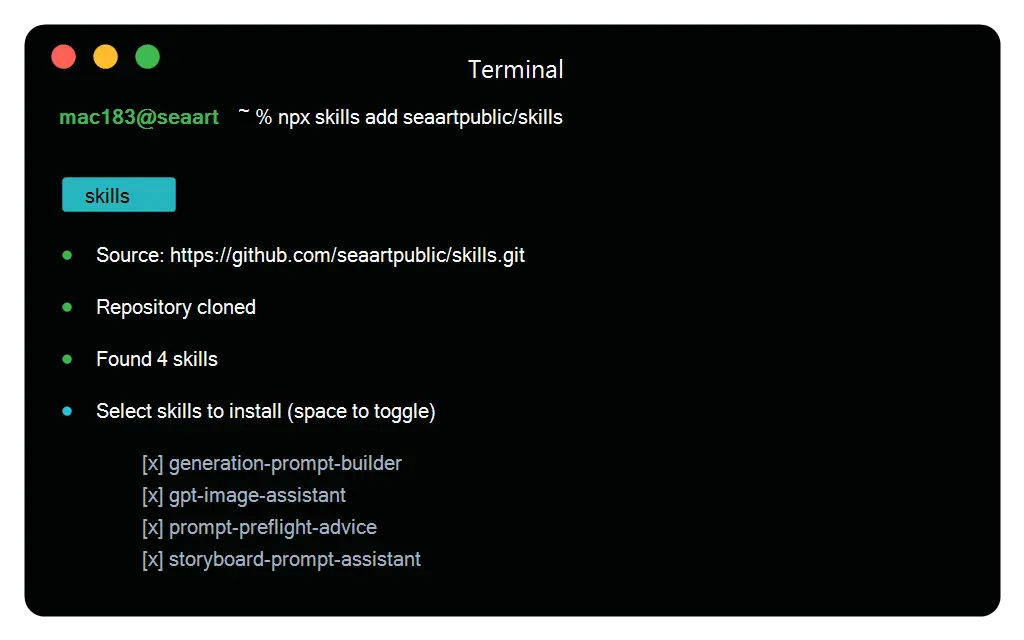
Connect SeaArt AI to Agents
Give Claude Code, Cursor, Codex, or another compatible agent a direct path to SeaArt AI instead of treating creative work as a separate tab. Add the skill, connect the agent, then ask for the asset where the brief already lives.
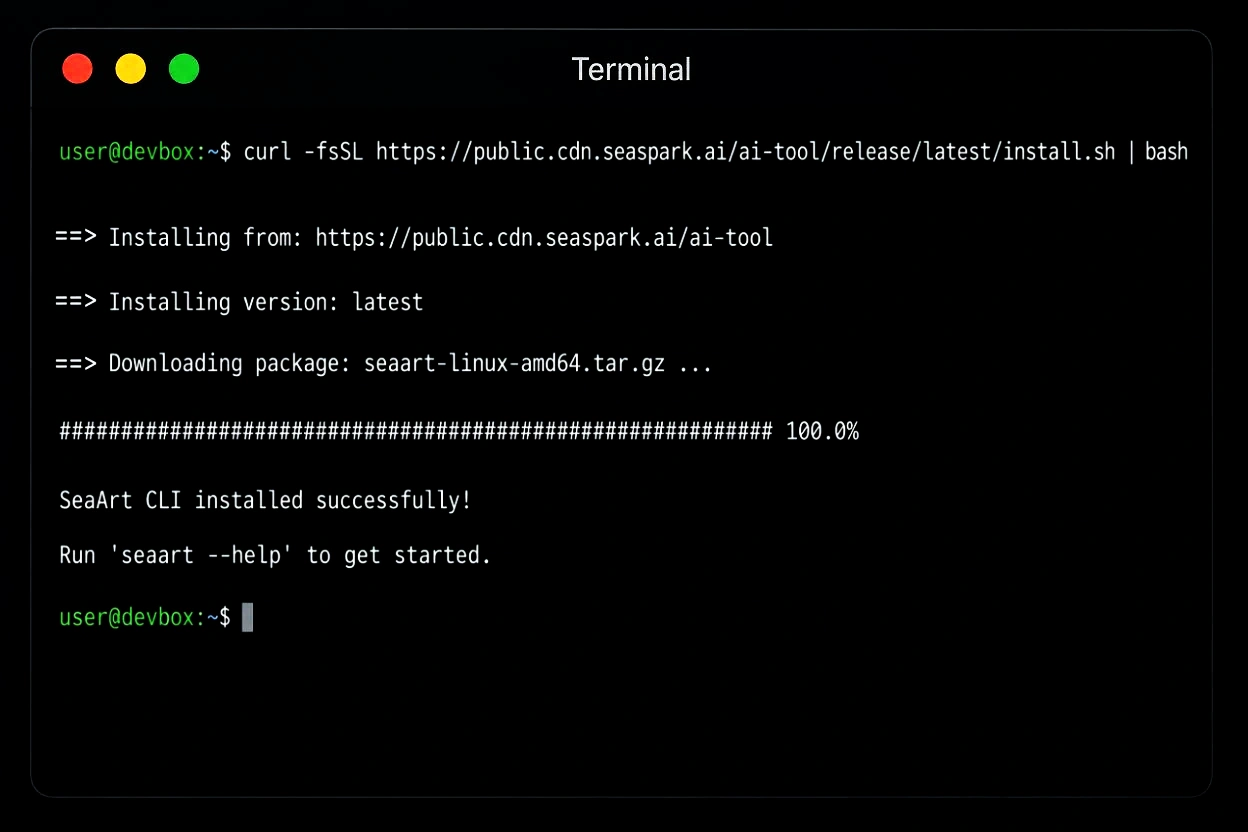
Create From Working Briefs
When the agent is already holding a product idea, scene note, or campaign copy, it can turn the rough brief into a generation prompt first. Ask for the subject, setting, style, lighting, composition, negative constraints, and variants before any image task starts.
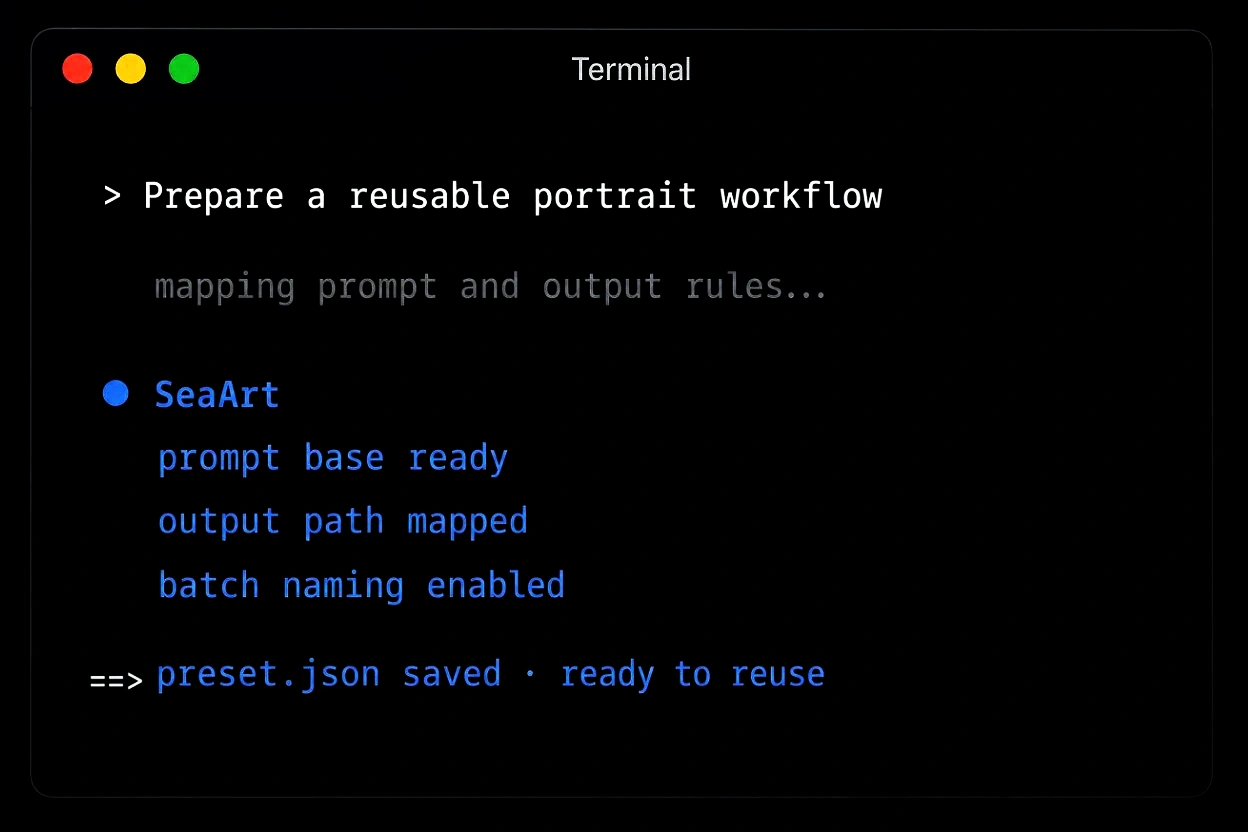
Route Image Requests
After a prompt is ready, the agent can check the local SeaArt AI connection, confirm login, read account assets, and pull model parameters before sending the job. The request can land in the AI image generator path with the chosen model, size, task status, and result kept in the same session.
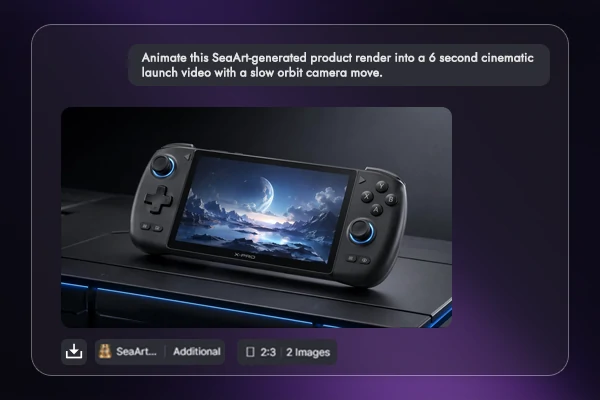
Send Video Tasks
Turn a script, product demo, or campaign beat into a shot list before sending it to the AI video generator. The agent can shape the idea into short shots, timing notes, scene descriptions, and video prompts, then keep task updates attached to the same plan.
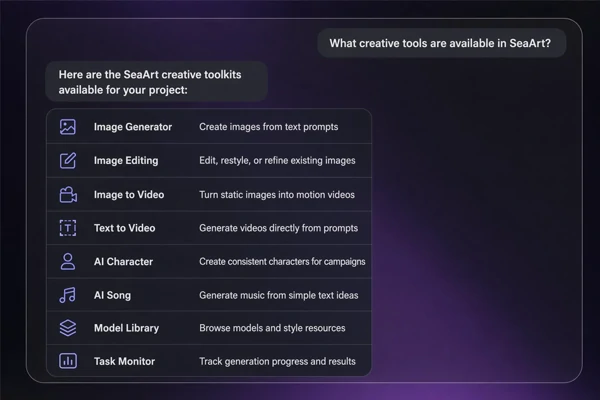
Ask the Toolkit
When the brief is still broad, ask the agent what SeaArt AI can do before choosing a creation route. The reply should summarize the available paths, explain what kind of input each path needs, and point to the next action without turning the page into a manual list.
Why Choose Agent Skills for Creative Workflows


Agent-Ready Setup
Add SeaArt AI to supported agent tools and start creating from active briefs.

Agent-Native Creation
Write prompts, check models, submit tasks, and review results without leaving the conversation.



Tool Routing
Ask which creative path fits before choosing a tool, submitting a task, or refining the brief.

Context Stays Put
Keep prompts, model checks, task status, and selected outputs beside the project.
Let Your Agent Create With SeaArt AI
Connect the skill, keep the brief in place, and let your agent build prompts, submit tasks, and return results.
How to Use Agent Skills in 3 Steps
Install Skills
Open the skills page, add the package, and choose your agent client.
Ask the Route
Give the rough brief and ask which creative path should handle the next step.
Create and Track
Let the agent check login, model parameters, task status, and return the result.
Frequently Asked Questions

What are agent skills?

Is this the same as the SeaArt AI CLI page?
No. The skills page is for connecting SeaArt AI to agent clients, while the CLI page is better for command-line work, scripts, and terminal-first automation.
Can I use it with Claude Code or Cursor?
The skills page is built for agent workflows and references Claude Code, Cursor, Codex, and MCP-compatible clients. Follow the setup instructions on the page for the client you use.
Can the agent choose the right tool?
Yes. Ask what SeaArt AI can do for the current brief, and the agent can explain the useful routes before it runs anything. This works best when you have a rough idea but have not decided whether the next step is planning, generation, editing, or tracking.
When should I use the agent route?
Use it when the brief is rough, the prompt needs tightening, or the agent must keep model checks and task status beside the project. It also helps after you approve a prompt and want the agent to submit and monitor the SeaArt AI task.