This article will guide you to easily create “AI videos with audio” on SeaArt ComfyUI. Whether you are doing text-to-video or image-to-video, whether you need voice-over/BGM/sound effects, you will find directly usable methods here. The tutorial is simple, and we hope it can help you on the path of video generation.
.
Next, we will introduce the content to you in two sections:
● Audio and video generated together
● Audio and video completed in separate steps
- Music generation
- Sound-effect generation
- Voice cloning
- Audio-to-video & lip-sync for characters
.
Audio + video generated together
There are currently multiple video-generation workflows on SeaArt that support native audio output (the “Workflow link” section is divided into image-to-video and text-to-video):
| Wan2.5 | Veo3.1 | SeaArtSonoVision | ViduQ2 | |
| Workflow link | text-to-video | Video Generation | text-to-video | Video Generation |
| image-to-video | image-to-video | |||
| Tutorial link | Click to jump | Click to jump | Click to jump |
🚨Tips:
ViduQ2 only supports BGM music generation and does not support scene sound effects.
What it can do: only generate BGM, and not generate environment sound effects based on image details;
What it cannot do: specify dialogue/lip-sync, and it is not suitable as a voice-over driver.
The above nodes are paid nodes. Using them will consume the corresponding compute credits. You can view the specific compute pricing in the workflow description.
.
In addition to native audio generation, we can also complete audio and video separately in two steps and then merge them at the end.
Next, we will introduce in the order of pure music, background sound effects, and voice creation.
.
Music generation
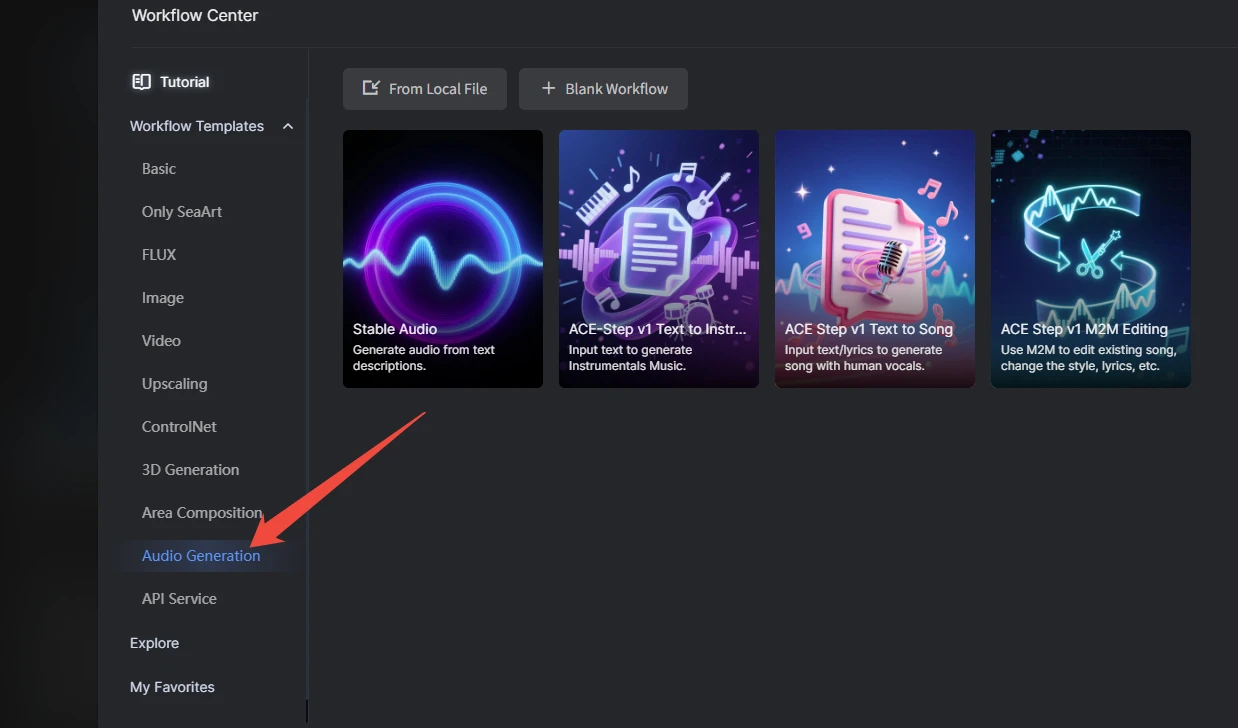
In the SeaArt workflow templates, there is a dedicated “Audio Generation” category. In the top navigation of SeaArt, click “ComfyUI” → “Create” → “Templates” to directly select audio-generation workflow templates here.
.
ACE-Step v1
It is divided into three modes: text-to-music (pure music), text-to-song, and song-to-song.
- Text-to-music (pure music): generate BGM without lyrics based on prompts;
- Text-to-song: generate songs with vocals based on prompts + lyrics;
- Song-to-song: re-create based on an input audio clip.
Taking text-to-song as an example:
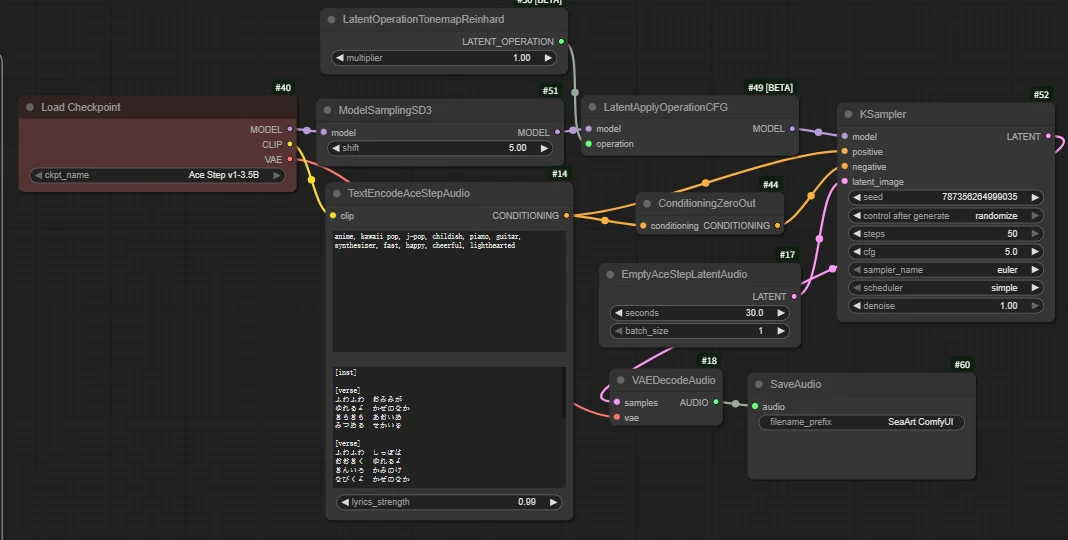
Core parameters:
Audio length and quantity editing 【EmptyLatentAudio】
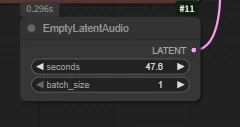
seconds: audio length
batch: audio batch size
Prompt writing 【TextEncodeAceStepAudio】
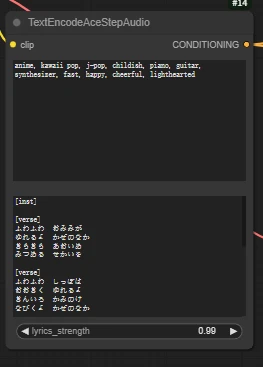
📃Tips:
- The upper input box describes this piece of music.
- The lower input box is for the lyrics.
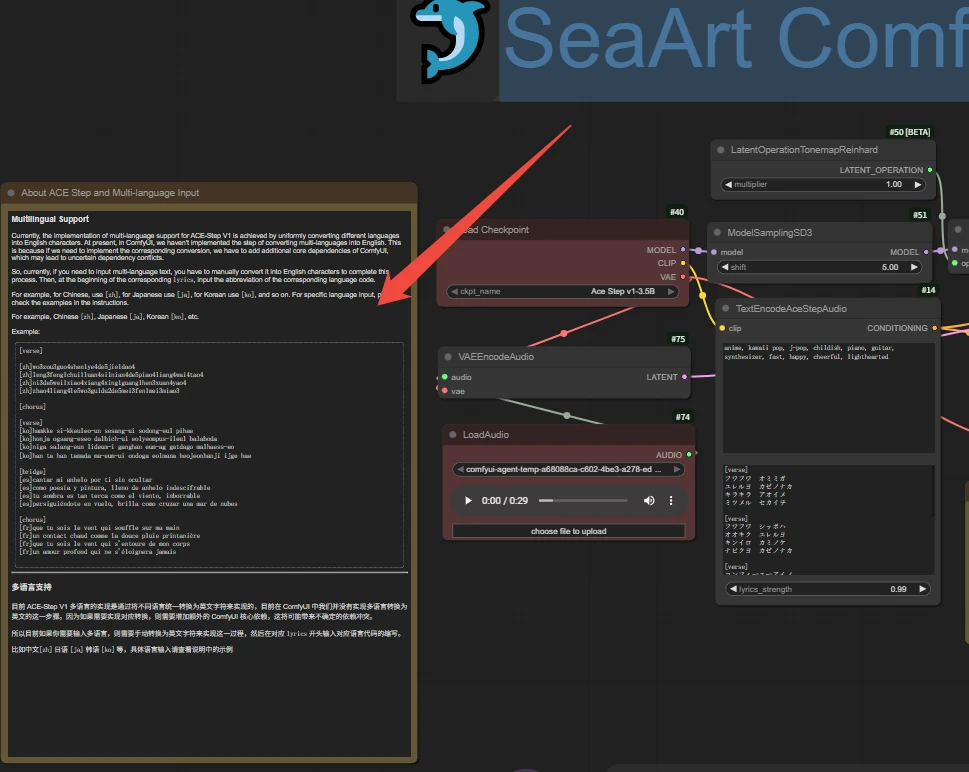
- When using the workflow, please carefully read the related annotations to understand detailed prompt writing methods.
.
Stable Audio
A simple and easy-to-use pure music generation workflow.
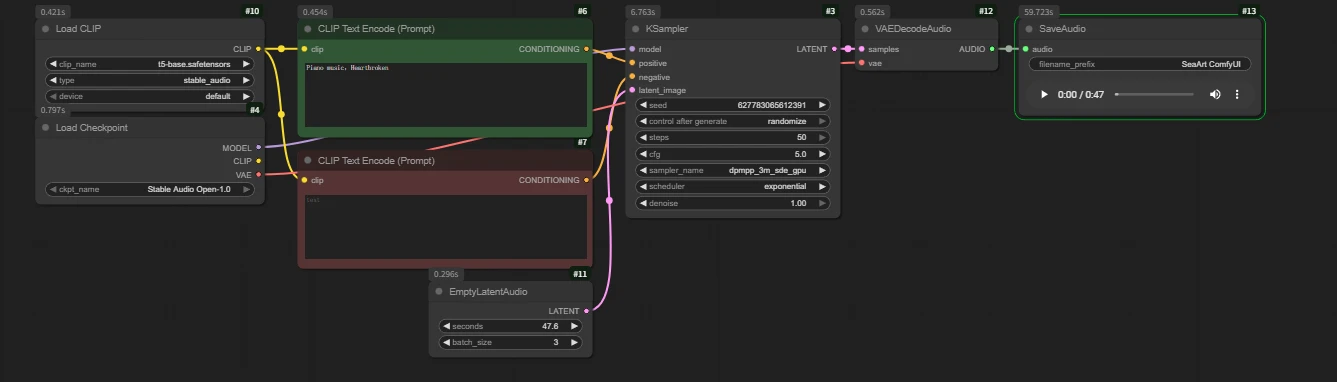
Core parameters:
Prompt writing 【CLIP Text Encode (Prompt)】
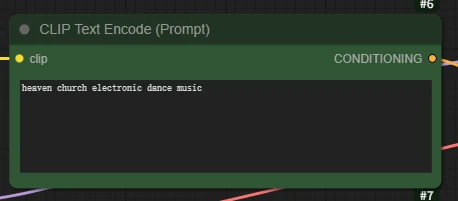
You can describe this piece of pure music through prompts; various instruments and emotional melodies are supported.
Audio length and quantity editing 【EmptyLatentAudio】
seconds: audio length
batch: audio batch size
Audio preview:
prompt: Piano music, Heartbroken
`
When the video music is used as pure-music background, we can first generate the audio and then directly connect the output audio result to Video Combine.
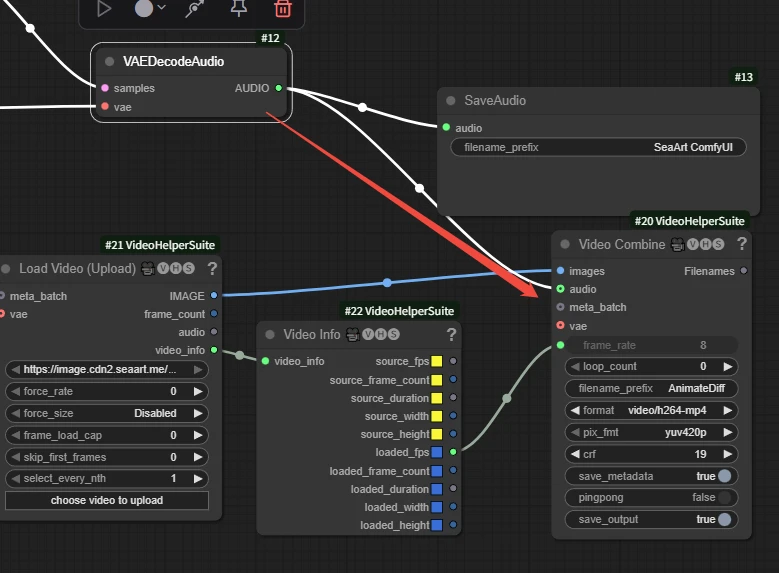
📃Note:
the video length determines the audio length. Try to align the audio duration. If the audio is too short, the second half of the video will be silent; if it is too long, the audio will be cut off before the end of the audio. It is recommended to first determine the video length and then generate audio with the same length.
`
Sound-effect generation
MMAudio
Key node 【MMAudio Sampler】
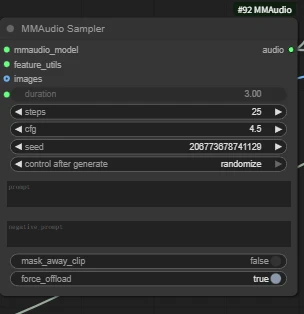
Key parameters:
duration: audio length in seconds
prompt: sound-effect prompt; you can also use an empty prompt and let the AI decide and add it automatically.
This node can be combined with video models to output video and audio together, and it is very easy to use.
Workflow connection method:
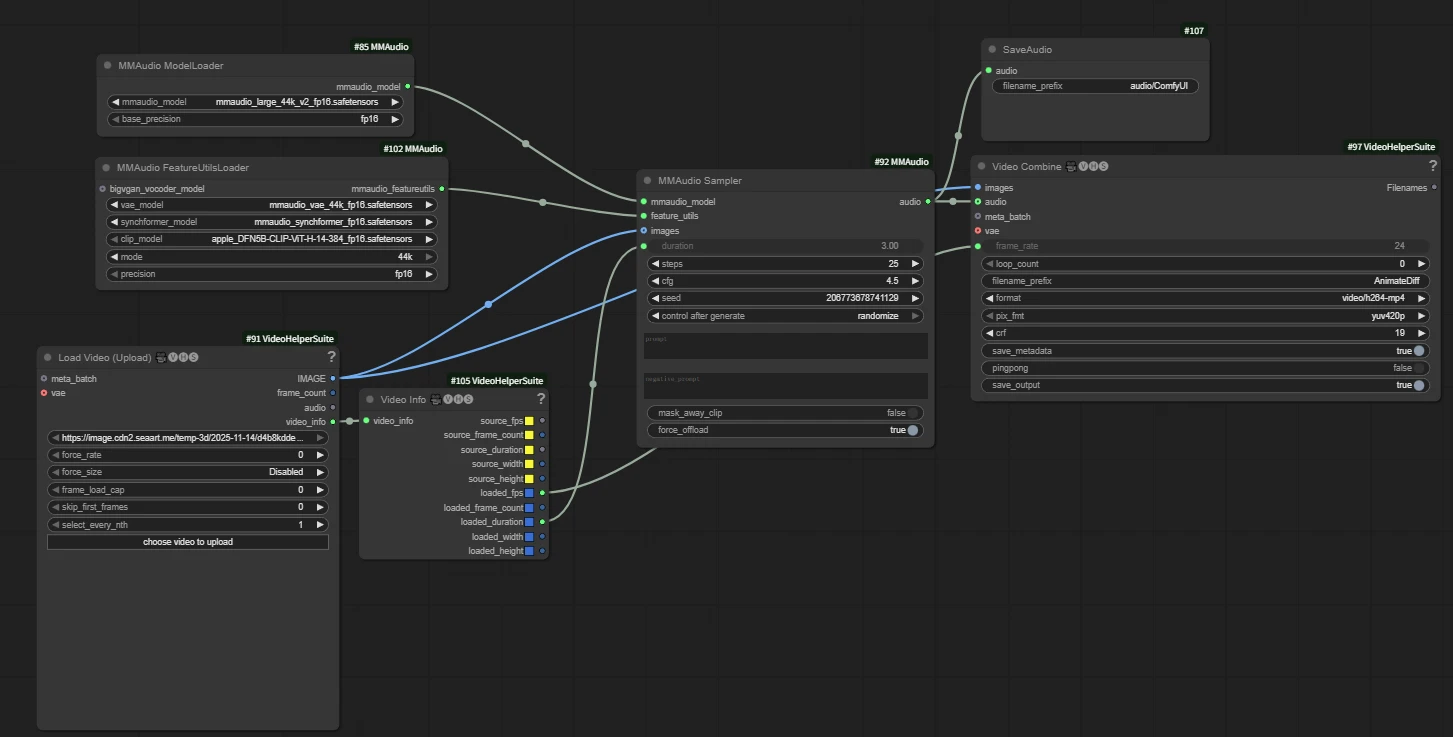
📃Tip:
Don’t forget to connect the video output image interface to the images input of both MMAudio Sampler and Video Combine 🎥🅥🅗🅢, and connect the audio output generated by “MMAudio Sampler” to the audio input of “Video Combine 🎥🅥🅗🅢”.
`images` → `MMAudio Sampler.image`
`images` → `Video Combine.image`
`MMAudio Sampler.audio` → `Video Combine.audio`
Example:
Input a silent video:
Output (please remember to turn up your device volume and listen):
The prompt is “the sound of an old Harley motorcycle driving, clean sound without noise”. The model automatically generates an engine sound similar to that of an “old Harley”.
`
Voice cloning
Index TTS
Convert input text into speech; you can optionally input a reference audio clip and use its timbre/tone for “voice-following” synthesis.
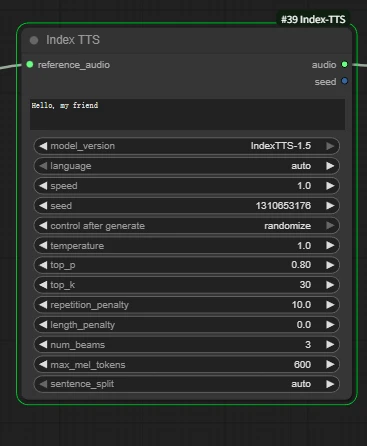
Key parameters:
prompt: character lines; input the corresponding text, and the output audio will be the corresponding voice-over lines.
- model_version: select the TTS model version; here we switch to IndexTTS‑1.5.
Subsequent parameters can be adjusted as needed; using the default parameters is recommended.
- language: language detection/specification (auto for automatic).
- speed: speech rate multiplier (1.0 is normal speed).
- seed: random seed value.
- control after generate: seed control.
- temperature/top_p/top_k: sampling-related, affecting the randomness of rhythm/pauses/details.
- sentence_split: automatic sentence splitting (auto is recommended; more stable for long texts).
Workflow construction method:
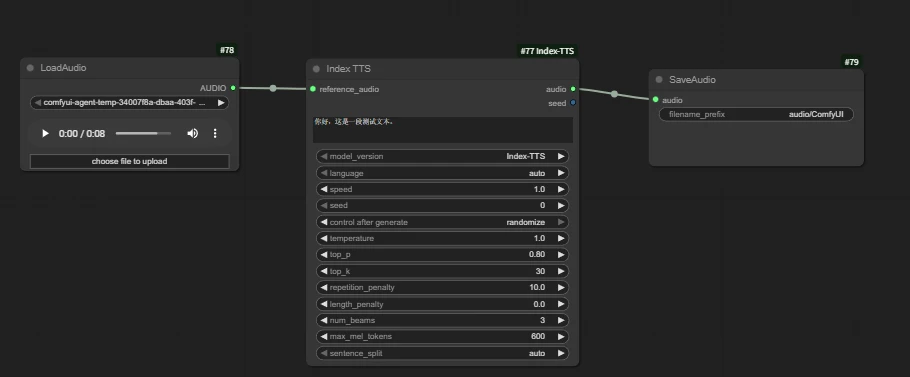
Example:
Reference audio:
Output audio:
`
Audio driving
After we have successfully generated an audio clip with character lines using the methods just described, how do we then apply it to video?
The following nodes are only effective for human voices; they do not work with music or noise/animal sounds.
| wan infinite talk | fantasytalking | Wan2.1 FantasyPortrait | Multitalk | Wan2.1 HuMo | Wan2.2 S2V | |
| Short Intro | Audio-driven lip sync | Audio-driven lip sync | Video facial expression transfer for lip sync | Audio-driven lip sync with ref_image, support multi people | Audio-driven lip sync with ref_image | Audio-driven lip sync with ref_image |
| Workflow Links | click to jump | click to jump | click to jump | click to jump | click to jump | click to jump |
| Model Links | click to jump | click to jump | click to jump | click to jump | click to jump | click to jump |
| Key Nodes | 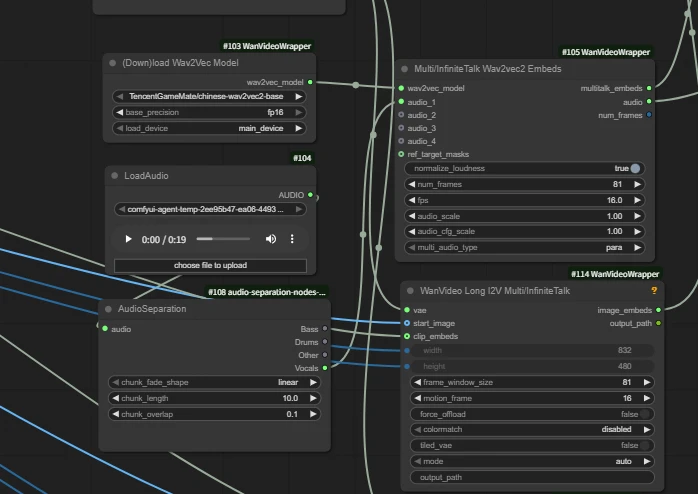 | 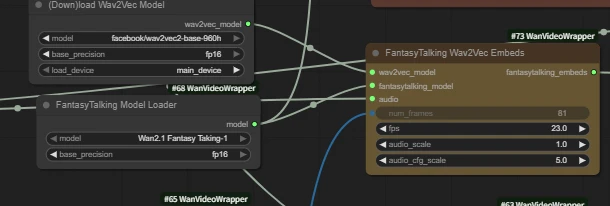 | 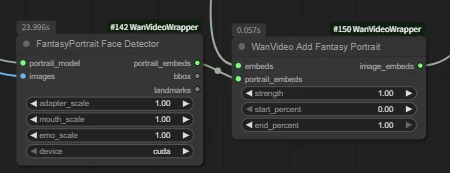 | 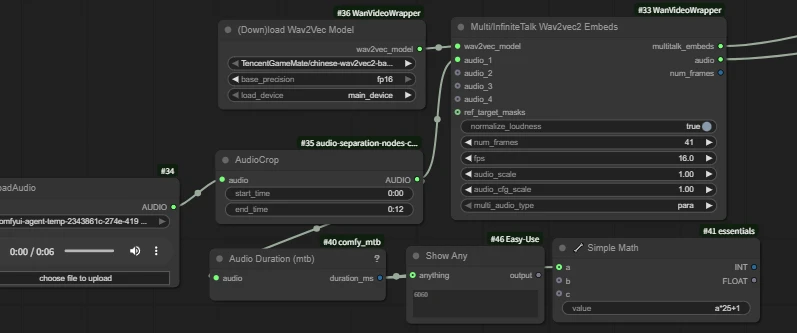 | 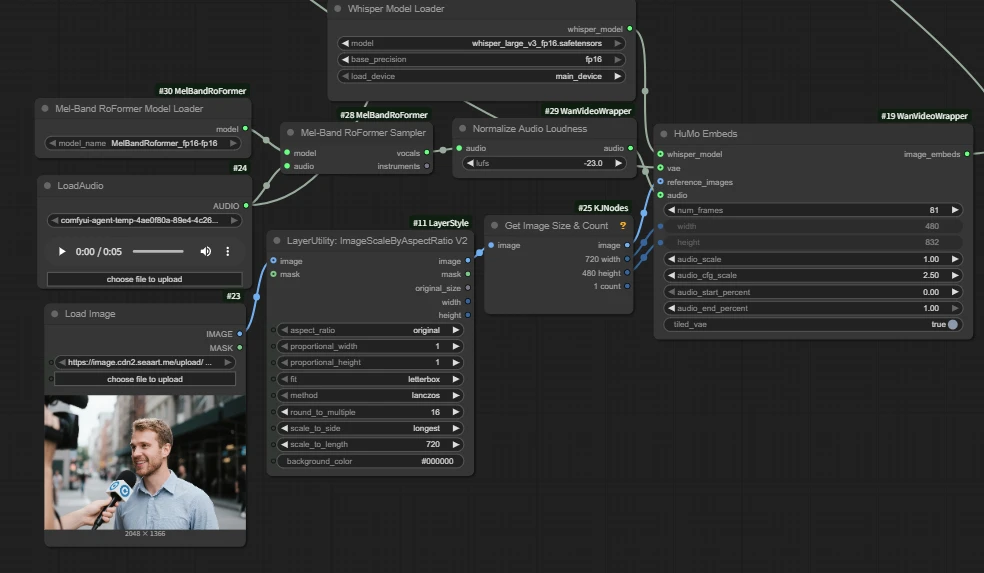 | 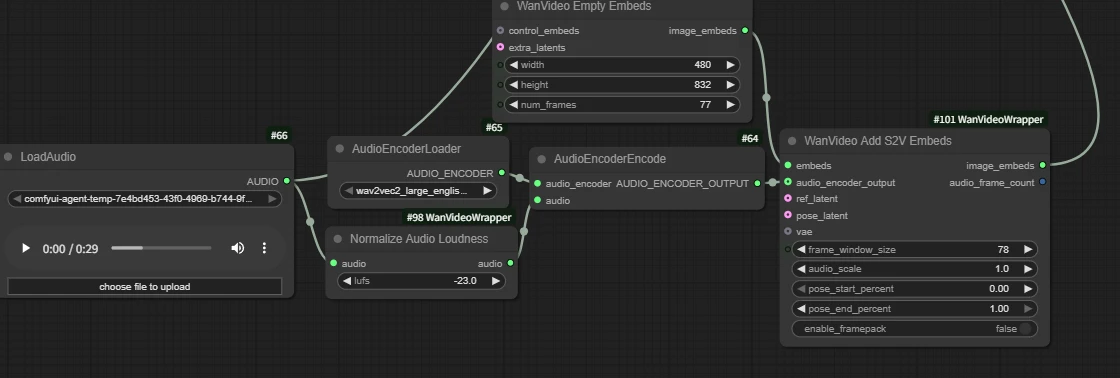 |
Wan2.1 HuMo Image&Audio to Video -KJ
HuMo is an open-source video generation project designed specifically for human subjects.
It highly follows text instructions.
It maintains subject identity across frames; it precisely drives motion from audio.
It supports text + audio or text + image + audio.
It is suitable for content creation, virtual avatars, education, and artistic creation.
Usage:
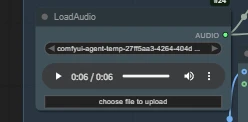
Input audio:
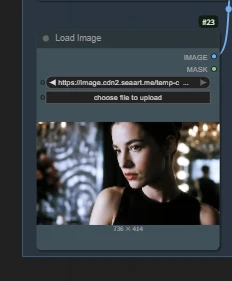
Reference image input:
Core node 【HuMo Embeds】
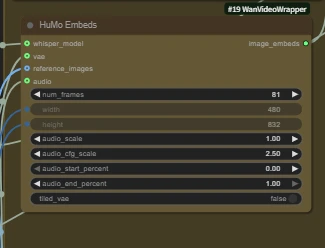
When the reference_image interface is not connected, it is text-to-video.
num_frames: total number of video frames, aligned to 24 frames per second.
Audio 5s → num_frames ≈ 121
The number of frames should be aligned with the audio length. If set too low, the latter part of the audio will be missing; if set too high, the latter part of the video will be silent.
Example:
image to Video
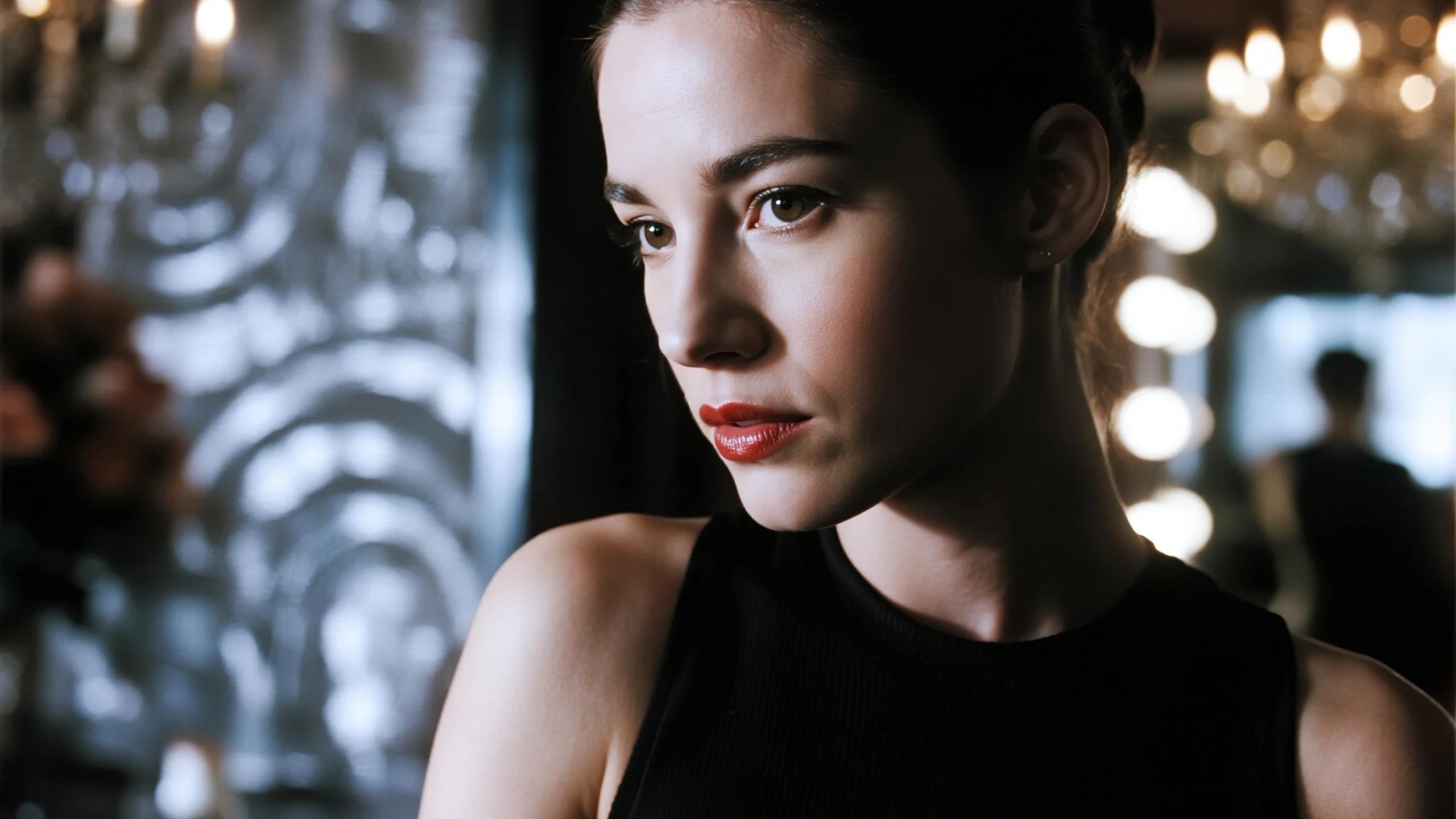
Input image:
Output video:
text to Video
Output video:
A young, beautiful Western woman with braids was speaking into a camera on the subway while wearing headphones.
HuMo not only supports voice-driven lip-sync, but can also generate using uploaded sound effects; however, we need to describe in detail in the prompts how the content relates to the audio.
At this point, you can already complete the full process from prompts/images to finished video (including audio) in cloud-based ComfyUI. When you need voice-over, give priority to using clear external human voice audio. If new nodes or new techniques are launched, we will continue to update them.
feel free to share your questions and ideas with us so that we can work together to polish the workflow community to be more stable and easier to use.
-----------------------------------------------
Workflow Exclusive Challenge is live now!
click to see more details